Chapter 7 Viewing Images in Full Screen Mode 167
II
Rotate and Navigation Buttons
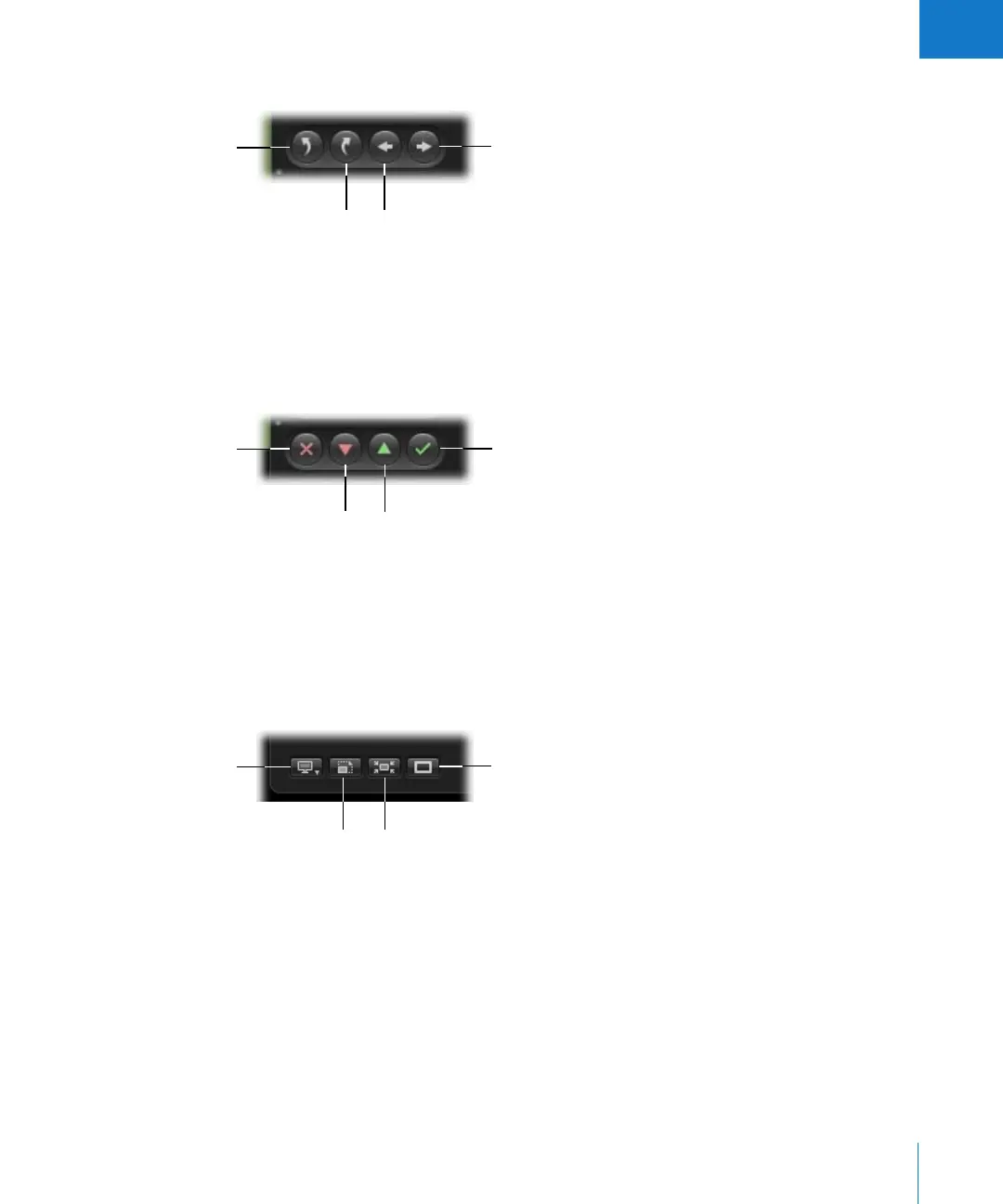
 Rotate Left: Click this button to rotate the selected image counterclockwise.
 Rotate Right: Click this button to rotate the selected image clockwise.
 Previous Image: Click this button to display the previous image.
 Next Image: Click this button to display the next image.
Rating Buttons
 Reject: Click this button to give the selected image a Reject rating.
 Decrease Rating: Click this button to decrease the selected image’s rating.
 Increase Rating: Click this button to increase the selected image’s rating.
 Select: Click this button to give the selected image a Select rating.
Display Controls
 Viewer Mode pop-up menu: Use this to choose how to view images on your display or
displays and how to position images on each display. You can also control the filmstrip
with this pop-up menu (see “Moving and Resizing the Filmstrip” on page 168).
 Zoom Viewer: Click this button to enlarge the image to a 100 percent pixel-for-pixel view.
 Exit Full Screen: Click this button to exit Full Screen mode.
 Primary Only: Click this button to temporarily change between making metadata
changes to all selected images or the primary selection only.
Rotate Left
Next Image
Previous Image
Rotate Right
Reject
Select
Decrease
Rating
Increase
Rating
Viewer Mode
pop-up menu
Primary Only button
Exit Full Screen
button
Zoom Viewer
button





 To Next Page