Chapter 10 Applying Keywords to Images 217
II
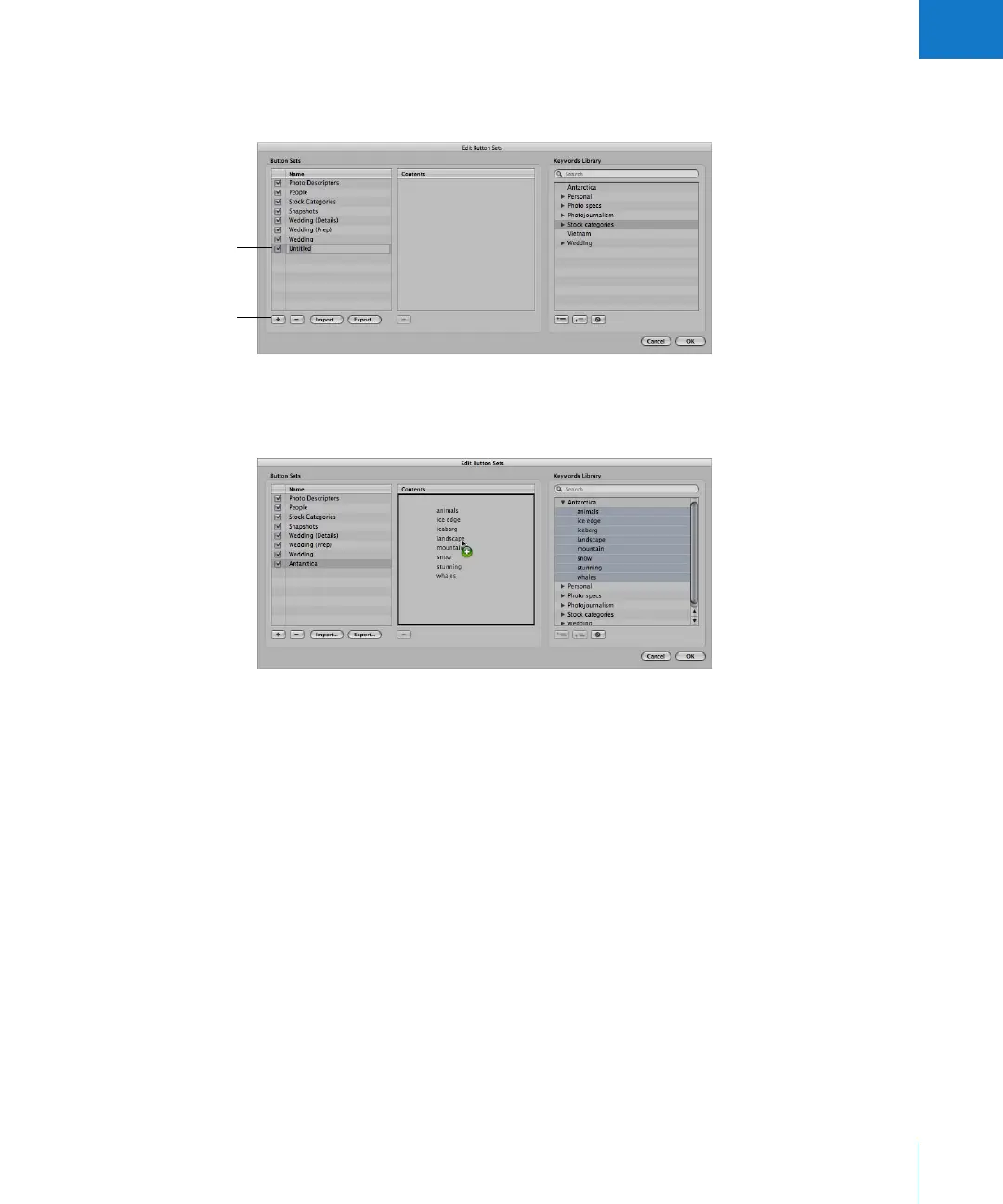
2 To create a new keyword preset group, click the Add (+) button.
An untitled preset group appears in the Name column.
3 Type a name for the new keyword preset group, then press Return.
4 Drag keywords from the Keywords Library column to the Contents column.
If you wish, you can select multiple keywords and drag them to the Contents column at
once. Hold down the Shift key while pressing the Up or Down Arrow key to select
several keywords, Shift-click to select adjacent keywords, or Command-click to select
nonadjacent keywords.
5 Drag the keywords in the Contents column into the order you want.
The first eight keywords will be assigned to the keyboard shortcut key combination of
Option and a number key (1 through 8) on the keyboard. To remove a keyword from
the column, select it and press Delete, or click the Delete (–) button below the column.
6 After arranging the keywords in order, click OK.
The new keyword preset group appears in the Keyword Preset Group pop-up menu.
If the keyword preset group has fewer than eight keywords, the unassigned keys
are inactive.
A new, untitled preset
group appears in this list.
Click the Add button
to add a keyword
preset group.





 To Next Page