Chapter 15 Exporting Your Images 307
III
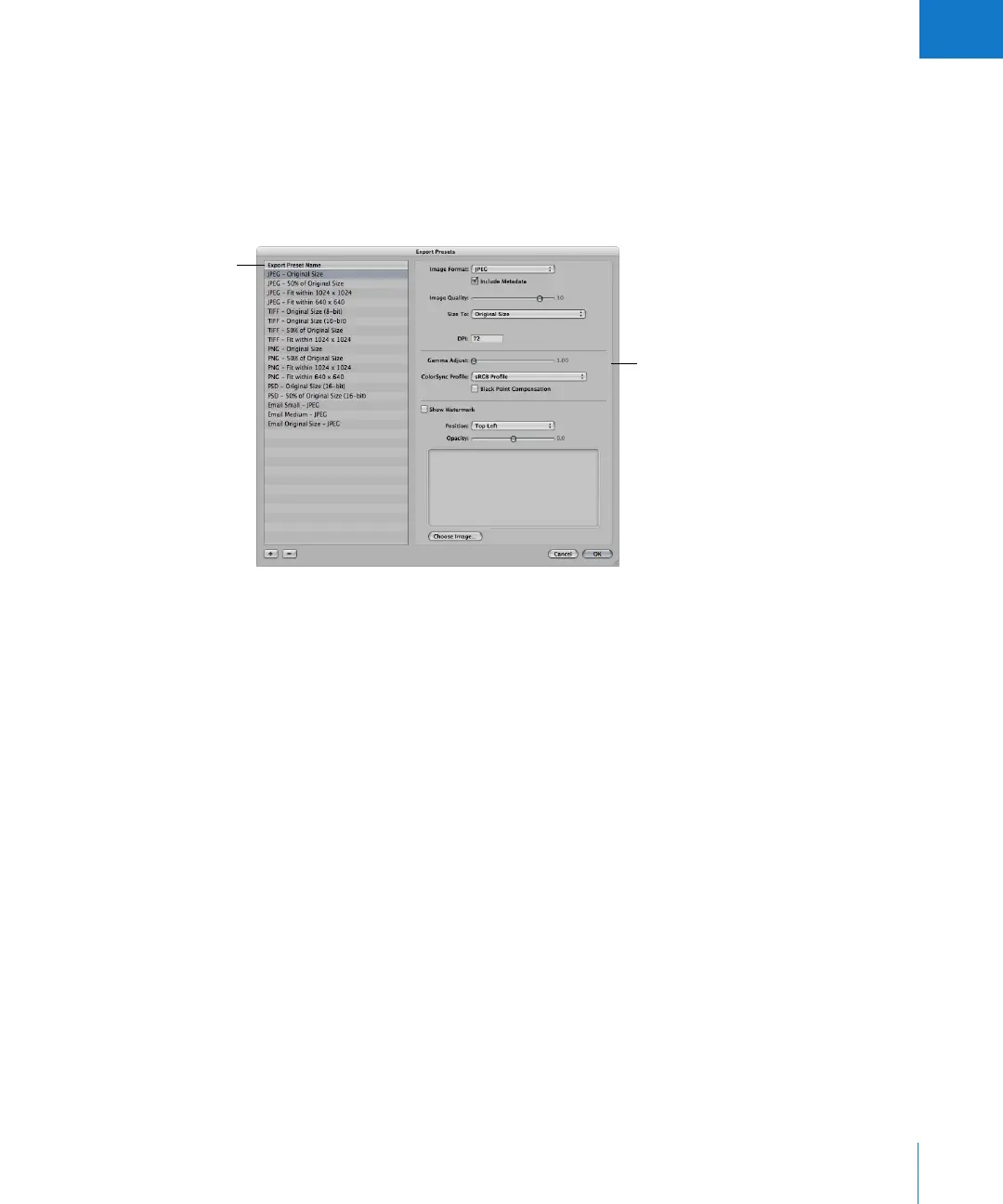
To view the settings for an export preset, do one of the following:
m Choose Aperture > Presets > Image Export.
m With an image selected, choose File > Export Version (or press Command-Shift-E) and
in the dialog that appears, choose Edit from the Export Preset pop-up menu.
The Export Presets dialog appears, listing the presets available and the configurable
export settings.
The Export Presets dialog includes these controls:
 Image Format pop-up menu: Choose an image format for the exported files, such as
JPEG or TIFF.
 Include Metadata checkbox: Select this checkbox to include EXIF and IPTC metadata
in the exported files.
 Image Quality slider: Choose how much to compress your files by dragging the slider.
Setting the slider to 12 applies the least compression and results in a higher-quality
image; setting the slider to 0 (zero) applies the most compression and results in a
lower-quality image.
 Size To pop-up menu: Export your images at their original size, or specify image
dimensions or a percentage of the image’s original size.
 DPI: Specify dots per inch (dpi), the resolution at which the images will be reproduced.
 Gamma Adjust slider: Gamma describes how your image distributes brightness. Drag
the slider to apply a uniform gamma adjustment to your exported images.
 ColorSync Profile pop-up menu: Choosing a ColorSync profile ensures consistent color
reproduction on other systems and in the printed image. Aperture provides a large
selection of profiles, and any custom profiles you’ve saved during calibration are also
included in the pop-up menu. To apply a ColorSync profile to the images you’ve
selected for export, choose a profile from the pop-up menu.
Available presets are
shown here.
The right side of the
dialog shows the settings
for the selected preset.





 To Next Page