352 Part III Distribution and Backup
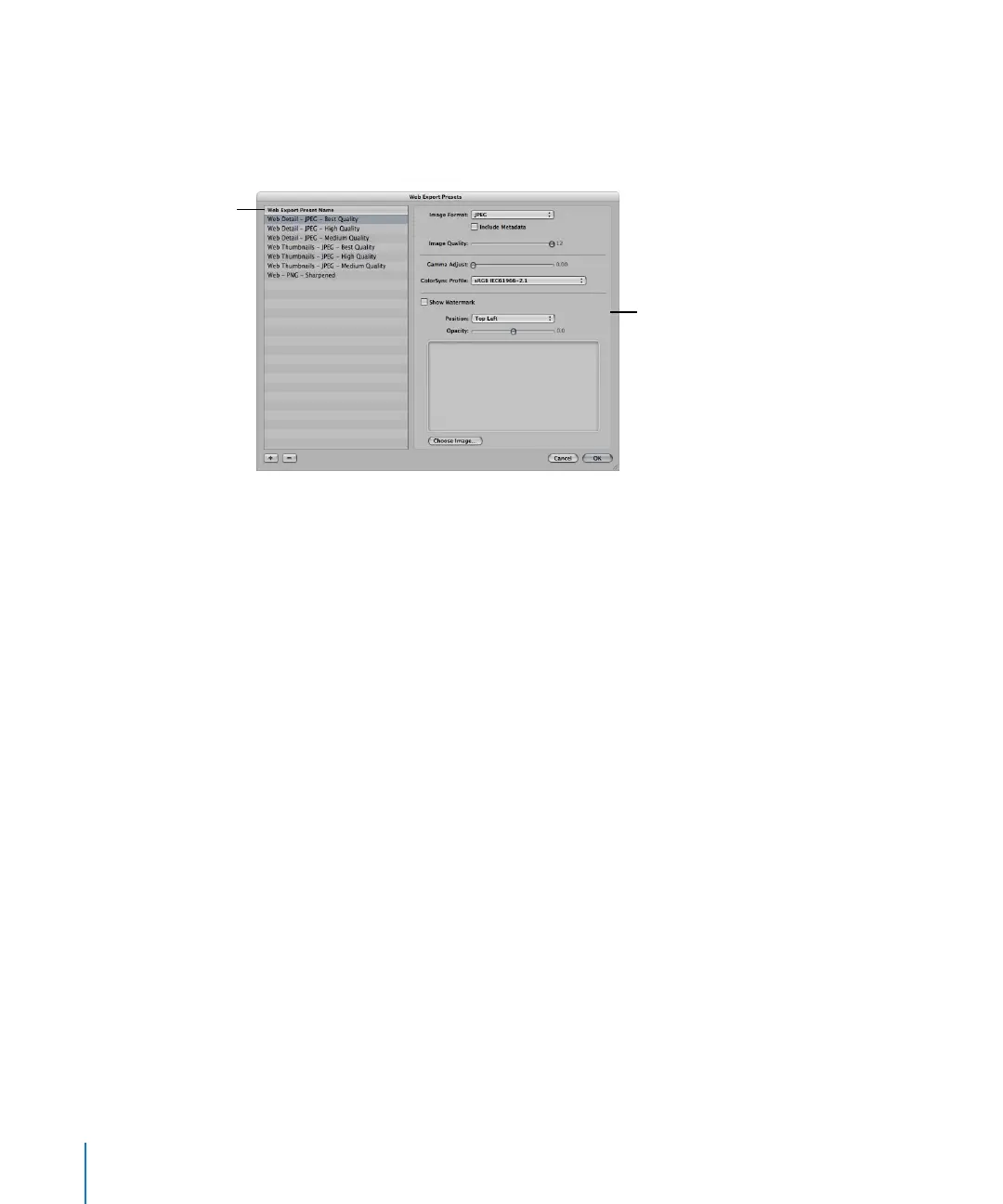
To view the settings for an export preset:
m Choose Aperture > Presets > Web Export.
The Web Export Presets dialog appears, listing the presets available and their
export settings.
The Web Export Presets dialog includes these controls:
 Image Format pop-up menu: Choose an image format to convert your images to,
such as JPEG or PNG, from this pop-up menu.
 Include Metadata checkbox: Select this checkbox to include EXIF and IPTC metadata
information in the image files.
 Image Quality slider: Choose how much to compress your JPEG files by selecting a
number with the slider. Setting the slider to 12 applies the least compression and
results in a higher-quality image; setting the slider to 0 (zero) applies the most
compression and results in a lower-quality image.
 Gamma Adjust slider: Gamma describes how your image distributes brightness. Drag
the slider to apply a uniform gamma adjustment to your exported images.
 ColorSync Profile pop-up menu: Choosing a ColorSync profile ensures consistent color
reproduction on other systems and in the printed image. Aperture provides a large
selection of profiles, as well as any custom profiles you’ve saved during calibration. To
apply a ColorSync profile to the images you’ve selected for export, choose a profile
from the pop-up menu.
 Show Watermark checkbox: A watermark is a visible graphic or text overlay that is
applied to an image. Photographers often use watermarks to indicate that images
are protected by a copyright and discourage others from inappropriately using their
images. To add a watermark to your images, select the Show Watermark checkbox.
After selecting the checkbox, you can select a file to apply as a watermark image,
and place your watermark in various positions on your image.
For more information about adding watermarks, see “Adding Watermarks to
Webpage Images” on page 355.
Available presets are
shown here.
The right side of the
dialog shows the settings
for the selected preset.





 To Next Page