420 Part IV Appendixes and Glossary
To exit mirroring mode:
1 Choose Apple (K) menu > System Preferences.
2 Click Displays, then click Arrangement.
Note: If the Arrangement button does not appear, click the Detect Displays button. If
the Arrangement button still does not appear, make sure the second display is properly
connected to your computer. For more information, see “Setting Up Your System with
Two Displays” on page 417.
3 Deselect the Mirror Displays checkbox.
After you connect a second display, your displays may show the arrangement of the
desktop out of order. For example, the display that shows the hard disk icon and menu
bar is typically on the left, so that your desktop extends out to the right on the
rightmost display.
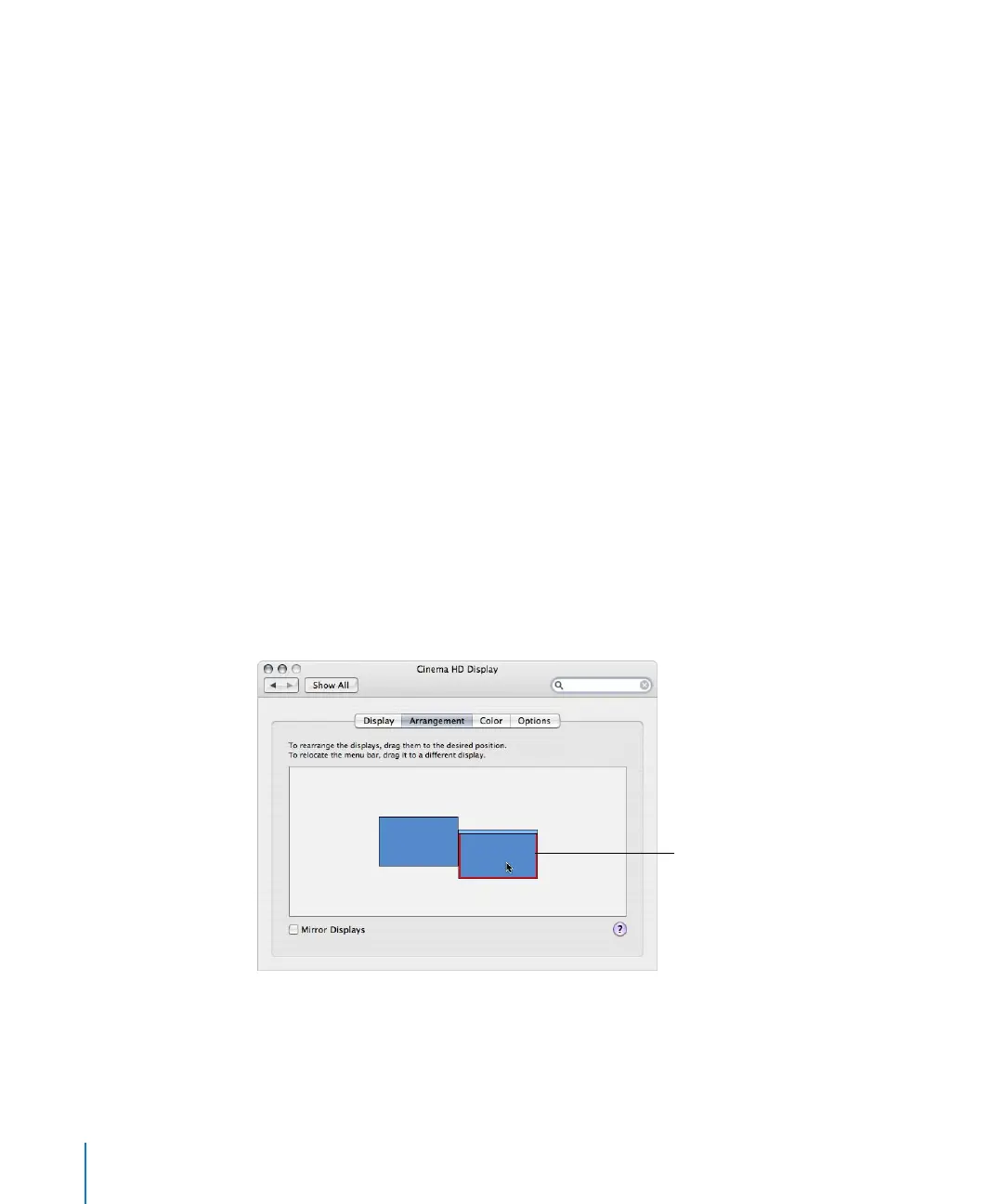
To rearrange the position of the displays:
1 Choose Apple menu > System Preferences.
2 Click Displays, then click Arrangement.
Note: If the Arrangement button does not appear, click the Detect Displays button. If
the Arrangement button still does not appear, make sure the second display is properly
connected to your computer. For more information, see “Setting Up Your System with
Two Displays” on page 417.
3 Drag one of the blue rectangles, representing one of the displays, to match the
position of the display on your desk.
The display screens temporarily refresh to accommodate the new arrangement.
The red outline indicates
the screen of the display
you are moving.





 To Next Page