98 Part I Interface and Acquisition
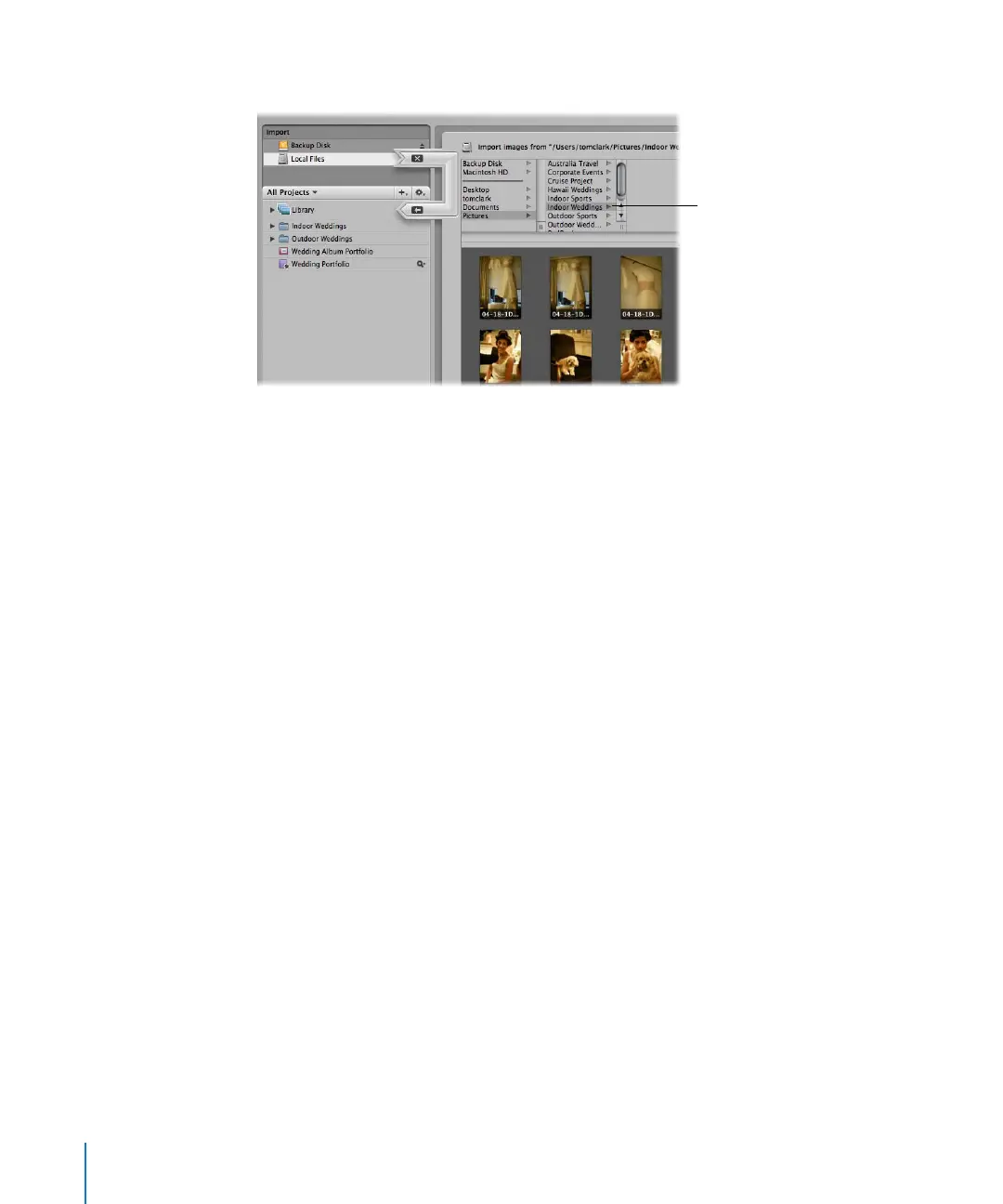
3 In the file browser, navigate to the folder containing the image files you want to import.
When you have selected the folder containing the image files you want to import,
image thumbnails appear in the Import dialog.
4 In the Projects panel, do one of the following:
 Select Library to create a new, untitled project or choose File > New Project (or press
Command-N). (The Import arrow points at the Library.)
 Select an existing project to hold your images. (The Import arrow points at the
selected project.)
The top-left portion of the Import dialog updates, displaying where the images are
being placed.
5 Select the images you want to import by Shift-clicking to select a range of adjacent
images, Command-clicking to select nonadjacent images, or dragging a selection
rectangle around the images you want.
Select the folder
of images you
want to import.





 To Next Page