5/24
Chapter 5: Routine Operational Procedures
Operators & Maintenance Manual GENIUS Compact Version UK 0.1 © BESTnv
BESTnv Industrial Research BV, Marinus van Meelweg 20, 5657 EN, EINDHOVEN, THE NETHERLANDS
General tel. +31 (40) 292 2622 - Service tel. +31 (40) 292 2620 - Fax. +31 (40) 292 2633 - Email: service.BESTnv@bestnv.com
Part 2: Adjusting the Product settings
If a Product File exists for a Product that is similar to the product you want to sort, it is advisable to load
that Product File before starting with Part 2 (see subchapter 5.6. Saving and Loading Product Files).
Even for a totally new product it is usually simpler to start with an existing program than to start from
scratch. In the rest of this procedure it is taken for granted that the user starts with an existing program,
for this is by far the most common situation.
10. -
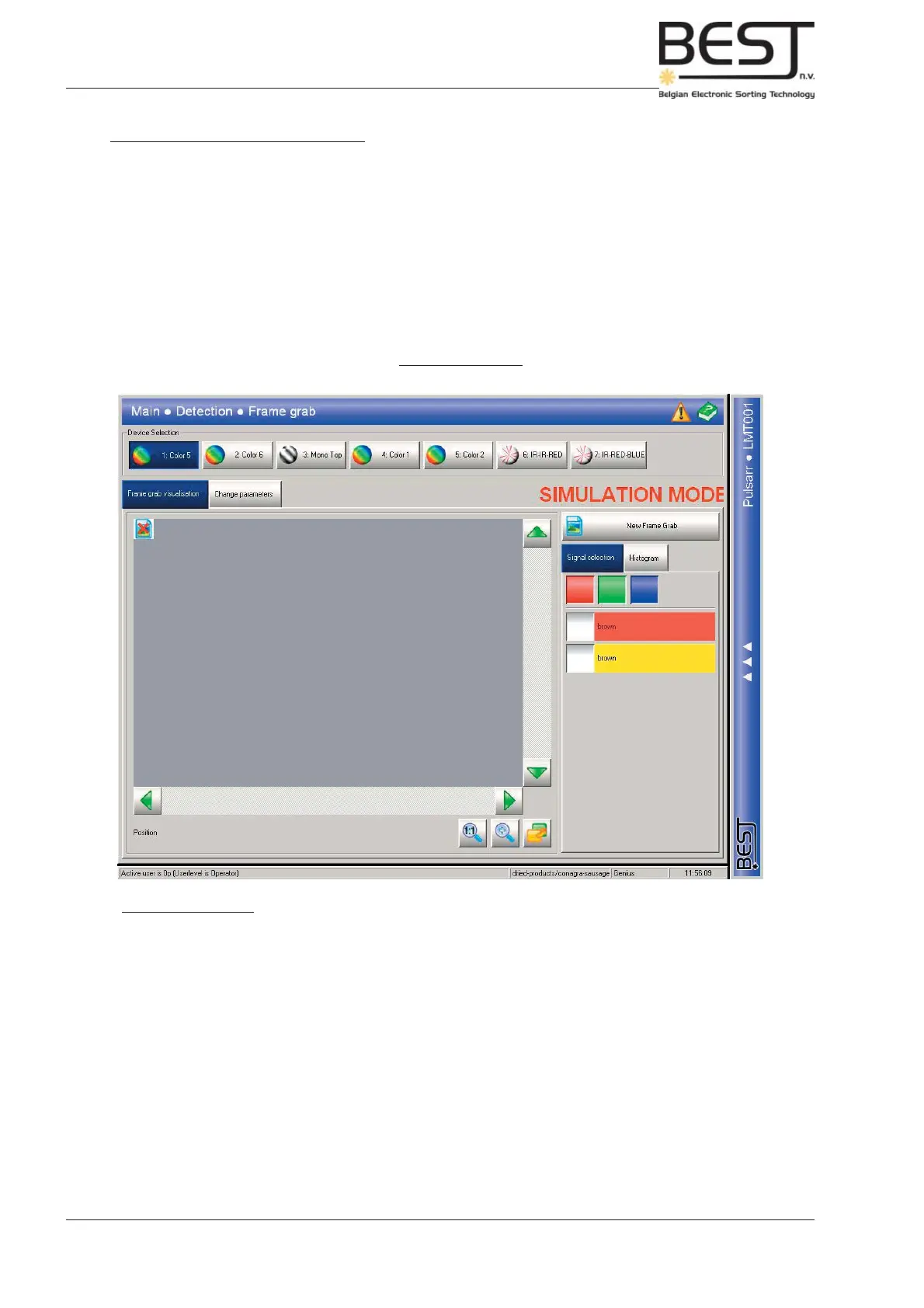
Go to Frame Grab Menu
- First go back to Main menu (press home button on navigation bar).
- Next press Detection button to go to Detection menu.
- Finally press Frame grab button to go to Frame grab menu.
Operator user level
In this user level a Frame grab is always taken immediately.
So all frame grabs should be taken during production to make sure a useful image is captured.
(In general this procedure is only used to make small changes to an existing program.)
- 1. Select fi rst device (device button will turn blue)
- 2. Press “New frame grab” button.
A Frame grab is taken immediately, a small pop-up screen will indicate how long the process will take.
Go directly to point 5 of the expert procedure.



 To Next Page