3
Setting the Timer (Timer Settings)
3-34
Selecting and Storing Settings to Suit your Needs
2
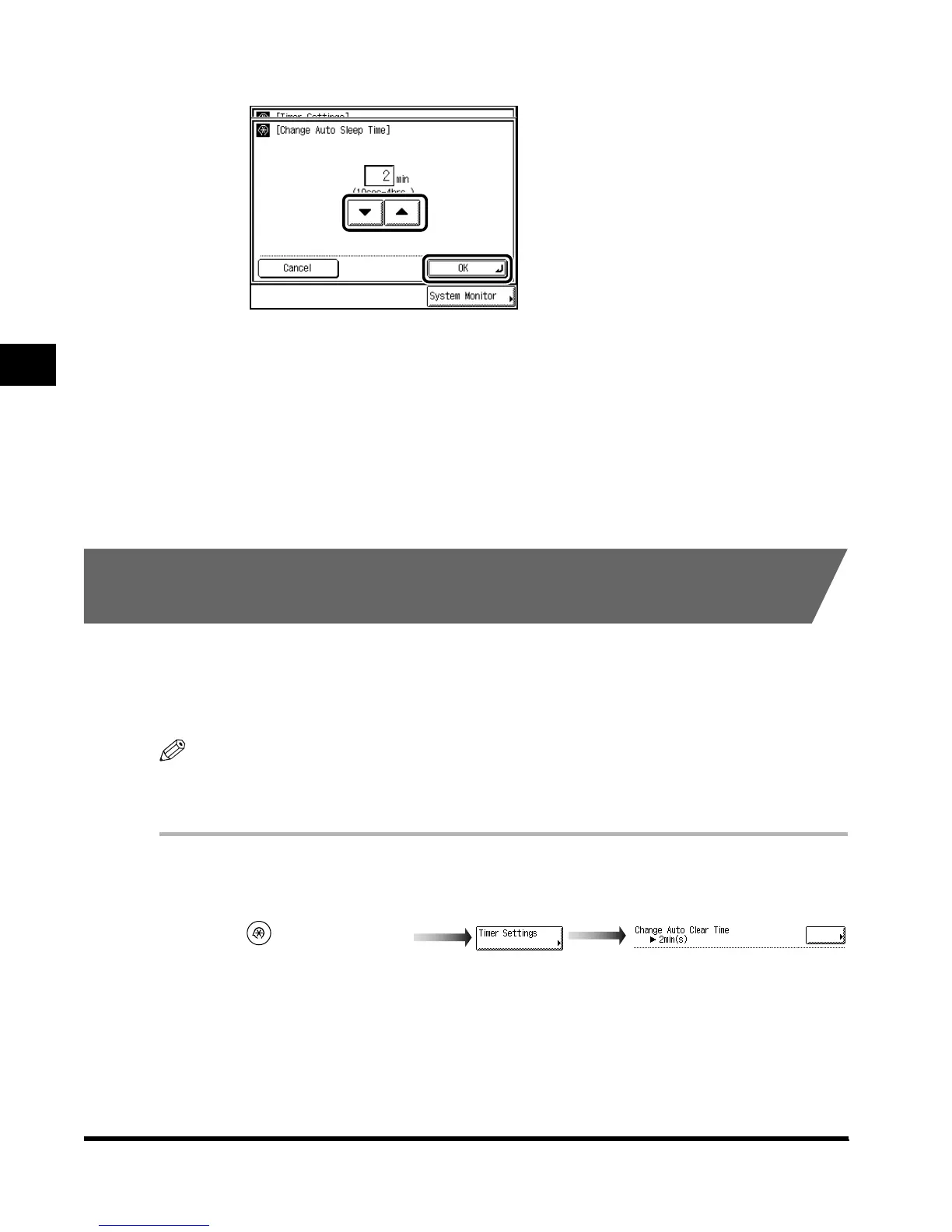
Enter the desired Auto Sleep Time with “▼” or “▲,” and press “OK.”
The Auto Sleep Time settings are 10 seconds, 1, 2, 10, 15, 20, 30, 40, 50 minutes, 1 hour,
90 minutes, 2, 3, and 4 hours.
3
Press “Done.”
Repeat this procedure.
The specified mode is set and the display returns to the Basic Features screen.
Setting the Time Taken for the Display to Return to the
Basic Features Screen After Finishing Operations
If the machine is not operated (no keys are pressed) for a certain period of time, the display
returns to the Basic Features screen (standard setting) of the selected function.
This period of time is called “Auto Clear Time.” Auto Clear Time can be set from 1 to 9
minutes in one-minute increments, and can also be set to “Off.”
NOTE
• The default setting is “2 minutes.”
•
When “0” is selected, the Auto Clear function is not set.
1
Call up the desired screen as follows:
(Additional Functions)
Change Auto Clear Time
E1L_US_U_.book-INDEX Page 34 Wednesday, May 23, 2001 11:40 PM





 To Next Page