Printing Secured Documents
2-16
Checking Job and Device Status
2
Printing Secured Documents
You can print documents that have been assigned a password and sent from a computer.
Documents with a password are called secured documents.
Secured documents waiting to be printed are displayed with a mark to the left of the job
number. To print these documents, you need to enter the correct password. This prevents
other people who do not know the password from observing the contents of the print job.
IMPORTANT
• If the main power is turned OFF, any secured documents are erased.
• The secured document is erased after its printing is completed.
• You cannot change the settings of the secured document before printing it, once it is sent.
1
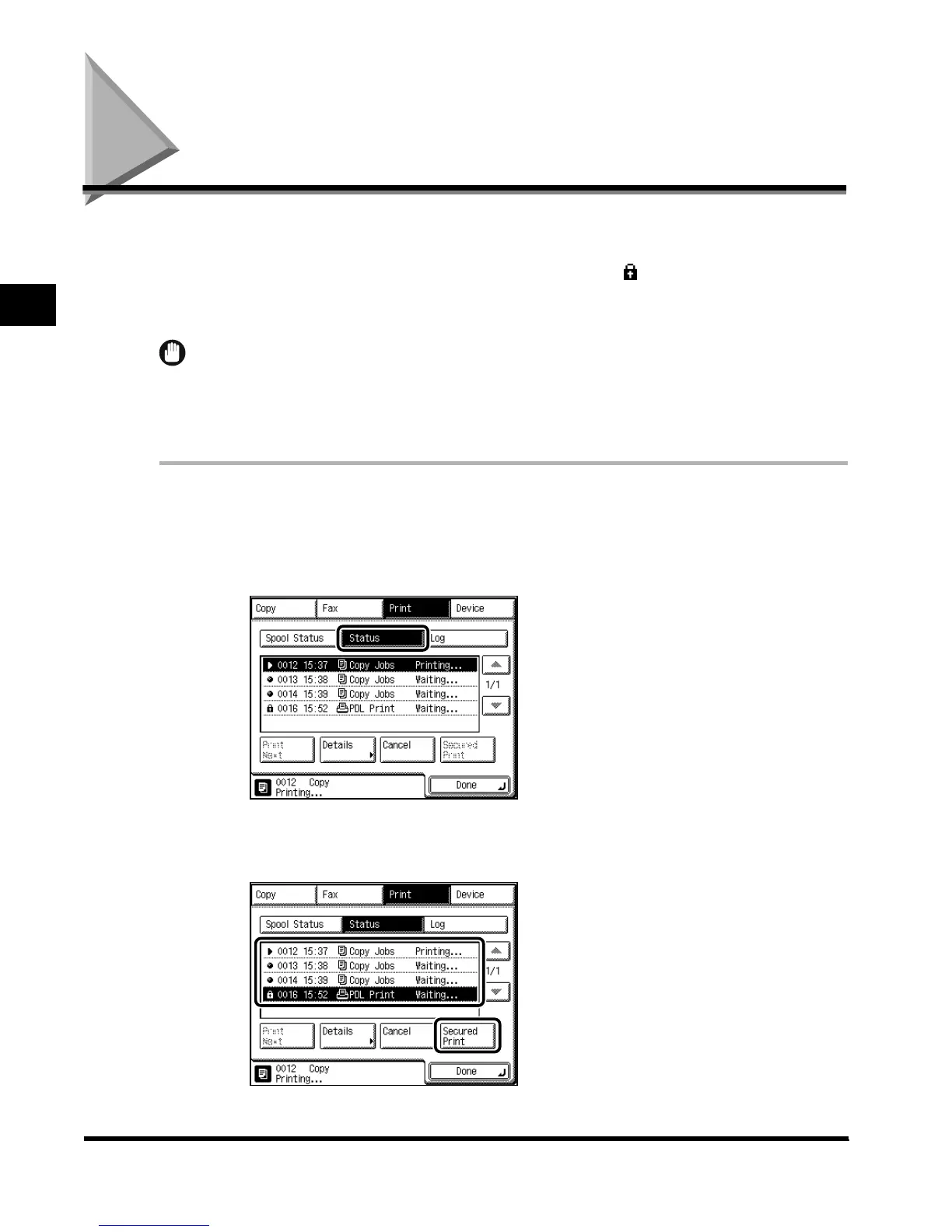
Press “System Monitor,” and press “Print.”
2
Press “Status.”
3
Select the desired secured document, and press “Secured Print.”
E1L_US_U_.book-INDEX Page 16 Wednesday, May 23, 2001 11:40 PM





 To Next Page