3
Setting Specifications That Are Common to Each Function (Common Settings)
3-22
Selecting and Storing Settings to Suit your Needs
Setting the Printing Priority
You can set the printing priority. A job that is set to a high priority is printed preferentially after
the job currently being processed.
NOTE
• Priority printing will not take place even when you set the highest priority, until the current job is
completed. However, if the current job is paused, printing of the job from a function with higher
priority may start, depending on the settings.
•
The default settings are as follows:
- Copy: 1 (Priority)
-Printer: 2
- Other: 3 (1, 2, and 3 indicate priority sequence.)
1
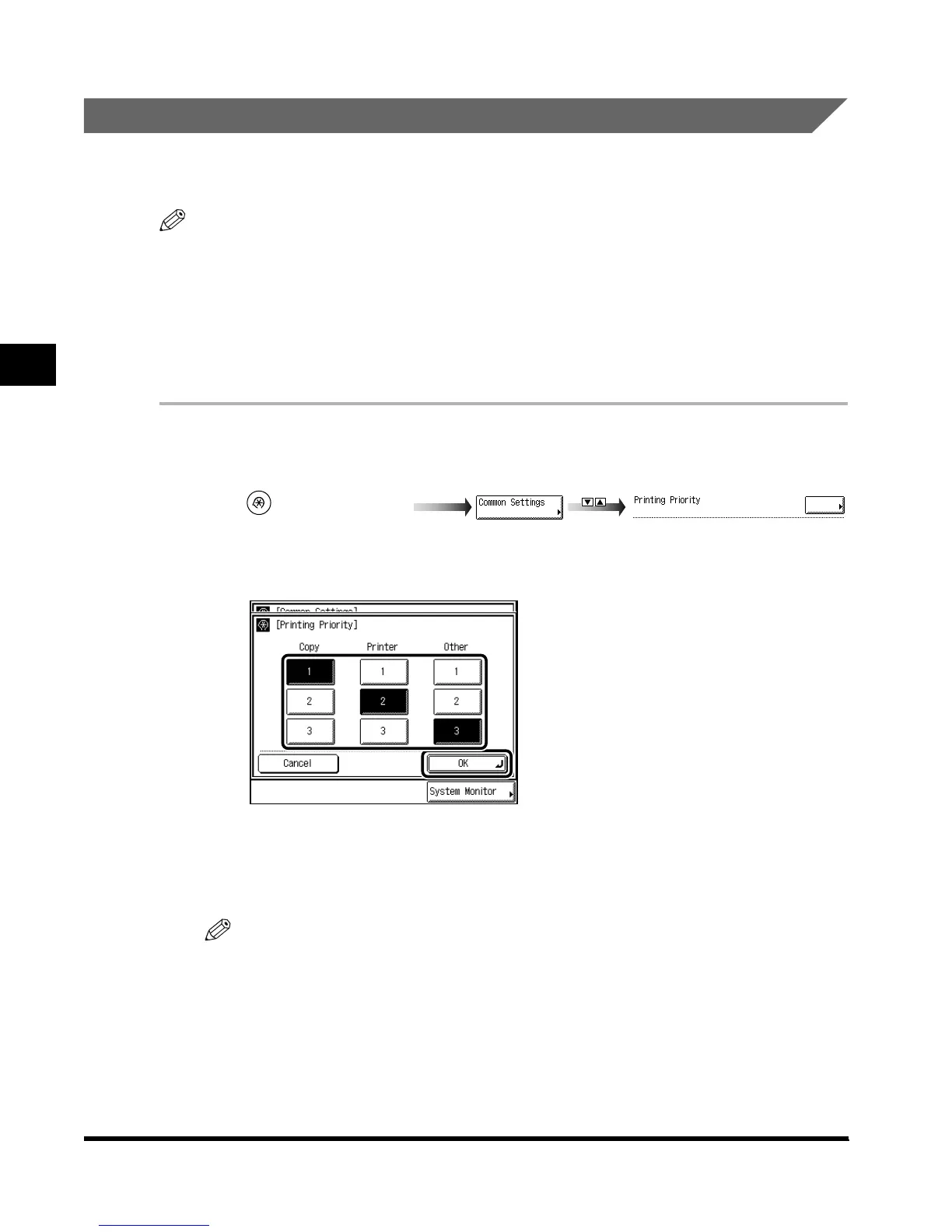
Call up the desired screen as follows:
2
Select the printing priority, and press “OK.”
Setting “1” sets the highest printing priority.
You can select “Printer” only when the Printer Kit is attached.
Prints of the Mail Box, Fax, and Report functions are output as “Other.”
NOTE
•
When the same printing priority has been specified for multiple functions, printing starts from
whichever of the functions is set to print first.
3
Press “Done.”
Repeat this procedure.
The specified mode is set and the display returns to the Basic Features screen.
(Additional Functions)
Printing Priority
E1L_US_U_.book-INDEX Page 22 Wednesday, May 23, 2001 11:40 PM





 To Next Page