3
Setting Specifications That Are Common to Each Function (Common Settings)
3-28
Selecting and Storing Settings to Suit your Needs
Changing the Language Displayed on the Touch Panel
Display
You can select the language displayed on the touch panel display.
NOTE
• When Language Switch is set to “On,” some characters will be restricted and not be able to be
entered. To enable all characters to be entered, set to “Off.”
•
Even when Language Switch is set to “On,” there are some languages which cannot be displayed.
•
The default setting is
“
Off.
”
1
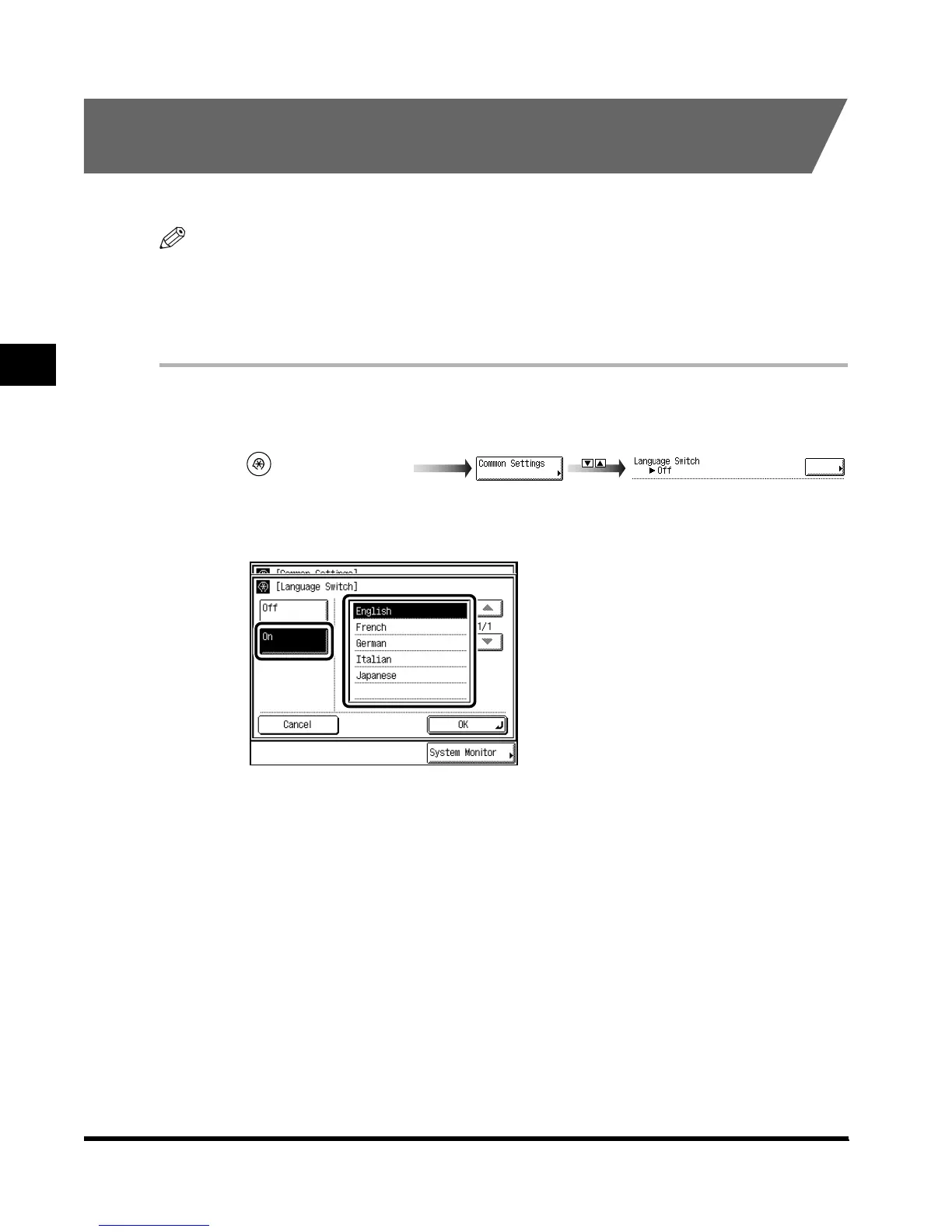
Call up the desired screen as follows:
2
Press “On,” and select the desired language.
Press “▼” or “▲” to display the desired the language.
If you do not want to change the panel language, press “Cancel.”
3
Press “OK.”
The display returns to the Basic Features screen, and the panel language changes.
(Additional Functions)
Language Switch
E1L_US_U_.book-INDEX Page 28 Wednesday, May 23, 2001 11:40 PM





 To Next Page