6
Clearing Paper Jams
6-14
Troubleshooting
8
Follow the instructions on the touch panel display.
NOTE
•
For details of the screen indicating how to clear the paper jam, see ‘Screen Shown When
There Is a Paper Jam,’ on p. 6-2.
Clearing Paper Jams in the Upper Right Cover
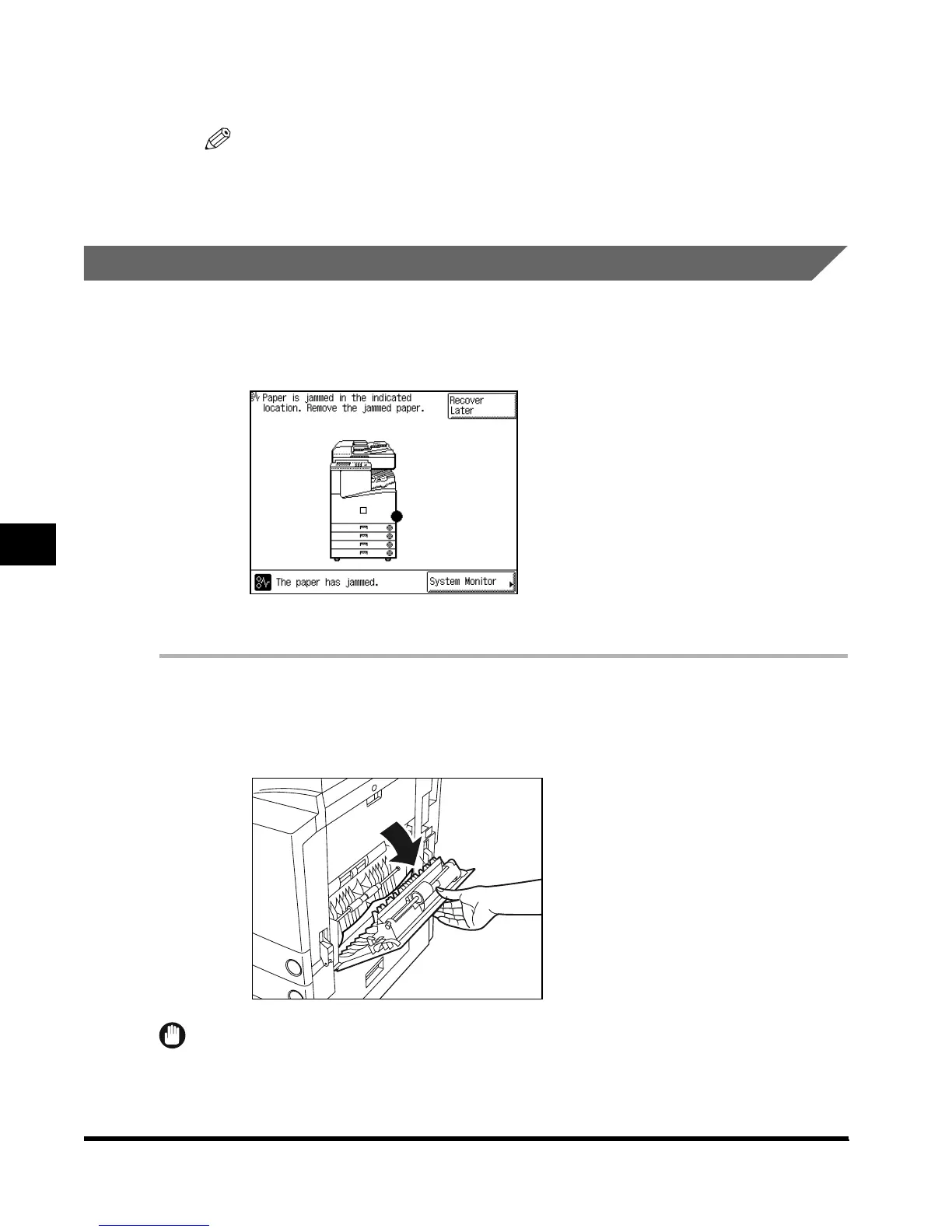
If a paper jam occurs inside the upper right cover, a screen similar to the one shown below
appears on the touch panel display. Check where the jam occurred, and follow the procedure
described below and the procedure that appears on the touch panel display, to remove the
jammed paper.
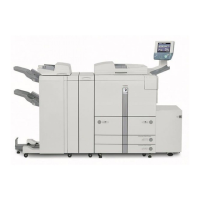
1
Open the upper right cover of the main unit.
When the Paper Deck-L1 (option; see p. 7-9) is attached, move the paper deck away from
the main unit.
IMPORTANT
•
The upper right cover cannot be opened with the stack bypass opened. If the stack bypass is open,
first close the stack bypass, then open the upper right cover.
E1L_US_U_.book-INDEX Page 14 Wednesday, May 23, 2001 11:40 PM





 To Next Page