Configuring Windows File Sharing for an Individual Active Directory Domain
To configure Windows file sharing for an individual Active Directory domain
1 In the Configuration tab's navigation pane, click Share > Windows File Sharing.
The Share > Windows File Sharing page appears.
2 Click Connect to Domain/Workgroup.
The Windows File Sharing Wizard opens, displaying the Connect to Domain/Workgroup
dialog box.
3 Choose Domain, then type the domain name.
4 Click Next.
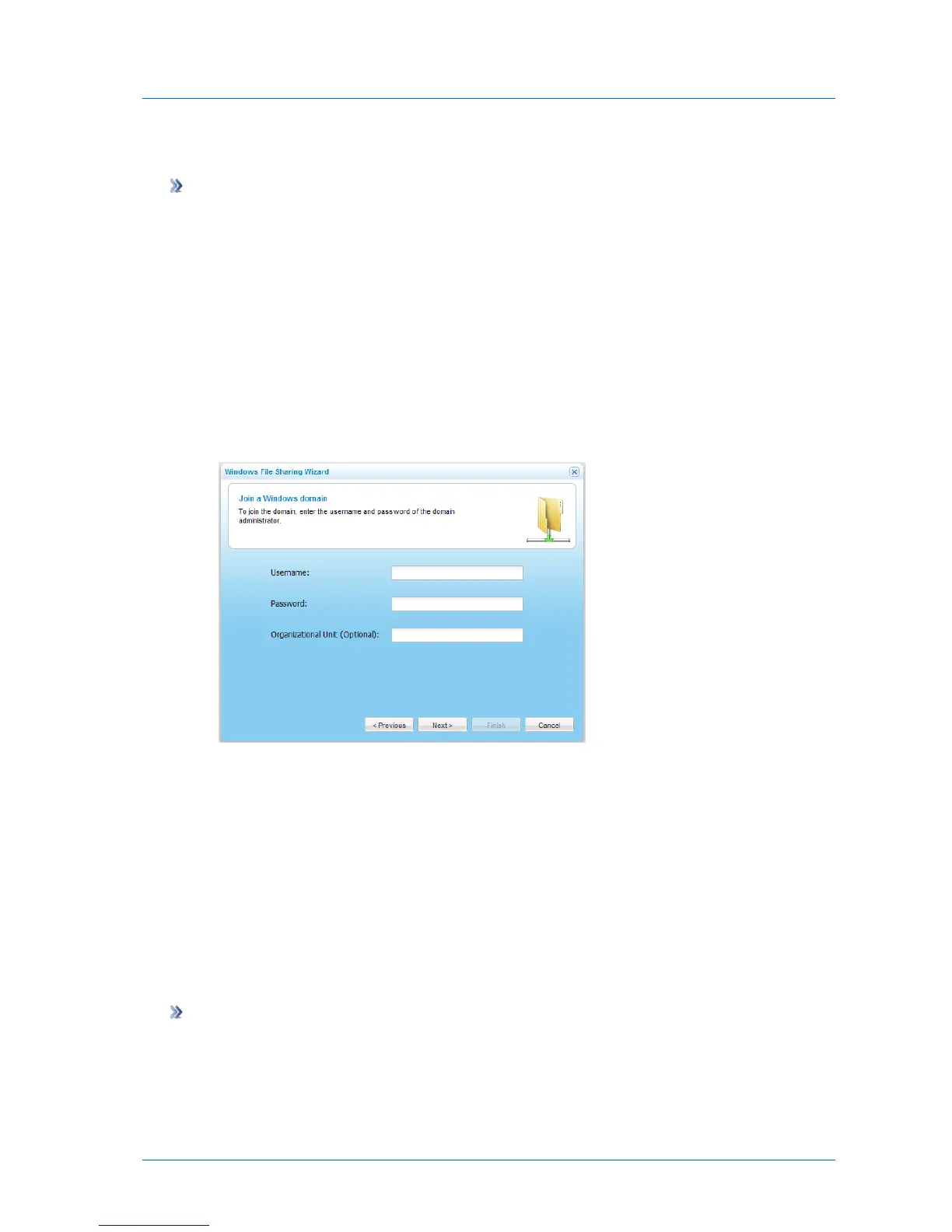
The Join a Windows domain dialog box opens.
5 In the Username and Password fields, type the domain administrator's username and
password.
6 (Optional) In the Organizational Unit field, type the name of the organizational unit
within the Active Directory domain.
7 Click Next.
The Wizard Completed screen appears.
8 Click Finish.
Configuring Windows File Sharing for an Active Directory Tree or Forest
To configure Windows file sharing for an Active Directory tree or forest
1 Configure Windows file sharing for one domain in the tree/forest.
See Configuring Windows File Sharing for an Individual Active Directory Domain (on
page 117).



 To Next Page