3. Rotate the key 90 degrees counterclockwise to lock the bezel.
4. Remove the key from the bezel.
Note: Perform step 1 to step 4, to install the second lockable front bezel for the hard drive (if applicable).
Next steps
1. Follow the procedure in After working inside your computer.
External storage flex bay (hard drive)
Removing the external 2.5-inch hard-drive assembly
Prerequisites
1. Follow the procedure in Before working inside your computer.
NOTE: Precision 7875 Tower can support two external 2.5-inch hard-drive assemblies.
About this task
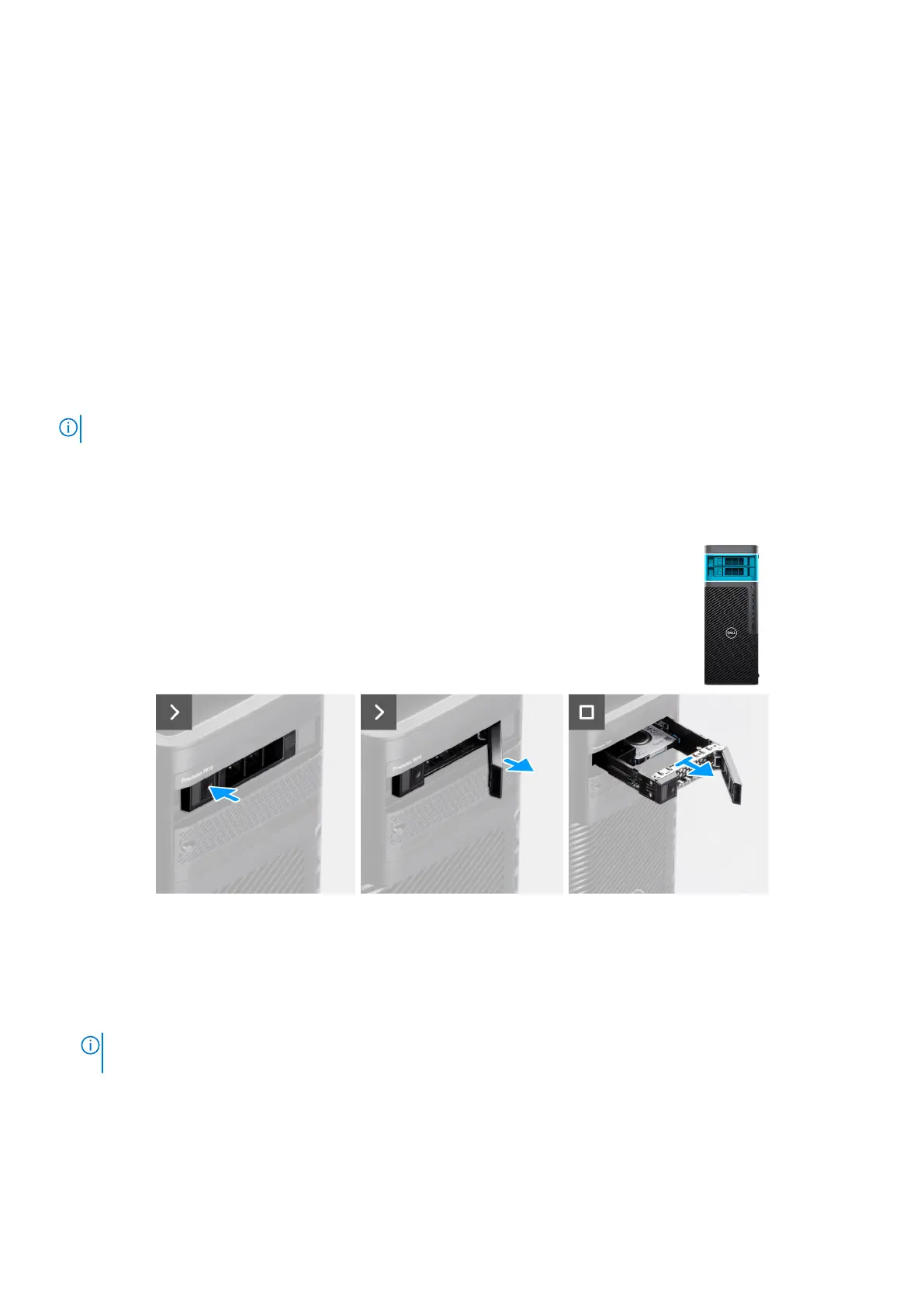
The following images indicate the location of the external 2.5-inch hard-drive assembly and provide a visual representation of
the removal procedure.
Figure 22. Removing the external 2.5-inch hard-drive assembly
Steps
1. Push the release button on the upper external flex bay bracket to open the release latch. Hold the release latch and slide the
hard-drive assembly out of the upper external flex bay slot.
2. Hold the release latch and slide the hard-drive assembly out of the upper external flex bay slot.
NOTE:
Perform step 1 to step 2, to remove the second external 2.5-inch hard-drive assembly from the lower bay (if
applicable).
48 Removing and installing Customer Replaceable Units (CRUs)



 To Next Page