Internal hard-drive cage
Removing the internal hard-drive cage
Prerequisites
1. Follow the procedure in Before working inside your computer.
2. Remove the side cover.
3. Remove the air shroud.
4. Remove the 2.5-inch hard-drive assembly.
5. Remove the 3.5-inch hard-drive assembly.
6. Remove the hard-drive fan assembly.
About this task
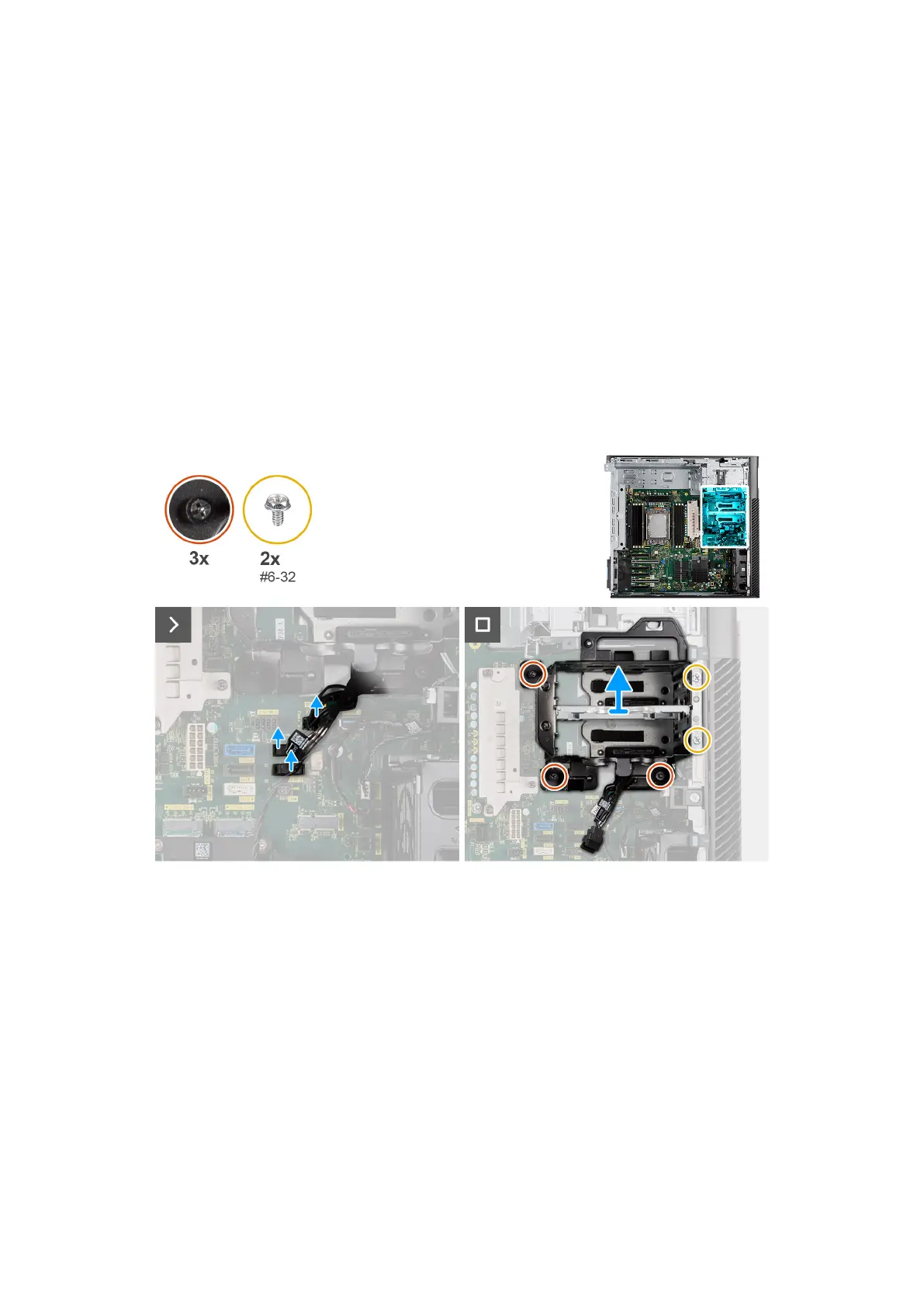
The following images indicate the location of the internal hard-drive cage and provide a visual representation of the removal
procedure.
Figure 105. Removing the internal hard-drive cage
Steps
1. Disconnect the SATA power-cables and SATA data-cable from the connectors on the system board.
2. Loosen the three (M3) thumbscrews that secure the internal hard-drive cage to the system board.
3. Remove the two (#6-32) screws that secure the internal hard-drive cage to the chassis.
4. Slide and remove the internal hard-drive cage out of the computer.
Installing the internal hard-drive cage
Prerequisites
If you are replacing a component, remove the existing component before performing the installation procedure.
Removing and installing Field Replaceable Units (FRUs)
133



 To Next Page