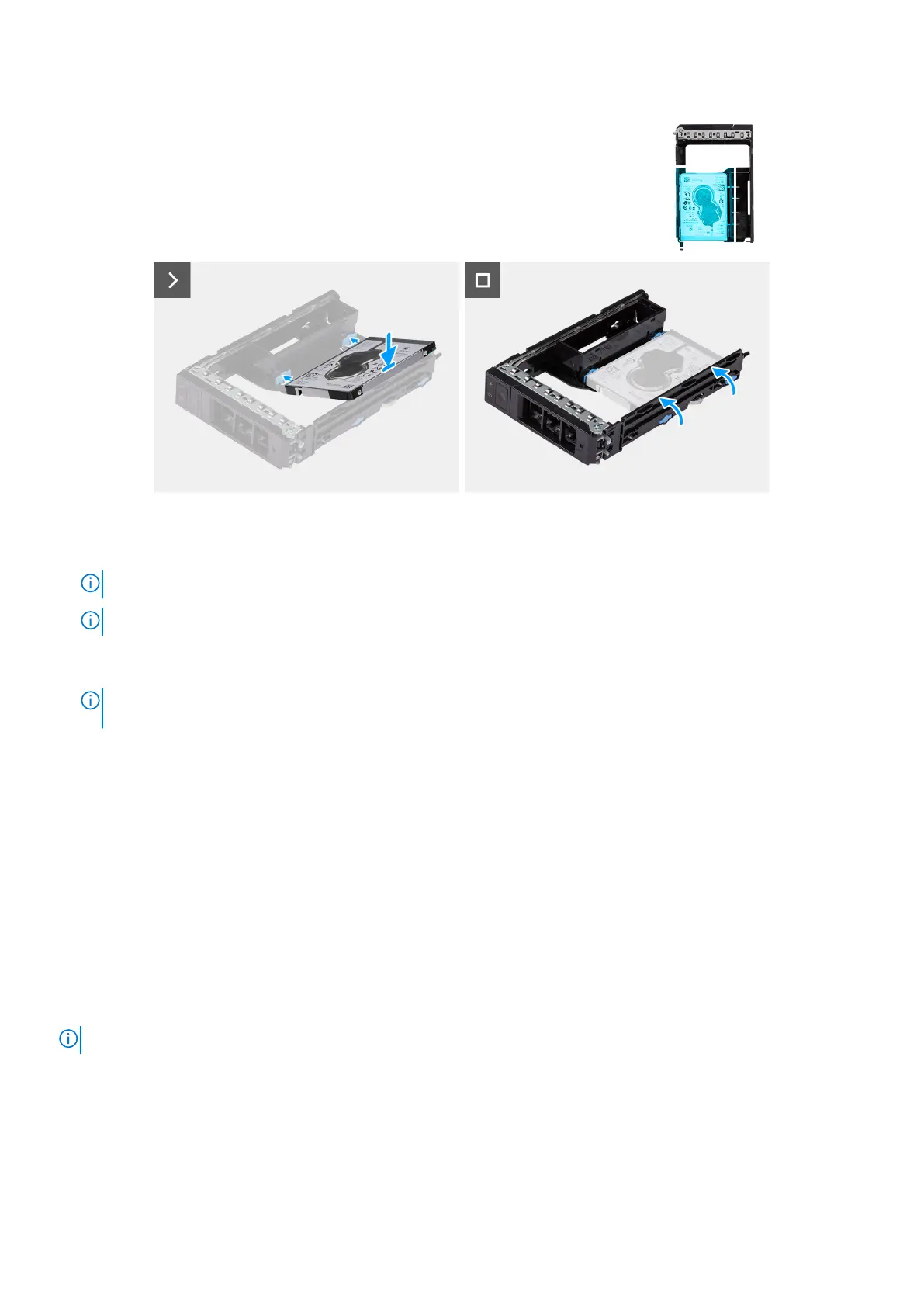
Figure 24. Installing a 2.5-inch hard drive from the external hard-drive assembly
Steps
1.
NOTE: 2.5-inch hard drives are to be installed in hard-drive assembly to fit 2.5-inch hard-drives.
NOTE: The rubber grommets must be positioned to fit a 2.5-inch hard drive.
Place the hard drive into the external hard drive bracket and align the pins on the bracket with the slots on the hard drive.
2. Snap the hard drive into the external hard-drive bracket.
NOTE:
Perform step 1 to step 2 to install the second external 2.5-inch hard-drive assembly from the lower bay (if
applicable).
Next steps
1. Install the 2.5-inch hard-drive in the external hard-drive assembly.
2. Follow the procedure in After working inside your computer.
Installing the external 2.5-inch hard-drive assembly
Prerequisites
If you are replacing a component, remove the existing component before performing the installation procedure.
About this task
The following images indicate the location of the external 2.5-inch hard-drive assembly and provide a visual representation of
the installation procedure.
NOTE: Precision 7875 Tower can support two external 2.5-inch hard-drive assemblies.
50 Removing and installing Customer Replaceable Units (CRUs)




 To Next Page