User’s Manual
62
Step D. Click on +/− to magnify/shrink the display size of Google Map.
Alternatively, drag the slider bar to select a preferred display size.
Step E. Select preferred type of Google Map. “Hybrid” is the mixture of pure
map and Satellite map.
Step F. Right click on a preferred location and select <Add Map> to add a
self-selected map.
Step G. Once a map is added, a balloon with a letter will be displayed to mark
the location of the map. Users can always click and drag balloons to
change their locations. Right click on any balloon and users can
remove or rename the selected map.
NOTE: Double click on any balloon and the map will be displayed.
Alternatively, the map can also be restored via double clicking on the
map icon in the map list.
Google Map also supports five levels of within maps. Please refer to Step 2 of
the previous subsection for more details about within maps.
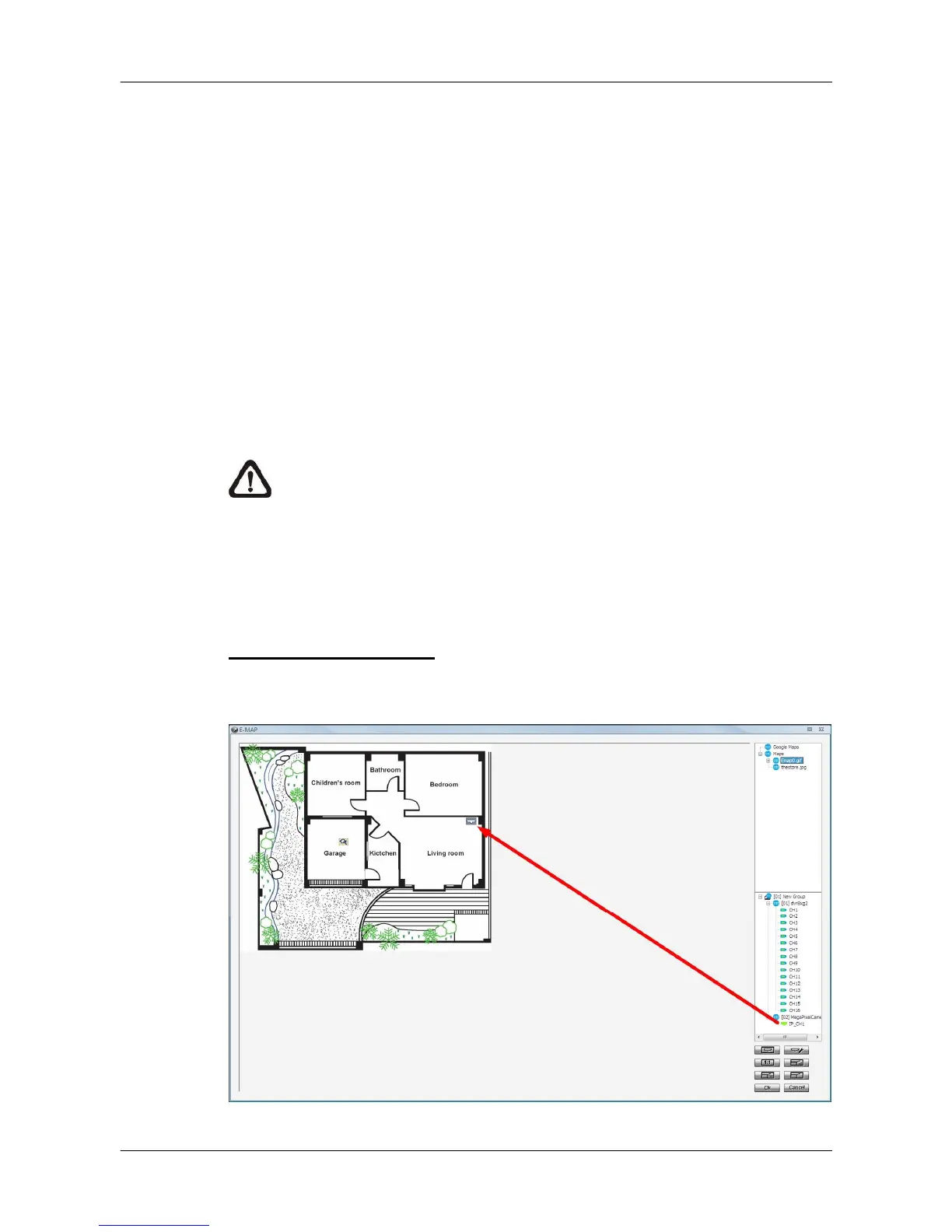
Add Cameras to the Map
Double click on a selected map icon in the map list to display the map. Drag
and drop a camera from the site tree to any desired position of the map.



 To Next Page