User’s Manual
63
Remove Cameras from the Map
Right click on a camera icon in the map and users can
remove it from the map. In addition, users can rotate the
camera’s pointing direction to North, Northeast, East,
Southeast, South, Southwest, West or Northwest.
Alert icon
This will show when an alert is triggered to
the camera. It will blink to attract attention.
NOTE: When a within map has alert triggering cameras, its map icon
will also blink to attract users’ attention.
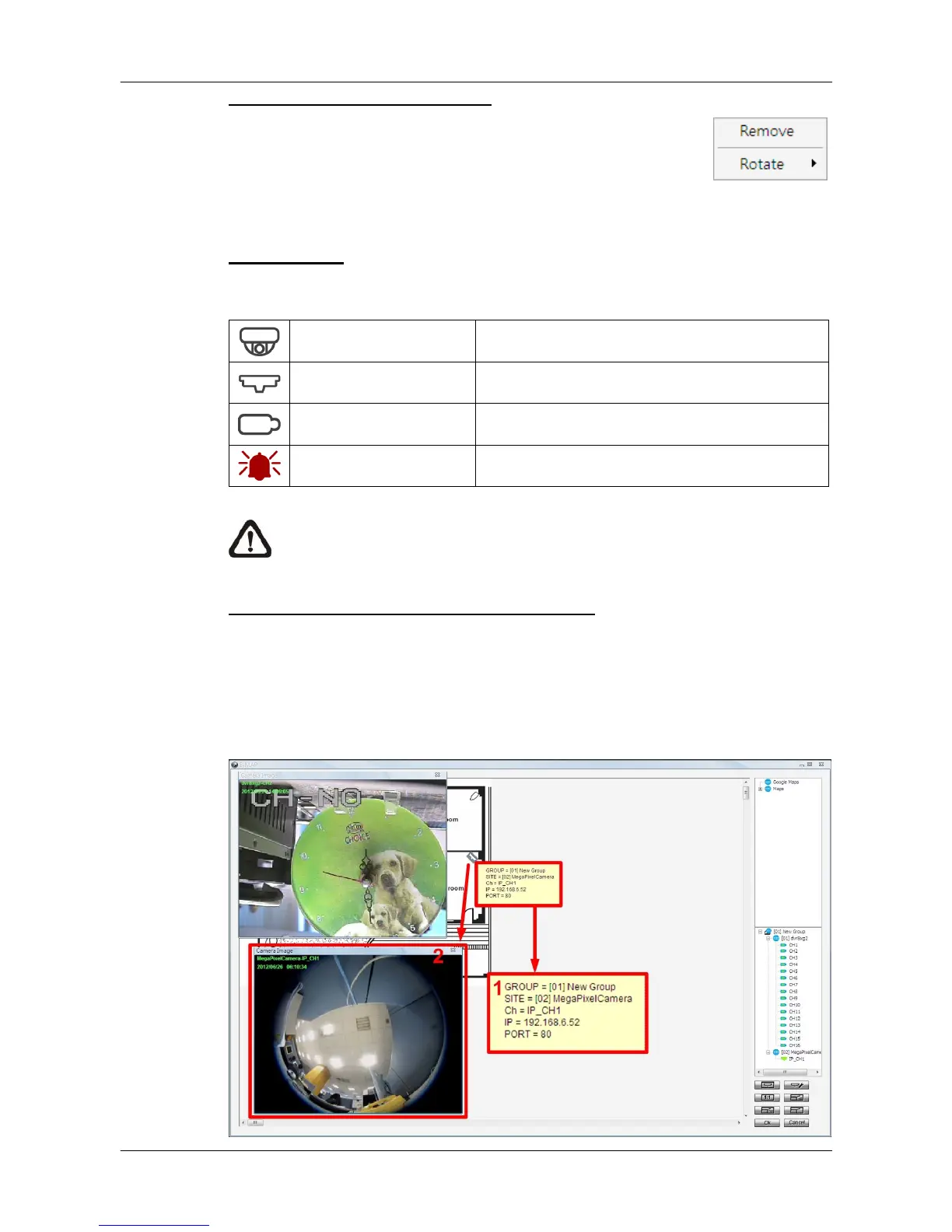
Display Live Preview of Cameras in the Map
Double click on any camera icon in the map and its Live preview image will be
displayed. When the mouse pointer moves over a camera icon in the map, an
information dialog box will be displayed as marked #1 in the below picture.
When users clicked on a camera icon, its Live preview window will be
highlighted, if it’s been displayed, as marked #2 in the below picture.



 To Next Page