User’s Manual
64
NOTE: The camera Live preview window is limited up to three
instances at the same time.
Right click on any Live preview window to see the camera control menu,
including: Snapshot, Talk(On/Off), Dome Setting, Dome Control, Sound
Notification(On/Off) and Camera Info. Refer to their related sections for more
details.
AngelEye Mode
Underneath the site tree, there is an icon shown as on the right.
Click on this icon and the Emap window will be change to AngelEye mode.
The AngelEye mode allows users to monitor Live videos of chosen cameras
embedded on the self-selected map without window frames and excess info.
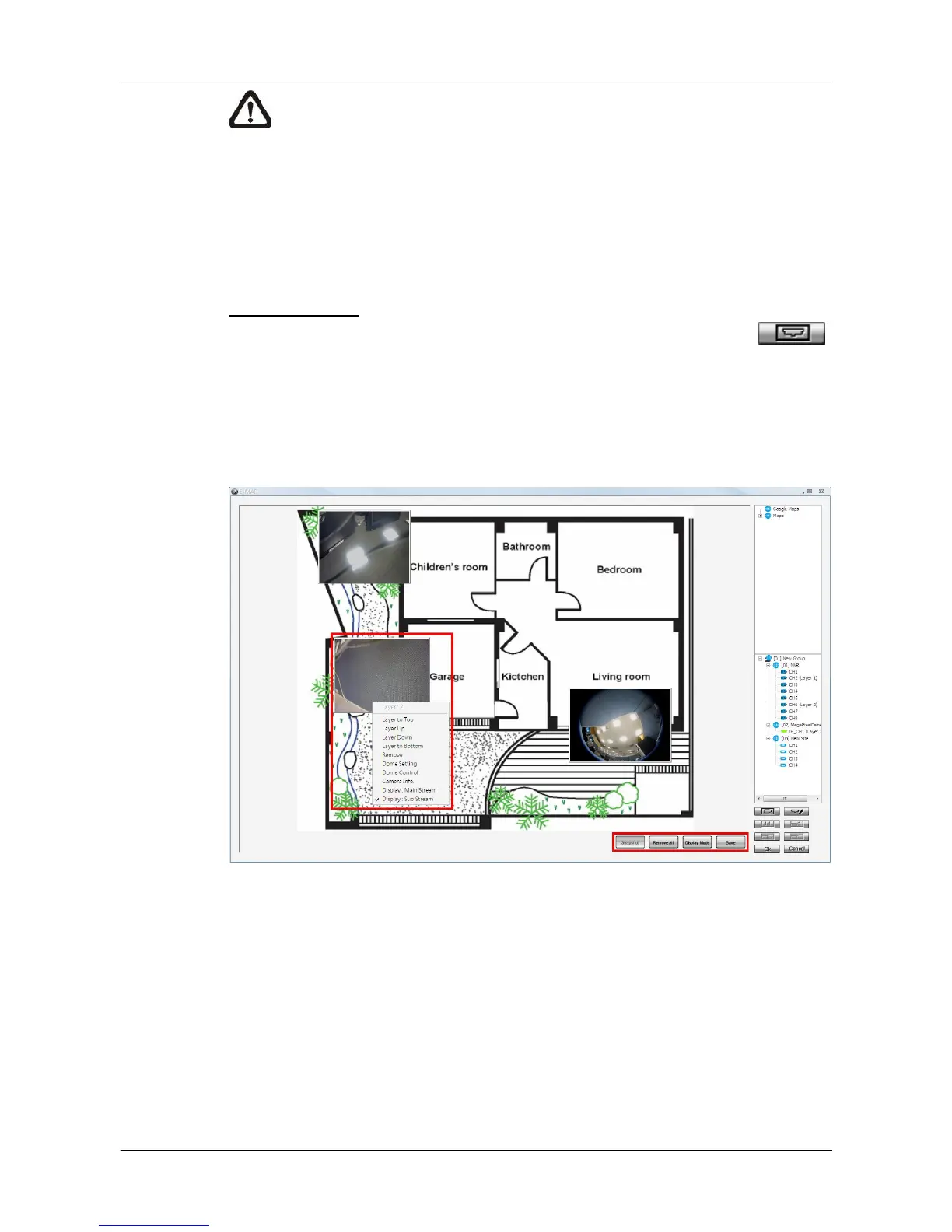
The following picture is the setting mode under AngelEye mode. Refer to the
steps described below to setup AngelEye display.
Step 1. First users can click on the map list to add a new map or select an
existed map. The map will be scaled in proportion to fit the window.
Step 2. Click and drag cameras in the site tree to be indicated in the map.
Only the connected cameras can be drag in the AngelEye mode, and
the Live videos will be directly displayed, with channel and site
numbers shown on the top. Users can adjust the camera display size
be click on the edge and drag in or out. Click at the center of the
camera display and users can drag it to any desired position.



 To Next Page