User’s Manual
80
Event List:
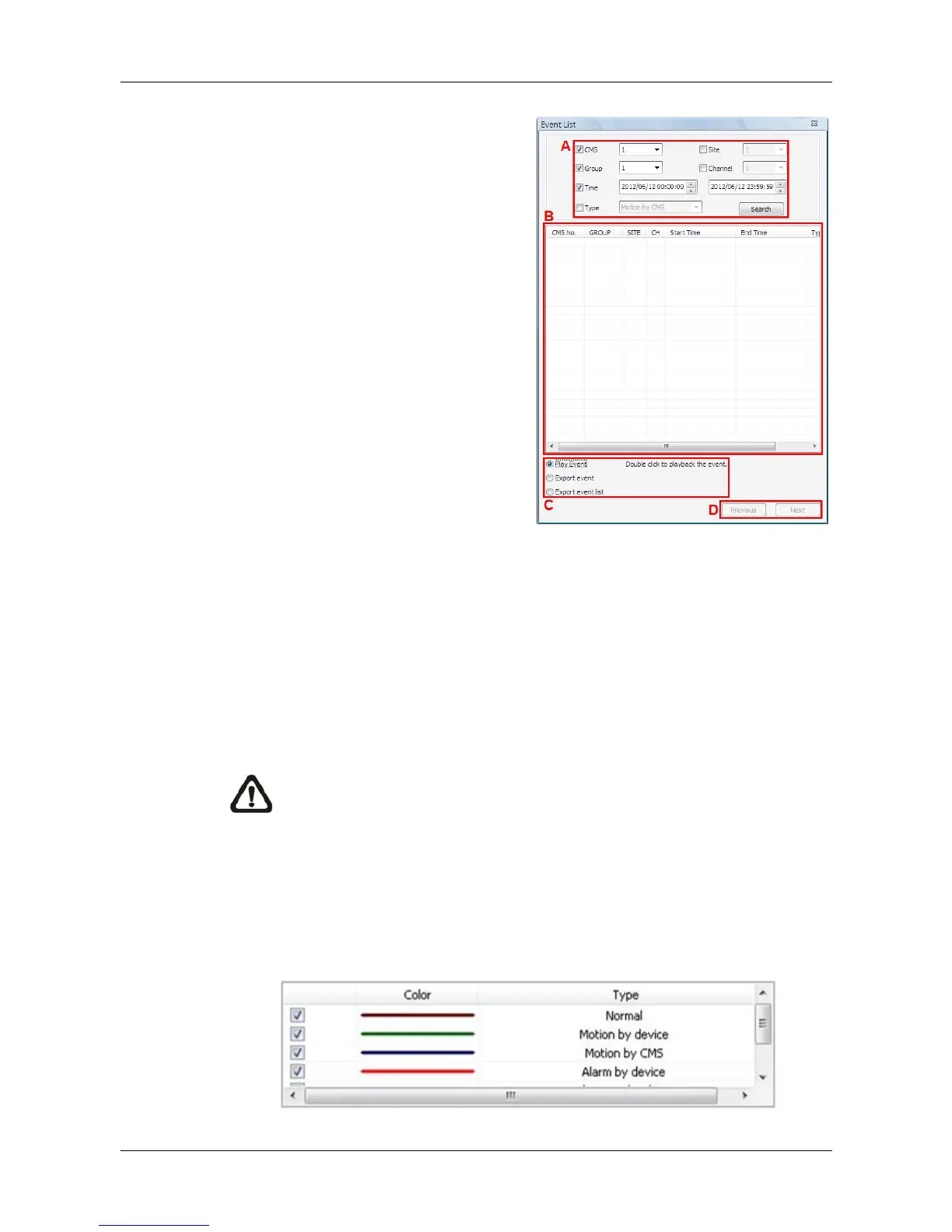
Users can also playback and export
event videos via searching through
the event list. Click on the <Event
List> button on the upper right hand
corner of the “Playback Search”
window. The “Event List” window will
be displayed as on the right. Refer to
below for the instruction.
First set searching criteria in Box A
and click on the <Search> button.
The event videos satisfied the
searching criteria will be listed in Box
B. If the list contains more than 1000
event videos, click on the <Previous>
and <Next> buttons in Box D to see
more selections.
In Box C, users can choose to playback event video, export event video or
export event list. Select <Play Event> and double click on any item in Box B to
playback selected event video. Select <Export event> and a <Start> button
will appear at the bottom. Press Ctrl key to select multiple files and click on
the <Start> button to begin exporting the event video(s). Alternatively, select
<Export event list> and click on the <Start> button to export the event list.
NOTE: For event search of Raw data, the <CMS>, <Group> and
<Site> in Box A will be inaccessible.
Video Type Display:
The chart in the middle of the “Playback Search” window allows users to
assign unique color displays to represent different types of video data. Double
click on any cell under the “Color” column and choose a preferred color to
represent the corresponding video type.



 To Next Page