User’s Manual
81
Frame View Setting
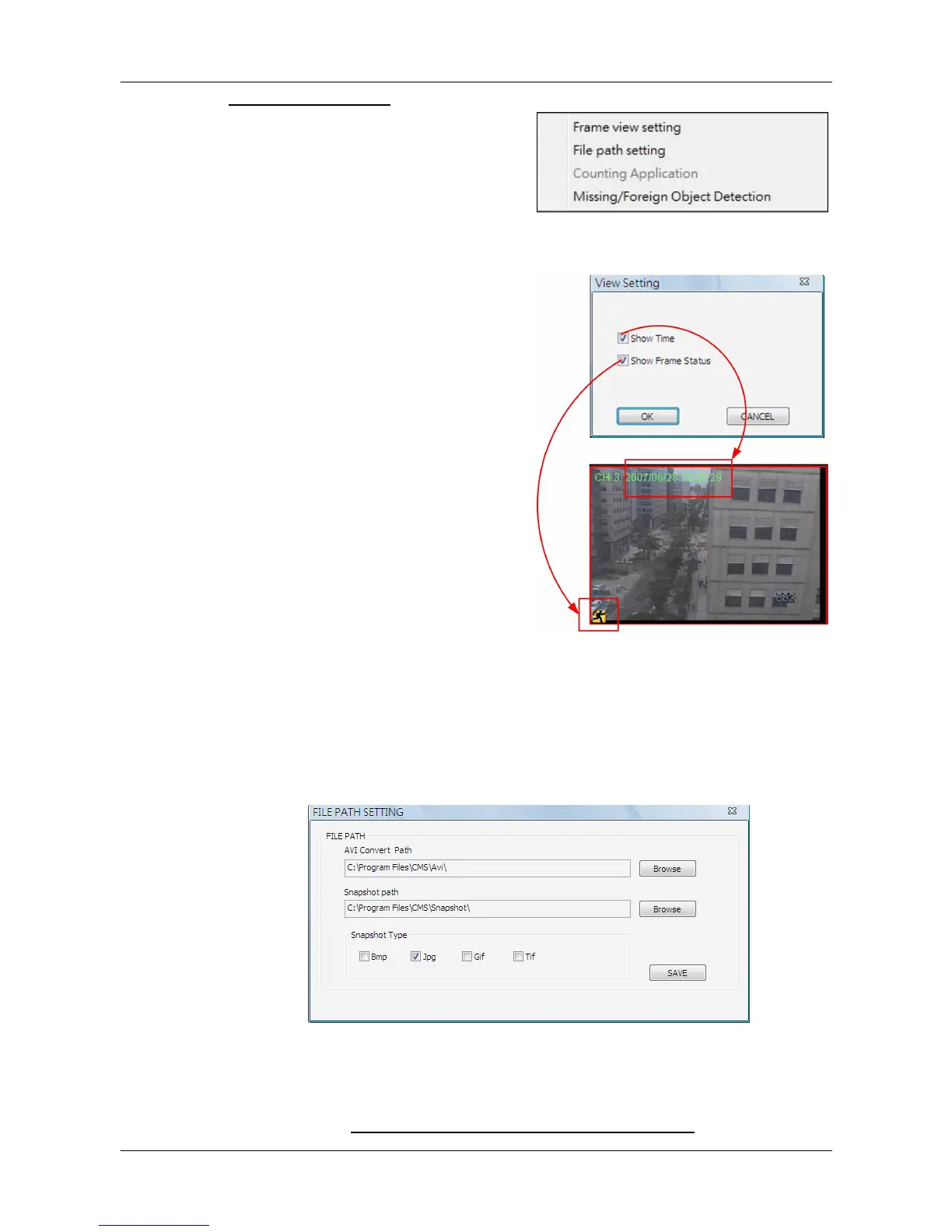
Click on the <Frame View Setting>
icon and the pull-down menu will be
display as on the right. Refer to the
following for introduction of each
function.
Frame view setting:
Users can choose to show/hide the
time and alert text on the video.
Click on the <Frame View Setting>
icon, and the View Setting window
will be displayed. Check <Show
Time>, and the time will be shown on
the screen. Check <Show Frame
State>, and the alert icon will be
displayed at bottom-left. Uncheck to
hide the information.
File Path Setting:
Click on the <File Path Setting> icon to preset file paths for AVI conversion
files and snapshot files. Click on <Browse> to select desired folders. In
addition, file type of snapshot pictures can also be selected: Bmp, Jpg, Gif or
Tif formats. After the settings are selected, click on <Save> to apply the
settings.
Counting Application (PRO Version Only):
Counting Application function in CMS Player is the same as in CMS. Please
refer to section Counting Application (PRO Version Only) for more details.



 To Next Page