User’s Manual
83
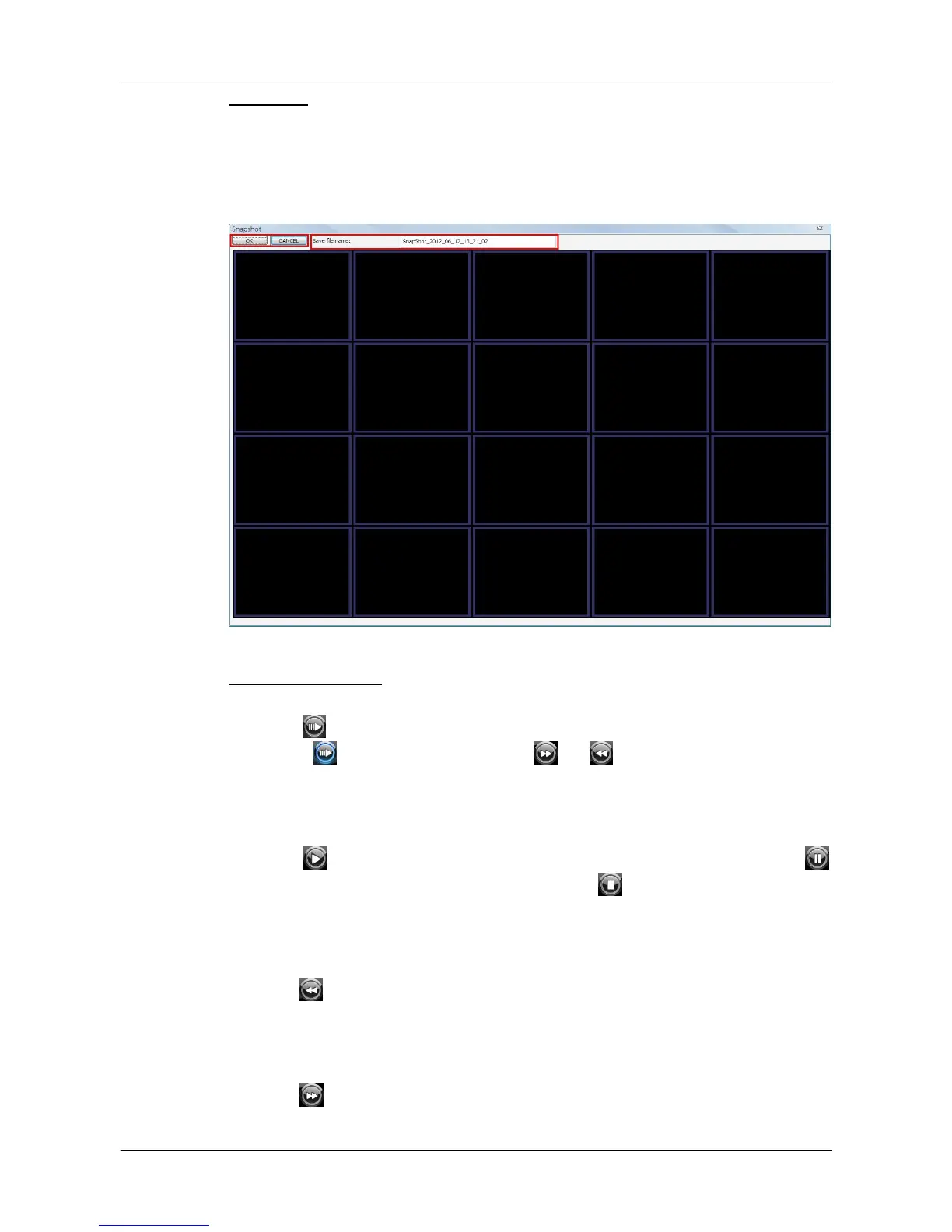
Snapshot
Click on the <Snapshot> icon to capture a snapshot of the screen. When the
snapshot window is opened, users can choose to rename the filename or
leave it as it is. Click on <OK> to save the snapshot or <CANCEL> to discard
it.
Playback Controls
Slow Down:
Click on to enable slow speed playback of the video. The icon will be
lighted as , and users can click on or to change playback speed
(1/2, 1/4, 1/8, 1/16 or 1/32).
Play/Pause:
Click on to start playing back the video. The icon will change to
showing that the video is now playing. Click on to pause playing back the
video.
Fast/Step Backward:
Click on to play the video fast backward. When the playback of the video
is paused, click on this icon to move one step backward.
Fast/Step Forward:
Click on to play the video fast forward. When the playback of the video is
paused, click on this icon to move one step forward.



 To Next Page