User’s Manual
104
Dome Setting (Dome Cameras Only)
Click on the <Dome setting> button to setup the Dome ID and Dome Protocol.
Change Camera Name
Users can change the display name of the channel here. Input a new name
and click on the <Apply> button to change the camera name immediately.
Intelligent Surveillance
There are four intelligent surveillance function provided for users to setup
each channel separatedly. Note that <Counting Application> and <Cross Line
Alert> are for PRO versions only.
CMS Motion Detection:
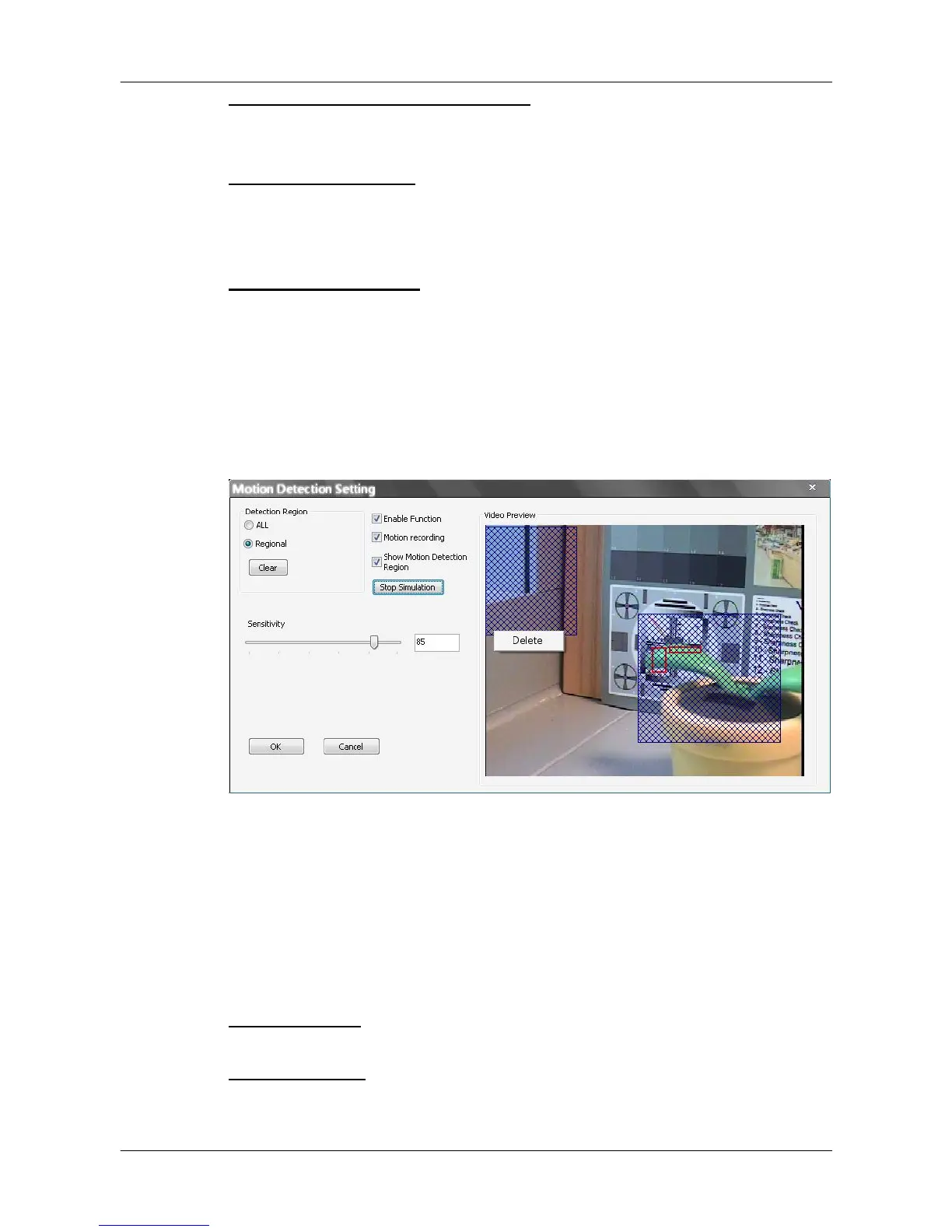
Users can setup motion detection at CMS site independently. Click on the
<Motion Detection> button and the following setting window will be displayed.
Users can choose to monitor the complete screen or select up to 8 boxed
areas after clicked on <Regional>. Click on <Clear> button to delete all
selected areas. Alternatively, right click on any selected area to delete it
individually.
Refer to the following for description of motion detection settings.
Enable Function: Check on it to start monitor motion detection.
Motion recording: Check on it and CMS will record event video when motion
is detected. The length of event video will follow <Event Recording Duration>
specified in Event setting.



 To Next Page