User’s Manual
105
Show Motion Detection Region: Check on it to display the detection area
visually on the monitoring screen. The boxes will also be captured and
displayed on the snapshot images.
Start Simulation: Click on it to start simulating motion detection. As shown
above, red boxes will mark the motion areas.
Stop Simulation: Click on it to stop simulation.
Sensitivity: Setup a desired sensitivity level.
Click on <OK> to apply the settings, or click on <Cancel> to disregard and
return to Live mode.
NOTE: When motion alert is triggered, an alert icon “ ” will be
displayed at bottom-left of the grid.
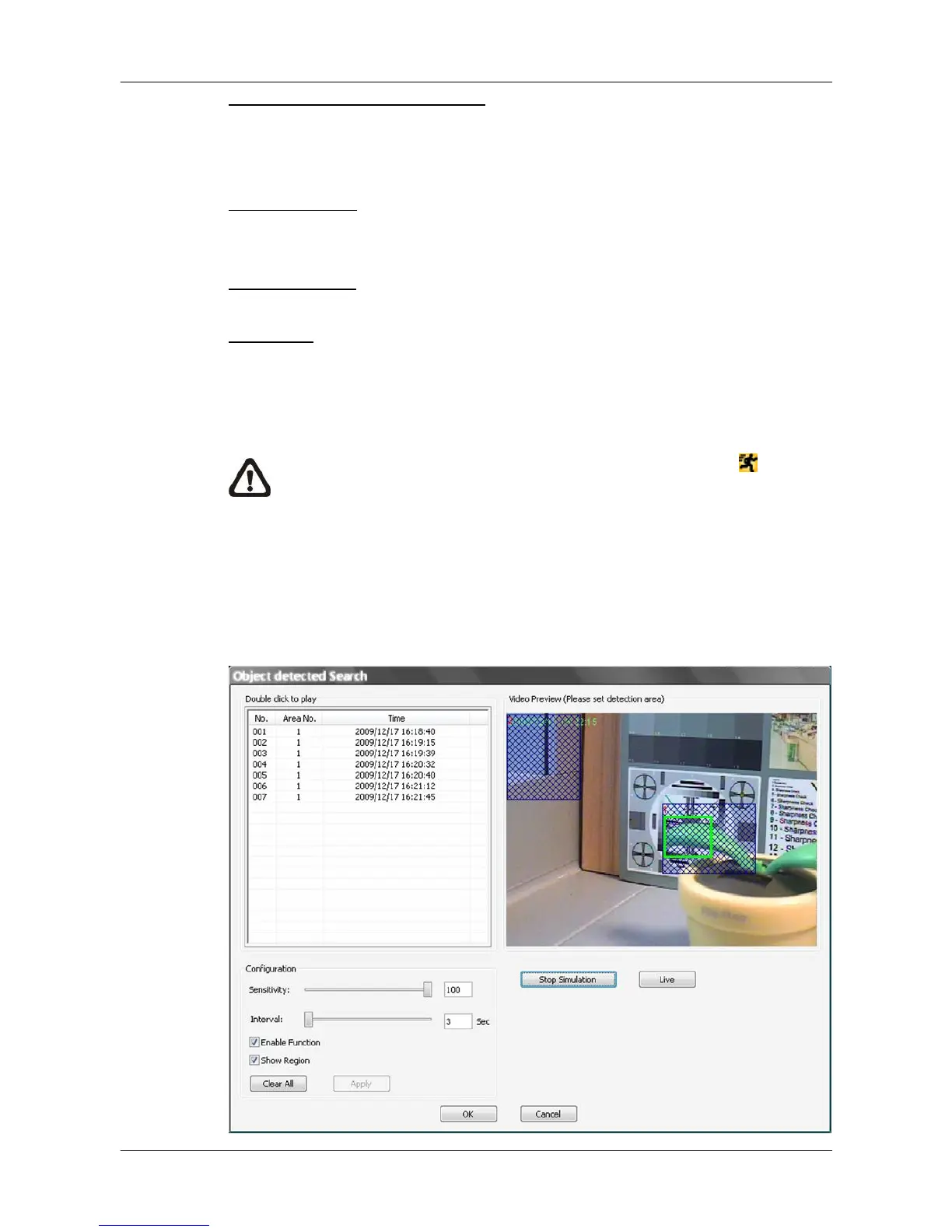
Missing/Foreign Object Detection
The purpose of Missing/Foreign Object Detection function is for users to keep
an eye on the important objects and areas. Click on the <Missing/Foreign
Object Detection> button, and the object detected search window will be
shown as below.



 To Next Page