20
EBS Ink Jet Systeme 20140704#1.0
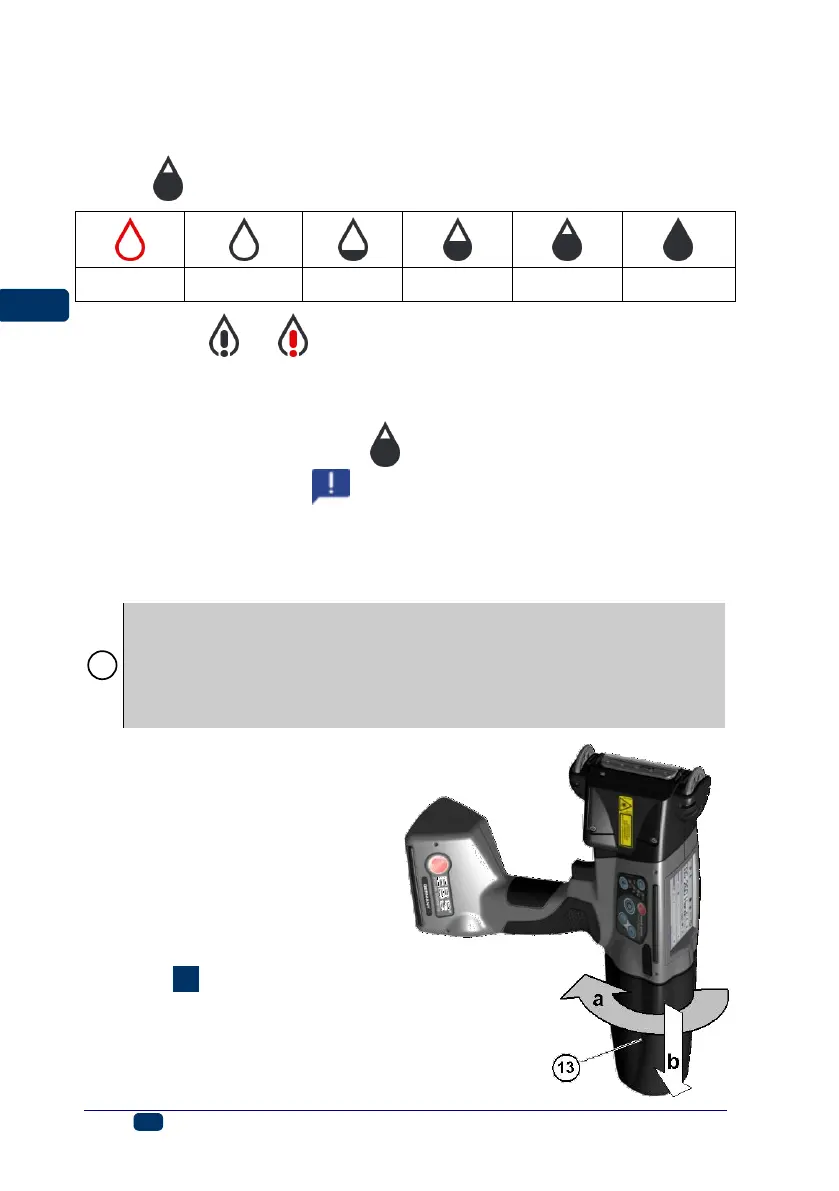
Ink Level in Container
When the printer stops printing, make sure that it is because the ink container
has been emptied. The level of ink in the container is displayed on screen 12
with the icon (F):
In addition, the and icons displayed alternatively can indicate that:
There is no ink container in the printer,
There is a problem with ink, e.g. the ink is past its use-by date, or the print
limit assigned to the printer has been exceeded. The information about the
problem is displayed after the icon (F) has been touched, and also in
message form after the message icon (B) has been touched.
There is no communication with the container controller – restart the
printer, and when the problem does not subside, contact your service point.
Replacing Ink Container
If possible, replace the container in dustfree conditions so as to minimise
the amount of contaminants getting in to the printer’s ink system.
Do not leave the printer with the ink container detached for a longer time
than that required to replace the container. While detaching or installing
the container be careful not to splash anyone or anything with the ink that
may flow out of needle 32.
4
1. Turn the printer off - see
Switching the Printer Off (p.
16).
2. Put the printer in such a way that
the container points downwards,
turn empty container 13 to the
left (a). Wait about 3 seconds
while holding the container to
equalize the pressure.
3. Remove the container carefully
(b).
See figure
.
4. If gasket 33 is dirty, remove ink
leftovers from it with wash-up.
5. Install a new container - see
Installing Ink Container in the
Printer (p. 19).


 To Next Page