82
EBS Ink Jet Systeme 20140704#1.0
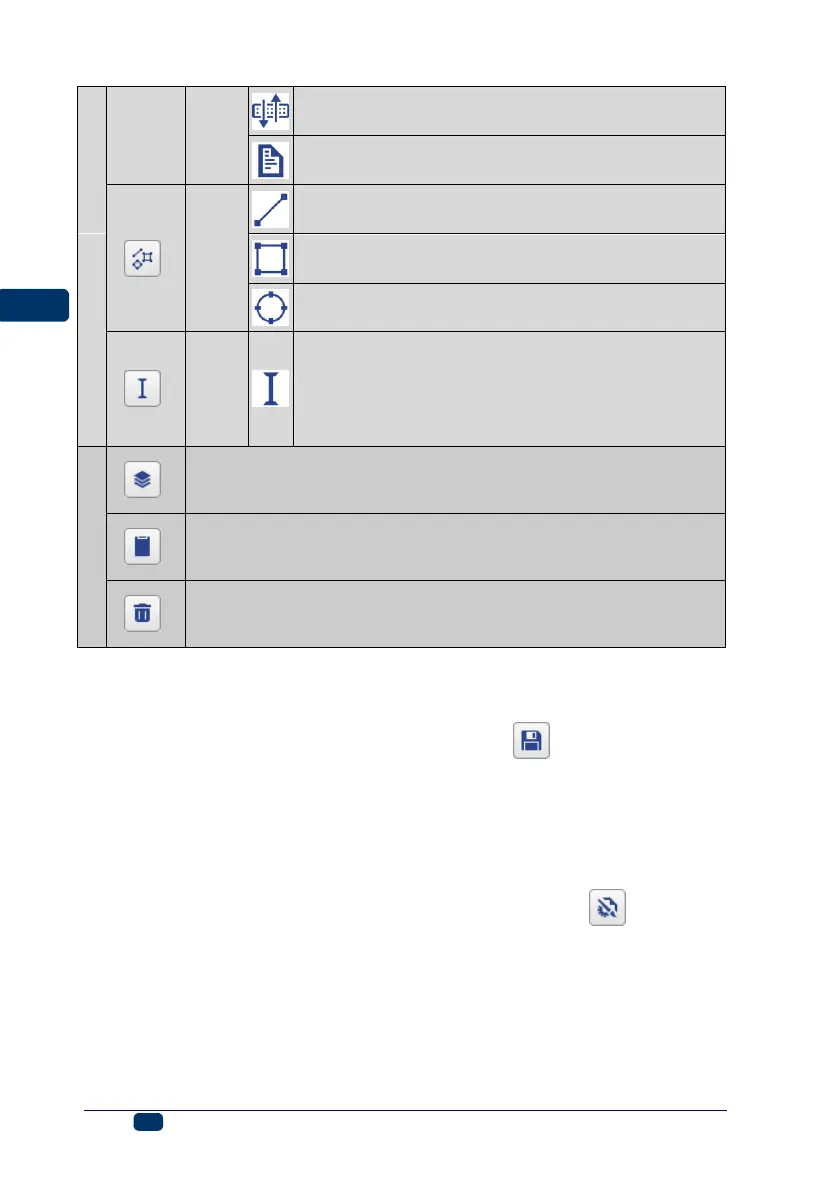
data transferred via Communications Port as
barcode
text file data as barcode
Line – see Shape-type Object – Line (p. 101)
Rectangle – see Shape-type Object – Rectangle
(p. 102)
Ellipse – see Shape-type Object – Ellipse (p. 103)
Division Mark – see Line Divider (p. 103)
list of project objects – see List of Objects (p. 104)
clipboard (hot key: «+6) – see Clipboard (p. 105)
deleted objects (hot key: «+4) – see Trash (p. 105)
With the auxiliary rulers you can estimate the real size of a printout. The ruler is
scaled in centimeters.
Choose Save (hot key: «+3) in the Projects menu in order to save
a project. You can also save modifications with the button that is on the
first horizontal tool bar.
Choose Save as... (hot key: «+Y+3) in the Projects menu in order
to save a project with any name.
Choose Close project in the Projects menu in order to close a project.
Printing Parameters
The printing parameters window is displayed by touching the button (see
Project Processor (p. 79)) or choosing Printing parameters in the Projects
menu (the parameters are available in the menu list, when a project is open and
can be edited).
The printing parameters are set to their default settings that are specific to a
given type of printer.


 To Next Page