118
EBS Ink Jet Systeme 20140704#1.0
Opening a Project for Printing via Web Browser
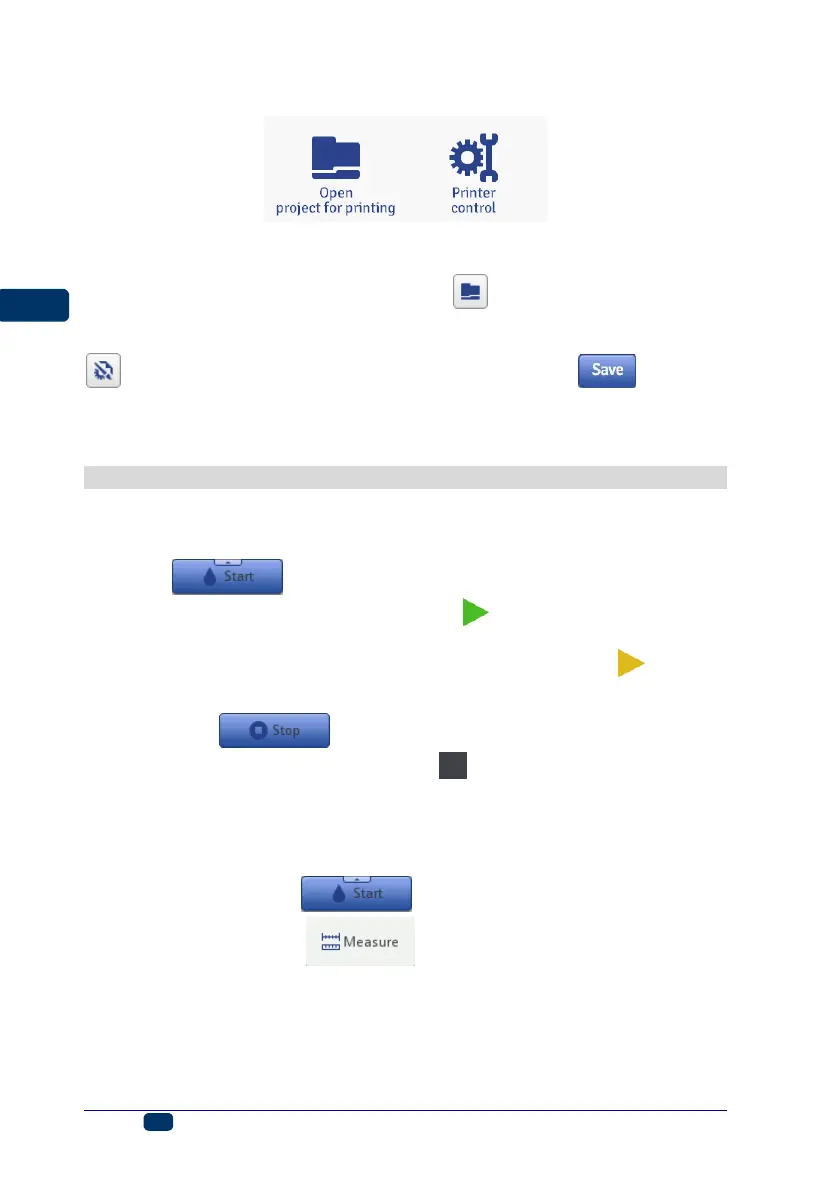
Open a project for printing with the Open project for printing button, which is
in the printer control module of processor edit area (see Work Screen of
EBS Web User Interface (p. 74)) or with the button in the Printer control
menu.
You can modify printing parameters before printing. For that purpose touch the
button. After you have finished editing, touch the button. If
a modification is not saved, the project can be printed with the changed
contents or parameter setting only until the project is modified again or the
printer is switched off.
Printing a Project
Printing a Project via Printer LCD
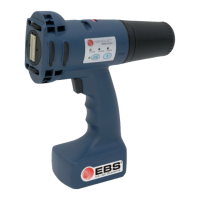
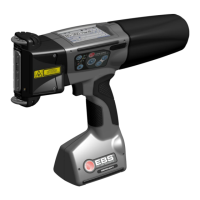
Touch the button (W) or touch button 23 on keypad 10 in order to
initiate printing – the printing status changes to (Print on (waiting)). Printing
starts when trigger 6 is pressed and the printer moves along an article to be
labeled (the lower roll 3 must roll) – the printing status changes to (Print on
(printing)).
On touching the button (W) or button 23 on keypad 10, printing is
disabled, and the printing status changes to (Print off (ready)).
The printer is equipped with a practical tool, Measure, which is designed for
adjusting the print resolution defined for a project to the length of a surface to be
labeled.
1. Open a project for making a print whose length you wish to adjust.
2. Touch and hold the button (W) until a drop-down menu
appears and touch the button.


 To Next Page