62
EBS Ink Jet Systeme 20140704#1.0
Barcode
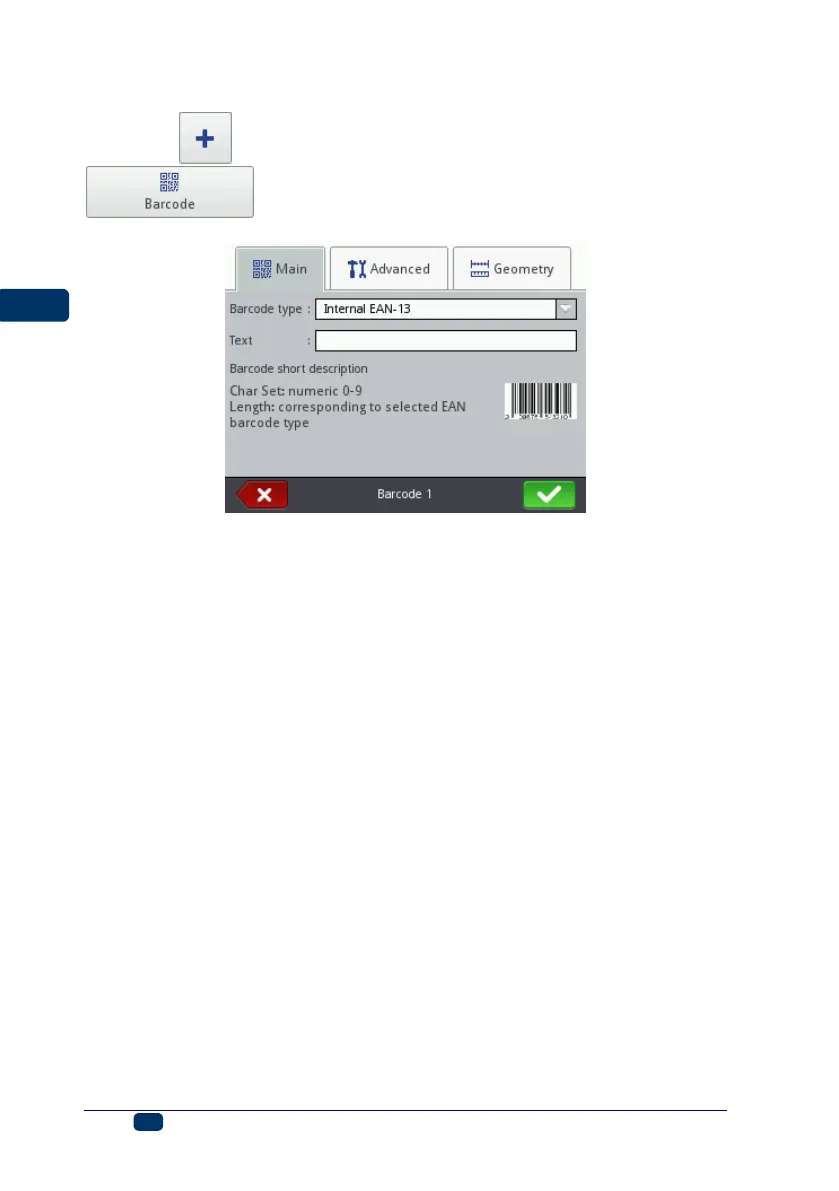
Touch the button, choose the Others sheet tab, and then touch the
button in order to add a new, Barcode-type object to
a project.
In the Main sheet tab, choose Barcode type and in the Text field, type in
a character string that is to be presented as a barcode. Make sure that the code
type fits the number and type of characters. When the Text field changes its
color to red, this means that the character string typed in is not appropriate to a
given type of code (a wrong number or type of characters). The detailed
information on code formats is displayed while a type of code is being chosen in
the Barcode short description field.
The following types of barcodes are available:
Numerical: EAN–2, EAN–5,EAN–8, EAN–13, EAN–5 + EAN–2, EAN–8
+EAN–2, EAN–8 + EAN–5, EAN–13 +EAN–2, EAN–13 + EAN–5, Code 25,
Code 11, Code 25 Industrial, Code 25 Interleaved, Code25 IATA, Code 25
Data Logic, Codabar, Leticode, Identcode, GS1 DataBar–14, GS1 DataBar
Limited, GS1 DataBar Expanted, UPC–A, UPC–E, PostNet, MSI Plessey,
Pharmacde One–Track, Pharmacde Two–Track, ITF–14, PZN.
Alphanumerical: Code 39, Code 39 Extented, GS!–128 (UCC/EAN–128),
Code 128, Code 16k, Code 93, Telepen Alpha, 2D:PDF417, 2D:PDF417
Turncated, 2D:QR Code, Australia Post 4–State, Royal Mail 4–State
(RM4SCC), 2D:Data Matrix, 2D:MicroPDF417.


 To Next Page