Operating Procedures: Optimizing Imaging
C O N F I D E N T I A L – FEI Limited Rights Data 5-15
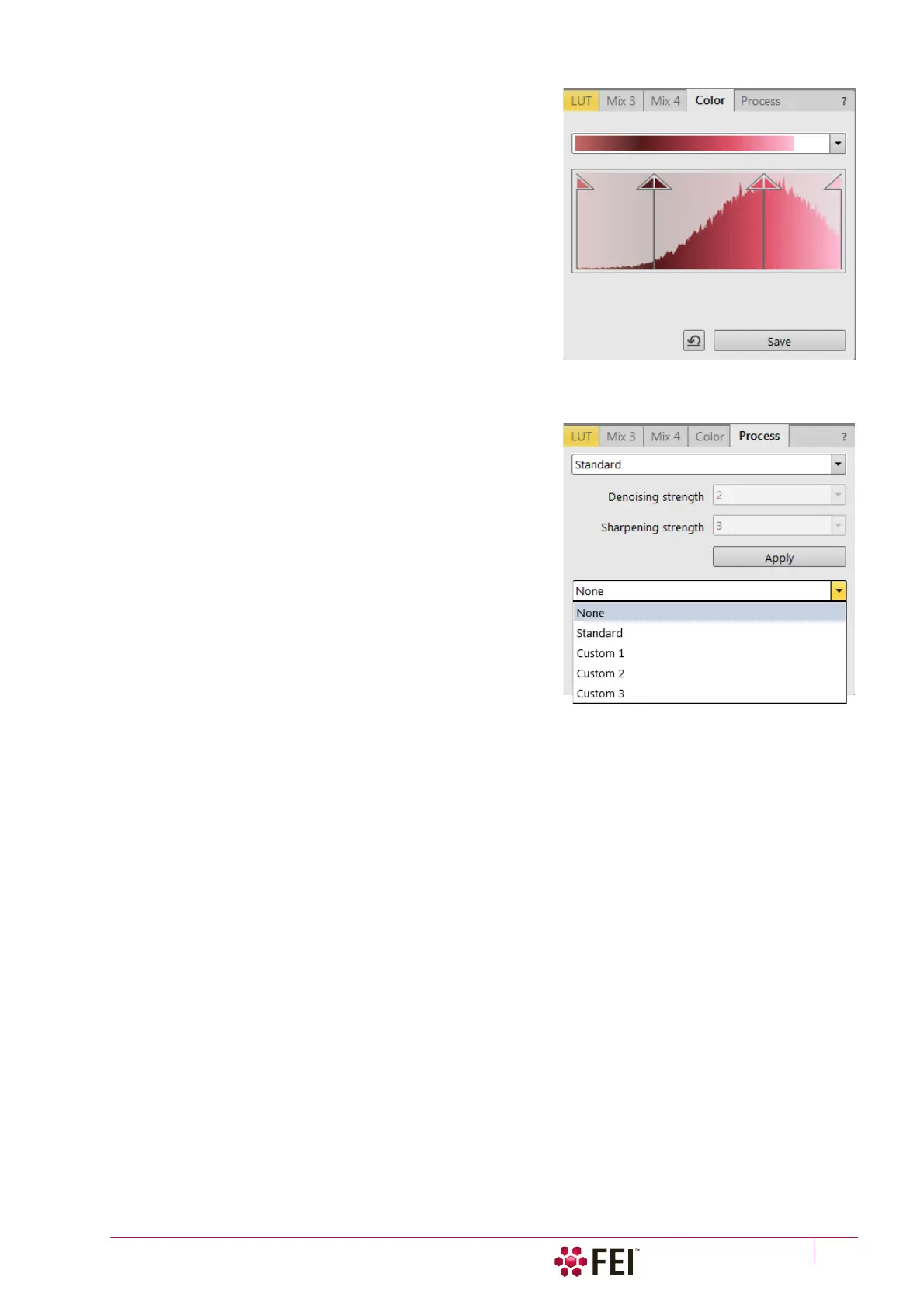
Color tab Module
enables to colorize a grey scale imaging. An imaging already
colored with the use of the Mix 3 / Mix 4 tab cannot be colored
again, the Color tab is disabled.
• Presets list box – enables to select the color profile using pre-
defined or custom presets.
• Coloring Control area – shows the selected imaging histogram
and enables to edit a color profile.
Clicking on the histogram area adds the vertical borderline
with a divided triangle at the top (right-clicking on an existing
one removes it). Clicking on & dragging a borderline changes
its position along the histogram. Clicking on the left / right
part of the triangle selects the left / right border color. The part
of histogram between two borderlines is linearly transformed
to a new color spectrum.
• Reset button – sets the modified color profile to its original
state.
• Save button – saves the actual setting as the custom preset.
Process tab Module
Here a user can set parameters, which adapt image when clicking
on the Apply button, or when selecting the Tools menu / Image
Post Processing (Ctrl + F7).
• Denoising strength (Off / 1 / 2 / 3 / 4) – determines the image
noise suppression.
• Sharpening strength (Off / 1 / 2 / 3 / 4) – influences the image
sharpness.
Changes in the Custom # presets are saved automatically.
Note
This functionality works only with greyscale images (not colored via
Color tab), images which are paused or with loaded saved ones.



 To Next Page