Software Control: Entering Commands in Summary
C O N F I D E N T I A L – FEI Limited Rights Data3-54
Entering Commands in Summary
Using Mouse
Note
The given sequence of the key press and mouse button click on is important for some functions.
Table 3-2
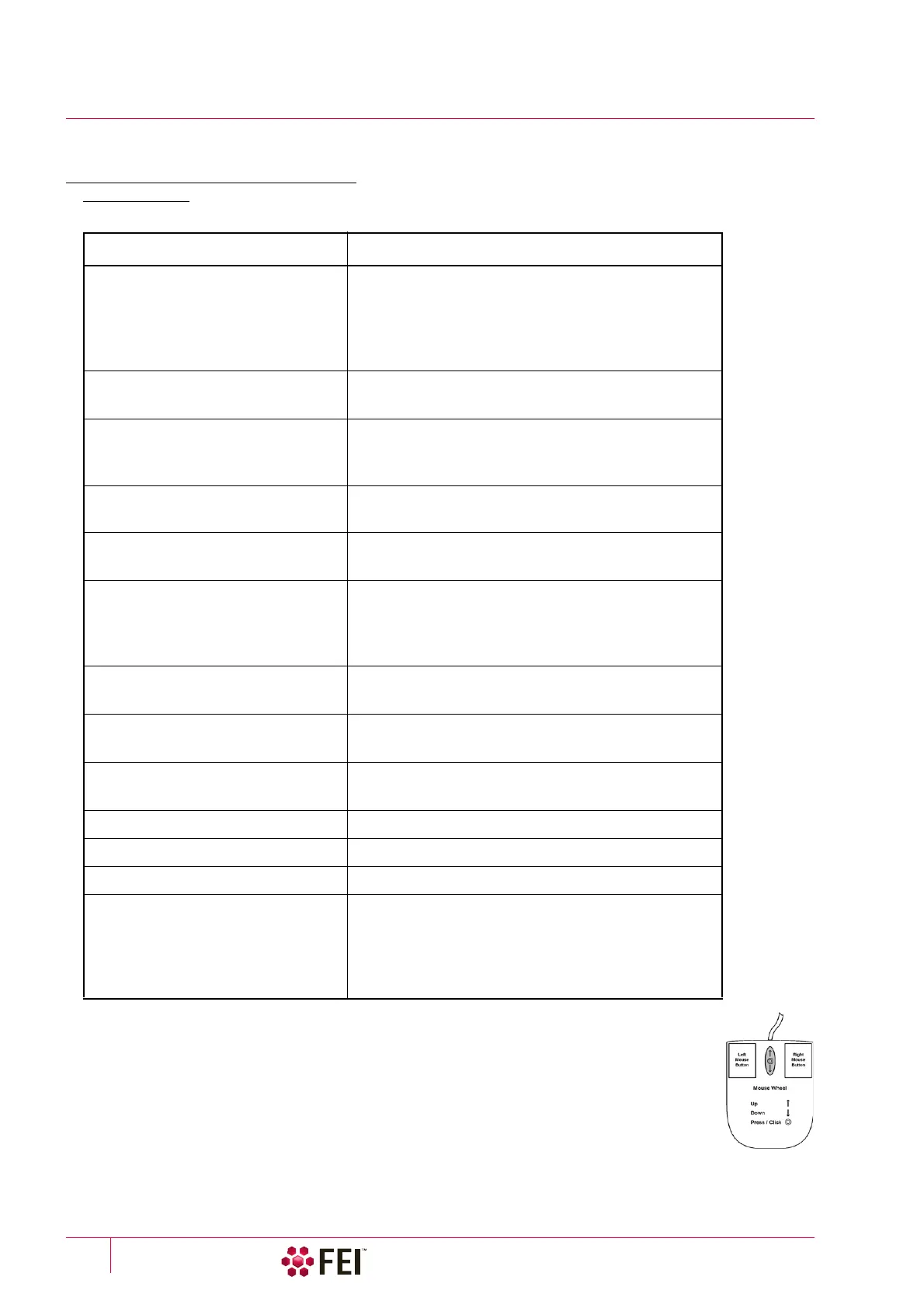
Mouse Keys
Keyboard + Mouse button Function
(Shift +) Click on
arrow cursor
selects / activates a control element(s)
(toolbar pause icon: pauses / releases all displays
Photo icon / Snapshot icon / Scanning preset button:
activates appropriate enhanced / alternative
functionality)
(Ctrl +) Click on
arrow cursor
selects a graphical item within an imaging area
(adds another one to the selection)
Click on & drag (+ Shift)
arrow cursor
with + / - magnifying glass icon
selects an area to zoom
in (dragging the mouse down-right) /
out (dragging the mouse down-left, up-left, up-right)
Ctrl + click on & drag controls the detector contrast / brightness
by dragging the mouse left-right / up-down
Shift + Click on & drag
hand-cursor
activates the Beam Shift
Double-click on Electron / Ion Imaging:
Get mode: moves a point to the display center
Optical Imaging:
places 7 mm marker
Right-click on & drag
2-ended arrow cursor
focuses by dragging the mouse left-right
Ctrl + right-click on & drag
4-ended arrow cursor with circles
activates the Lens Alignment
Shift + right-click on & drag
4-ended arrow cursor
corrects imaging astigmatism by dragging the mouse
left-right – X stigmator or up-down – Y stigmator
Ctrl + wheel-roll up / down increases / decreases the magnification coarsely
Shift + wheel-roll up / down increases / decreases the magnification finely
Ctrl + Shift + wheel-roll up / down increasis / decreasis the digital zoom magnification
(Ctrl+) Wheel-click on & drag Electron / Ion Imaging:
Track mode: moves the stage (joystick-like control)
Optical imaging:
moves the stage in Z-axis direction (tilts the stage) by
dragging the mouse up / down (left / right)



 To Next Page