Operating Procedures: Capturing and Handling Single Image
C O N F I D E N T I A L – FEI Limited Rights Data 5-23
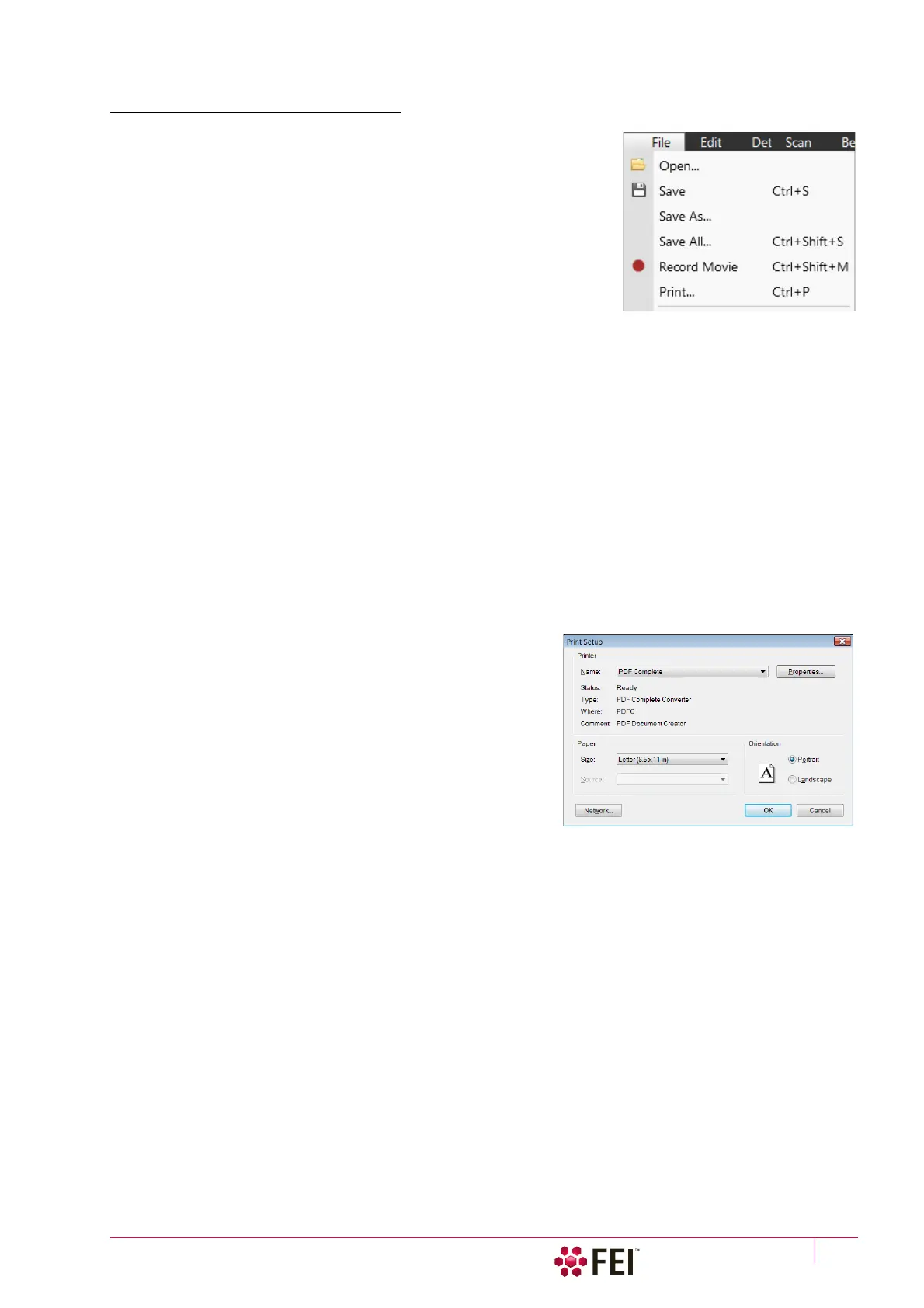
Saving / Opening / Printing
The following universal file handling functions can be used:
Image Capturing
1. Select the area of interest and set the Magnification, the Scan condition,
the image pixel Resolution and the Databar information that are required
in the saved image.
2. Make the best image using any suitable method you are familiar with.
3. Use the Pause (F6) / Snapshot (electron F4, ion Ctrl + F4) / Photo (F2) /
Active Preset Snapshot (Ctrl + F2) / Scanning Preset function. The scan
makes one display pass (or several passes when the number of
integrated frames is larger) and pauses.
Note
When applying the Shift key together with above mentioned acquiring functions, it works in all displays with the same
beam simultaneously.
Image Saving
• Save (Ctrl + S): stores the image to the predetermined location with the last used filename including an
incremental number.
• Save As:
opens a dialog for saving images (this provides an opportunity to change the file name, its location, and the
possibility to save also Databar and overlaid graphics). Both functions can be linked to the Snapshot / Photo function
(see the
Preferences
/
Scanning
section).
• Save All: (Ctrl + Shift + S) behaves the same way as Save As functionality, but enables to save images from all
four displays at once.
• Open: opens a single image file into the selected display. The dialog shows, by default, the location used in the
last Save As utilization.
Image Printing
1. Capture the image or open a saved one.
2. Click on the File menu / Print (Ctrl + P), the printer setup dialog
appears so that the choice of printer and settings can be
established to print the selected display.
3. Complete the print setup and click on the OK button to
activate the printer and print an image.



 To Next Page