Software Control: Microscope Control Software
C O N F I D E N T I A L – FEI Limited Rights Data 3-23
Toolbar
The toolbar is shown below the Menu bar is made up of functional graphical elements (icons, adjusters etc.) linked
to the most frequently used system controls.
Rest the cursor over the icon for two seconds without clicking on it to see its
explanatory tool-tip. Right-clicking on some toolbar icons calls up a context
menu with other functionality choices, for instance a user can move directly
to the Preferences setting (by clicking on the Edit item) or to change a mode
of value depiction.
Whenever a function is selected the corresponding icon is highlighted
(orange background) to indicate the function is active.
Note
If any icon represents a menu function, refer to the corresponding menu for its
description.
Undo / Redo
The undo / redo buttons assist to return / re-run the last actions. Actions used in history are
accessible by clicking the down arrow and they can be re-used separately or any continuous sequence
of actions can be selected and re-used as a group.
Note
Some particular actions (alignments etc.) cannot be returned and sometimes the system clears the history.
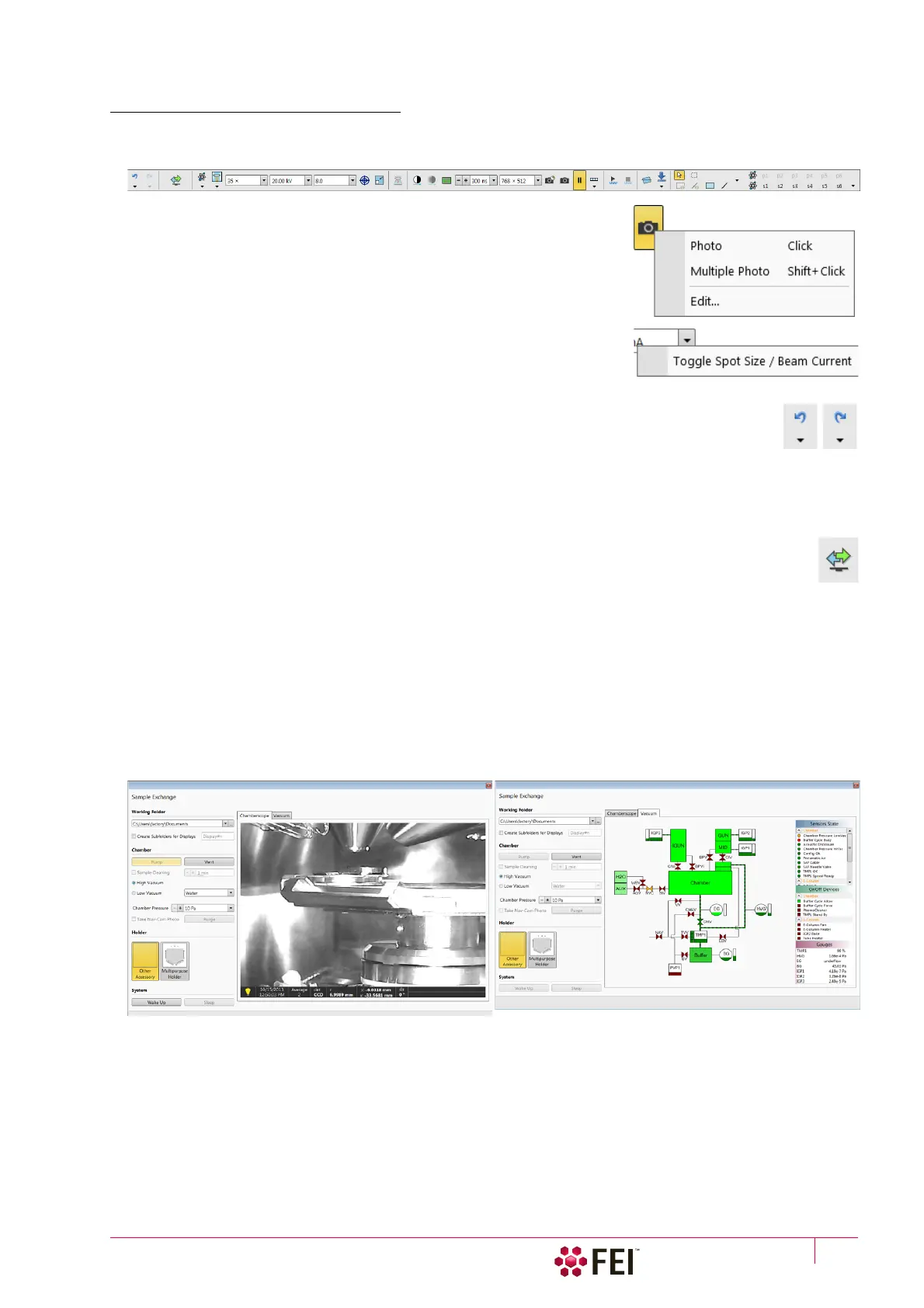
Sample Exchange
The window containing complete instructions for sample exchange and information about the system
vacuum status. In addition it is possible to set various working environment and start-up actions (see
Chapter 5):
• Working folder for images storing with subfolders for each display
• Setting Sample cleaning when pumping the chamber down
• Selecting Vacuum modes (High Vacuum / Low Vacuum) and associated parameters
• Take Nav-Cam Photo automatically
• Starting the sample chamber Purge process
• Stage Holder selecting
• Set System to Wake Up and to Sleep states



 To Next Page