Operating Procedures: Patterning
C O N F I D E N T I A L – FEI Limited Rights Data 5-55
Milling
To mill a pattern on the sample material set the stage (the sample area of interest) to the eucentric position and tilt
it to the 52°. Follow the procedures below.
Process optimizing
Use the Beam shift (MUI Shift X / Y knobs) to fine tune an imaging. It is used in many applications, such as fine
milling of cross sections to give a clean, vertical face to the section. Use it also to adjust for drifting or charging of
the sample. Acquire an image to monitor any change in mill position or carefully monitor the process via the real
time imaging.
Beam currents & Milling times
The appropriate beam current value depends on the sample to be milled and your experience with the sample
material. Lower beam currents are less destructive but take longer to mill. The following are guidelines only.
Specific parameters depend on your sample material and objectives.
Milling a Pattern
1. Select a desired pattern from the Patterning page / Pattern Type selector, draw a pattern on the area to be milled
in the selected display. If necessary, use the MUI Shift X / Y knobs or resize the pattern to correct positioning.
2. Store this position in the Stage module / Location list (you can easily return here after optimizing the imaging).
3. Focus and correct the beam astigmatism at the area adjacent to the pattern (not to affect the area of interest).
4. Select a beam for patterning and set its current value.
5. Set the Property Editor / Z size value in µm.
6. Acquire an image by clicking on the Snapshot button to confirm the pattern position.
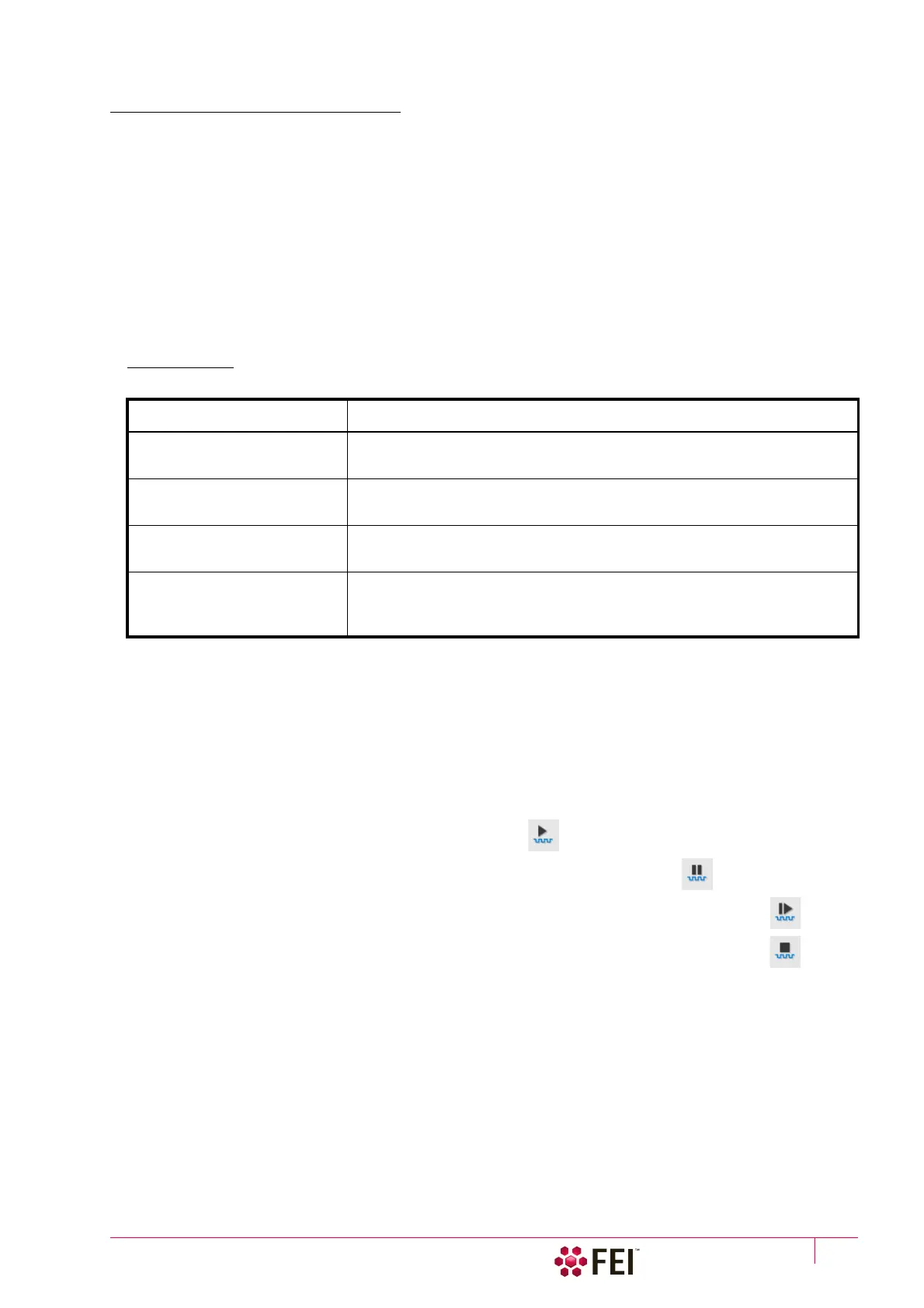
7. To start the milling click on the toolbar Start Patterning icon.
At any time you can stop a progress by clicking on the toolbar Pause Patterning icon.
To release (restart)
patterning from where it was left off click on the
toolbar Resume Patterning icon.
To reset patterning
click on the
toolbar Reset Patterning icon when patterning is stopped (paused).
If patterning is reset and started again by clicking on the toolbar Start Patterning icon (not regarding any
modification was done), it starts from the first pattern and all patterning clocks are set to zero.
Table 5-8
Beam Currents / Milling Times by Application
Milling Application Suggested Beam Current / Milling Time
Typical cross sections
(< 20 µm wide)
Try for a total time of 5–15 minutes, using 2–5 nA of current. Larger currents
cause more damage around the recess and fewer vertical walls.
Large cross sections
(very wide or deep ones)
Raise milling time to 15–20 minutes or more (beware of drifts),
using 5–20 nA current.
Cleaning cross section Use a value no less than one quarter to one half of the main current
(500, 300, 100, 50 pA).
Drilling or cutting tracks A drilling time from 1–4 minutes is adequate. The main limitations of short
drilling times are difficulty in doing End Point Detection and the possibility of
causing charge damage.



 To Next Page