Software Control: xT microscope Server Software
C O N F I D E N T I A L – FEI Limited Rights Data 3-5
xT microscope Server Software
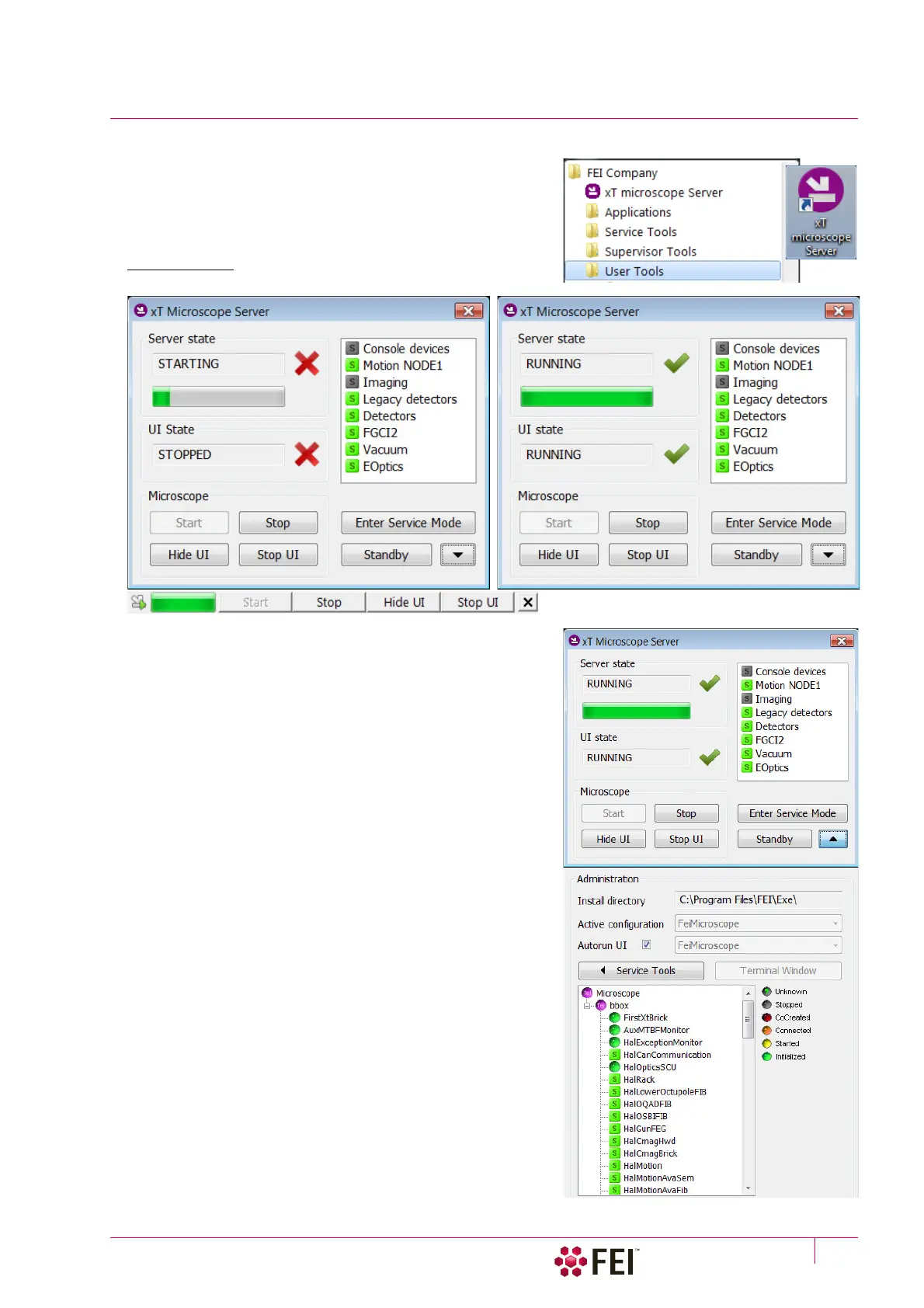
The xT microscope Server application starts and stops the software
service controlling basic microscope functions and also the user
interface (UI) Microscope Control software.
Start the xT microscope Server from the Windows Start menu or
by double-clicking the icon.
FIGURE 3-1 xT microscope Server window
Right-clicking on the title bar opens a context menu with options.
Double-clicking on the title bar switches the full and tiny view.
Some Microscope area buttons change its label and behaviour
depending on the actual state.
• Server State / UI State area – shows the STARTING / RUNNING
/ STOPPING / STOPPED state of the xT microscope Server /
Microscope Control software service.
• Clicking on the Start / Stop button starts / stops xT
microscope Server services. If the UI is running, the Stop
button closes it first.
• Clicking on the Start UI / Stop UI button starts / stops the UI.
• Clicking on the Show UI / Hide UI button shows / hides the UI
main window.
• Clicking on the Enter Service Mode button starts the special
mode intended for service actions.
• Clicking on the Standby button closes the UI, stops the xT
microscope Server services and brings the console to the
Standby state (see Chapter 2).
• Clicking on the Up / Down arrow shows the Administration area
containing information helpful for a service intervention.
(specifying the software operation / hardware function state).
When the Autorun UI checkbox is ticked (default), the Start
button automatically starts UI after starting the xT microscope
Server.



 To Next Page