Operating Procedures: Patterning
C O N F I D E N T I A L – FEI Limited Rights Data 5-45
Patterning Control Module
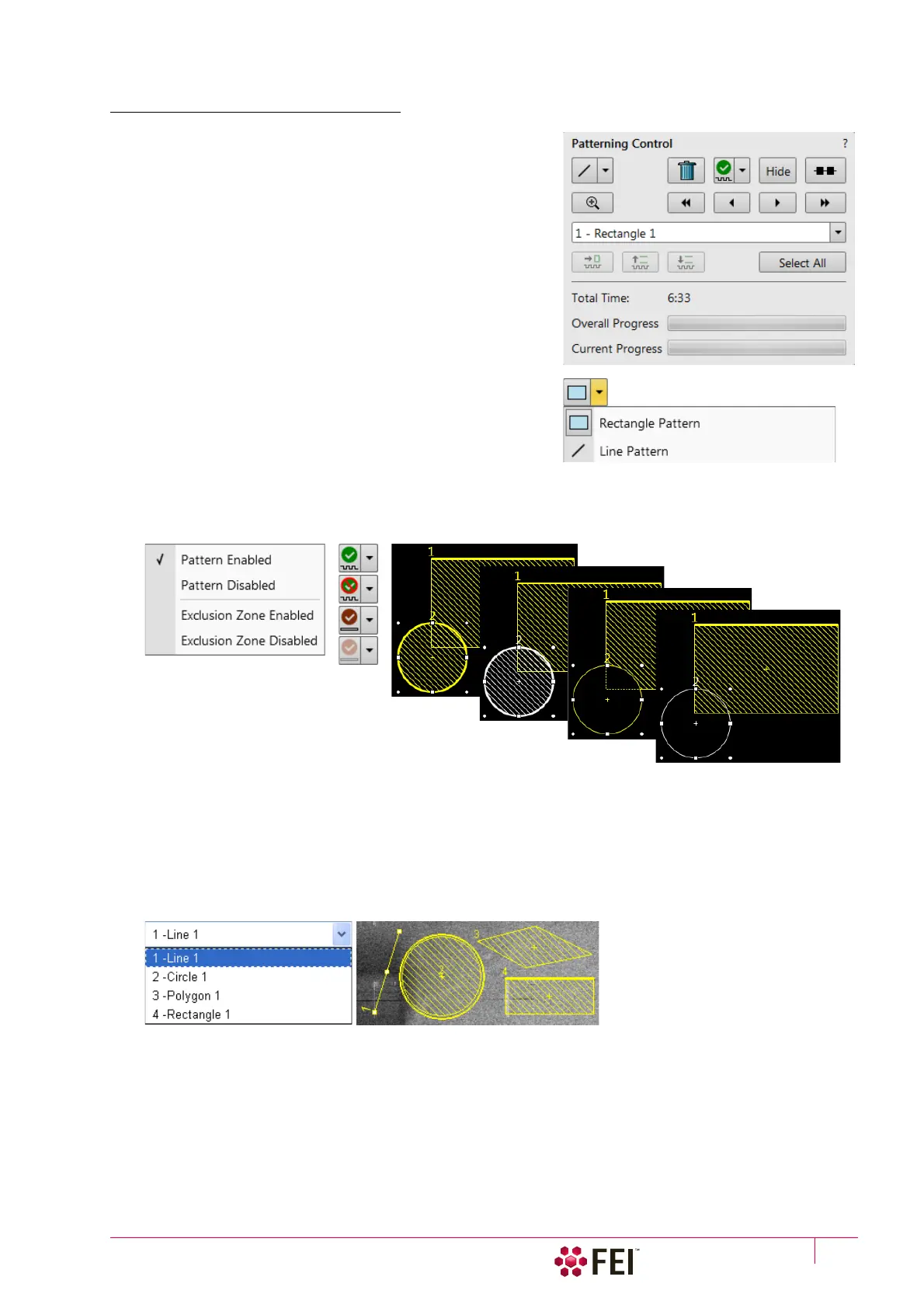
There are several tool icons and the progress monitoring area
within the module.
Tool Icons
Clicking on the icon activates (highlighted with an orange
background) / deactivates (normal background) the tool. If no
icon is selected, the pattern selection cursor (arrow) is active.
• Pattern type selector (see Toolbar icons also) – clicking on the
down arrow next to the icon reveals the drop down list to
select a pattern type:
Rectangle / Line / Circle / Cleaning Cross Section / Regular Cross
Section / Polygon / Bitmap / Stream File
• Trash Can (Delete) button – deletes the selected pattern(s)
• Pattern / Exclusion Zone (overlapping area of the two patterns) Enabled / Disabled button – sets selected pattern
/ exclusion zone between two patterns to be / not to be processed
Corresponding icon and pattern graphics color changes.
• Hide button – hides / shows all patterns, the button becomes highlighted / normal background
• Patterning Serial / Parallel sequence button – switches between two possibilities
• Zoom button – enlarges selected pattern / patterns to fill entire display
• Patterning sequence buttons – set the process order of the selected patterns
Patterns are milled in the order they are created. Numbers are shown close to the pattern and in front of its
name to indicate the actual milling order. This can be changed by clicking on the left / right arrow to move the
selected pattern one position up / down and by clicking on the left / right double arrow to move it to the first /
last position.



 To Next Page