Operating Procedures: Recording Movies (Saving Multiple Images)
C O N F I D E N T I A L – FEI Limited Rights Data5-26
Movie Procedure
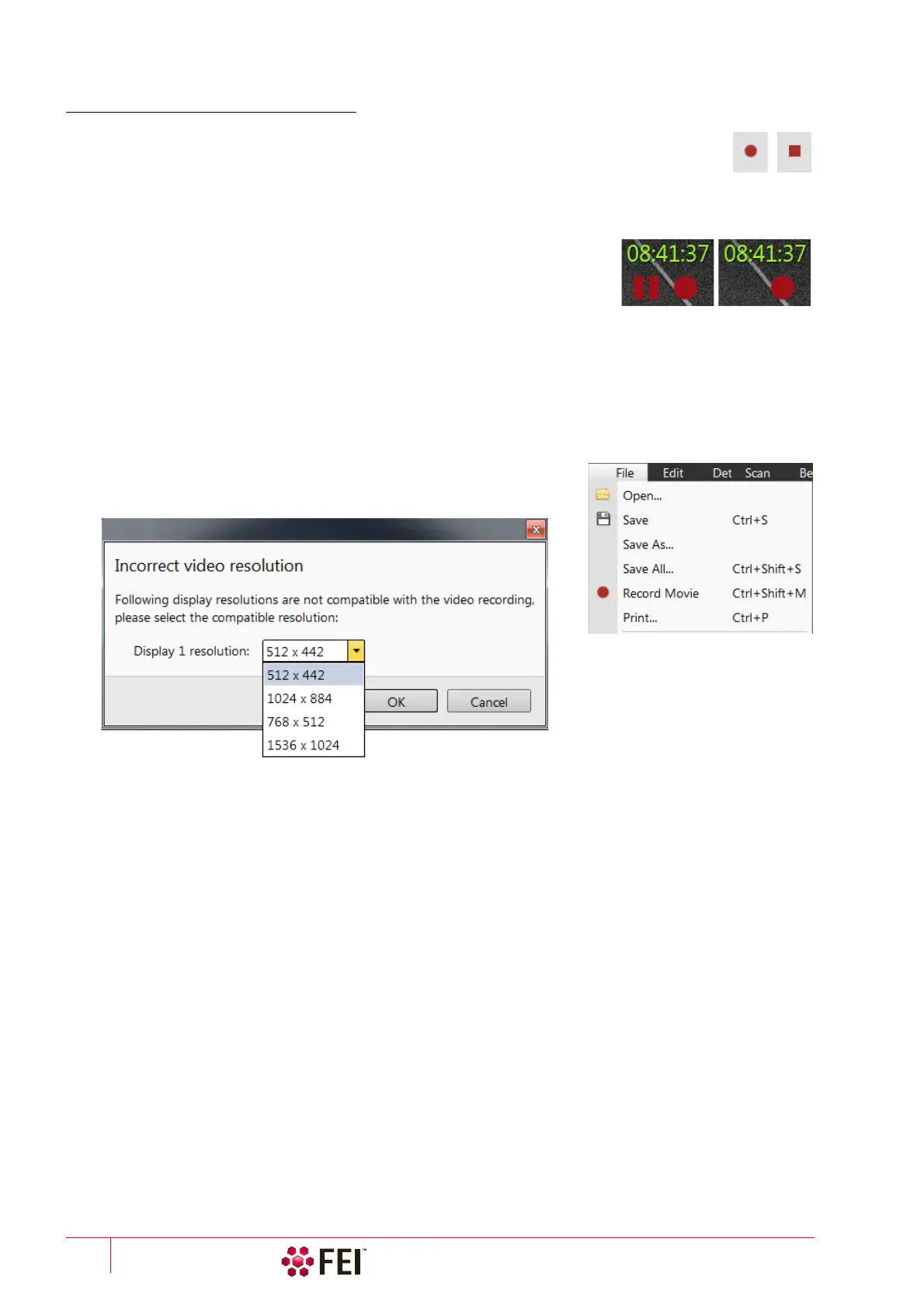
The File menu / Record Movie item (Ctrl + Shift + M) starts / stops recording of all active displays at
the same time – no video / images are stored for paused imaging. When an imaging in any display
is paused during the video recording, the storing of the video frames is interrupted but the video
streams keep synchronization for the next recording. The File menu / red dot icon changes to red
square when movie recording starts and vice versa. Video recording is stopped in all displays and all video files are
closed.
The red dot with the timer (shown in the top right-hand corner) indicates that
recording is active in this display. The Pause symbol indicates that the recording is
paused and the data from this display are not stored.
The timer indicates the time estimation (in the hh:mm:ss format) remaining to
the end of the video. This is calculated from the average disk space consumption
and the disk free space.
1. Open the Preferences / Movie section. In the Movie Timer module tick the Save AVI Movie and/or Save TIF Images
check boxes and select the desired Period (time between stored frames).
2. In the File Settings module fill in the File Name and give the Save in folder path. Fill in the Numeric Seed value and
the Video File Size. Select the File Type and choose whether to record the databar with the Record Databar check
box.
3. Pause those imagings which you don’t want to record.
Set up the imaging parameters.
4.
Select the
File
menu
/
Record Movie
or press keyboard key combination Ctrl
+ Shift + M to start the movie recording. When the scan resolution is higher
than 1536
× 1024 the dialog appears.
5. Choose either of the offered Resolution values at which the movie starts to record.
6.
Select the
File
menu /
Record Movie
again or press keyboard key combination Ctrl + Shift + M to stop the movie
recording.



 To Next Page