System Options: Nav-Cam #
C O N F I D E N T I A L – FEI Limited Rights Data7-12
Nav-Cam #
Besides the Sample Navigation / Navigation Montage feature this functionality represents a fast method to
navigate across a large stage movement area. It gives fine Navigation image quickly and easily, which is convenient
when investigating large area samples or several samples with the use of any multi sample holder.
Note
Nav-Cam operation is restricted for highly shiny and simultaneously planar specimens (Si wafers, mirrors etc.).
Capturing Navigation Image Procedure
1. Vent the chamber, open the chamber door, insert a sample and pump the chamber.
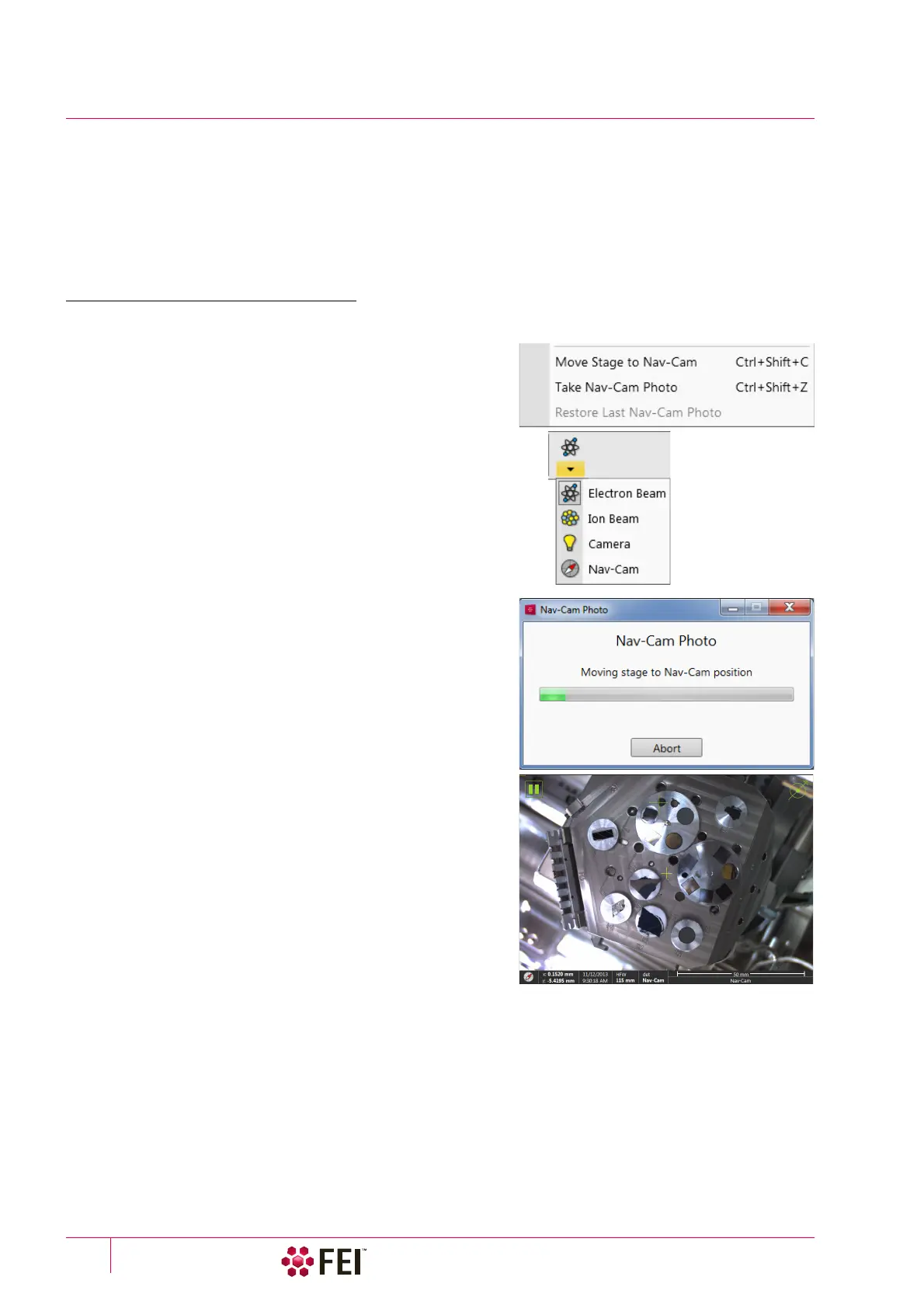
2. Select the Stage menu / Move Stage to Nav-Cam (Ctrl + Shift +
C) item to move the stage to the Nav-Cam position.
At this moment the beam and the detector changes to Nav-
Cam and a live imaging of navigation camera is obtained in the
active display (with the resolution of 768 × 512 pixels only).
Set the Detectors module / Brightness slider in case the imaging
is not satisfactory.
WARNING!
Retract all retractable detectors to prevent equipment damage!
Note
Run the Stage menu / Take Nav-Cam Photo (Ctrl + Shift + Z) item to
run steps 2., 3. and 4. automatically at once. It is possible to cancel
this procedure by the Abort button at any time, the stage remains in
the actual position.
3. Capture the Navigation image (with the high resolution of
3072 × 2048 pixels) by using the Snapshot / Photo function.
The image can be saved or adjusted like any other image taken
from the microscope (image enhancement, process etc.).
It is possible to capture the Navigation image after the Home
Stage procedure was run. For better image quality and
navigation accuracy it is recommended to run the Link Z to
FWD also.
Note
Wait until image capturing is finished (about several seconds).
4. Click on the Stage menu / Move Stage to Nav-Cam item again
to move the stage to the previous stage position.
A green rectangle (or just a cross) represents a place where
electron beam will aim.
Besides a navigation image the Digital Zoom module can be
applied to navigate the stage.
When the Preferences / General section / Show Stage Map in
Navigation displays item is set to Yes, saved stage positions are shown in the Nav-Cam photo.
In case a user logs off and the sample and its stage loading position did not change, use the Stage menu / Restore
Last Nav-Cam Photo.



 To Next Page