Software Control: Microscope Control Software
C O N F I D E N T I A L – FEI Limited Rights Data 3-9
Menu Bar
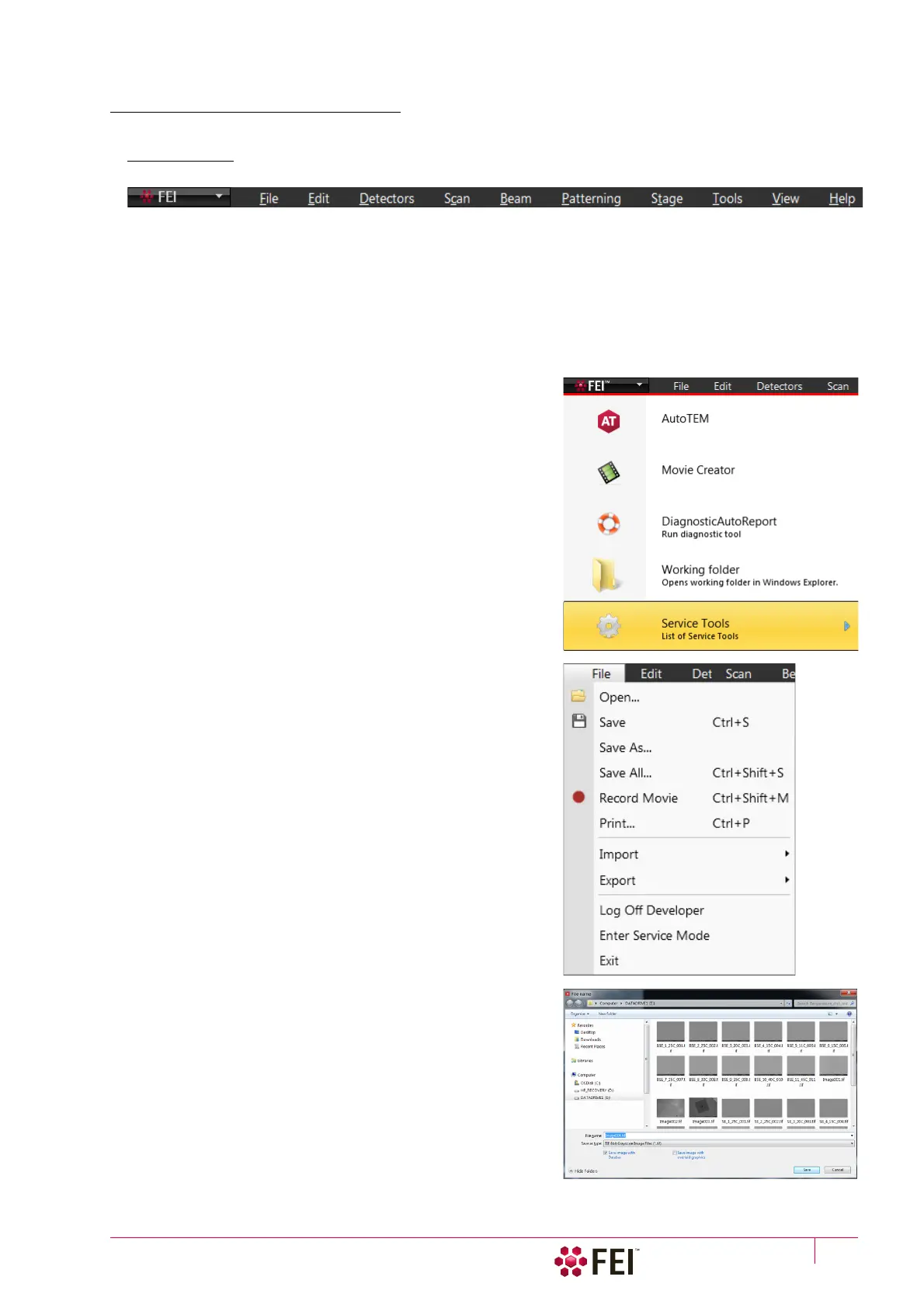
The pull-down menus are shown across the screen.
FIGURE 3-6 The Menu Bar
Select pull-down menus from the menu bar by:
• clicking on the Menu title
• Alt + underscored keyboard letters
• Alt + keyboard arrows + Enter button
Note
Some menu functions have their equivalents in the toolbar. In such cases, the corresponding toolbar icon is shown next to
the function title in the following text.
FEI Menu
Standalone applications for particular use are listed here and
ready to start.
• Movie creator
• Movie Creator
• Diagnostic AutoReport
• Working folder
• Service Tools
File Menu
opens File menu administrative functions:
Open
shows a standard dialog for opening images previously stored to
a media. Supported digital file formats are TIF8/16/24, JPG and
BMP (see Chapter 5). The dialog shows, by default, the location
(path) last used to open or save files from the UI.
Save (Ctrl + S)
saves the image using the format, location and base of name set
by the last used Save As function in that display. An incremental
suffix with a selectable number of digits ensures that every image
is saved as a new file, e.g. Name_001.tif, Name_002.tif, etc.
Save As
opens a dialog for saving images, which provides an opportunity
to change the file name and location. An image can be saved in
TIF8/16/24, JPG or BMP file format.
The dialog shows, by default, the location and the name last used
to save / open a file in the selected display. A user can change a
location, name base or suffix, select different image format (Save
as type), and also choose whether to Save the image with /
without Databar and with / without overlaid graphics by ticking /
clearing the appropriate check box. The settings is remembered
per display and used for the subsequent Save actions.



 To Next Page