Software Control: Microscope Control Software
C O N F I D E N T I A L – FEI Limited Rights Data3-10
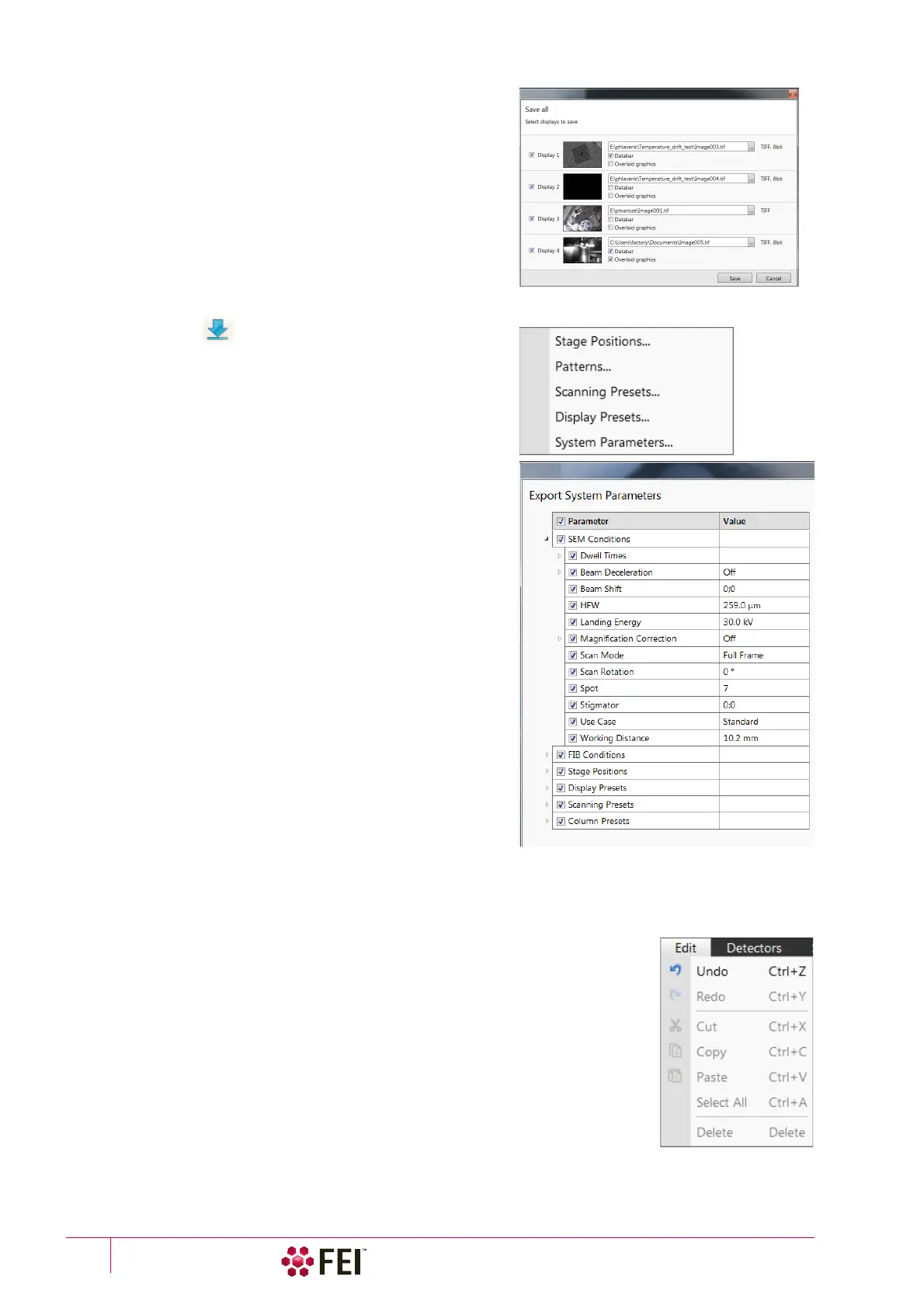
Save All (Ctrl + Shift + S)
opens common dialog for saving images from each display,
providing an opportunity to change the file names and locations.
Record Movie (Ctrl + Shift + M)
allows a user to make digital video files (AVI) for dynamic
experiments. The corresponding icon next to this menu item – red
circle / square indicates the movie recording is stopped / in
progress (see Chapter 5).
Print (Ctrl + P)
opens the print dialog enabling a choice of printer and settings
suitable to print an image.
Import / Export
opens a sub-menu with selection of importable / exportable
items. Selecting an item opens standard Open / Save As dialog
for choosing location and file name. Following items can be
imported (i.e. loaded and used) / exported:
• Stage Positions (.stg files) – stored stage positions
•
Patterns
(.
ptf
files)
–
active display parameters of (all) pattern(s)
By importing these parameters (all) exported pattern(s) is/are
drawn back in active display.
• Scanning Presets (.scp files) – preset scanning parameters
• Display Presets (.qps files) – active display parameters: Beam
type / Detector type / Detector Mode / Detector contrast &
brightness / Digital Contrast / Digital Brightness parameters
• System Parameters (.par files)
Wide range of selected actual microscope settings is stored,
including most of above mentioned ones. When importing
them back likewise only selected ones are loaded.
Log Off #user name#
logs off the present User and provides the Log On dialog for the
next microscope user. When a user logs off the system goes to a
safe state: the accelerating and detector voltages are switched off
automatically.
Caution!
Logging off the actual user does not close all microscope operations!
(see Chapter 2)
Enter Service Mode
starts the special mode intended for service actions.
Exit
closes the Microscope Control software (the actual user is automatically logged off first) and leaves a user in the
operating system environment. xT microscope Server is still running and controls the microscope in operation.
Edit Menu
opens some helpful functions:
Undo (Ctrl + Z) / Redo (Ctrl + Y)
reverts / restores some of the last used actions back.
Copy (Ctrl + C) / Cut (Ctrl + X) / Paste (Ctrl + V)
These functions represent commonly used operating system functionality.
Select All (Ctrl + A)
selects All graphics in the active display.
Delete (Delete)
deletes all selected graphics in the active display.



 To Next Page