System Control: System States
C O N F I D E N T I A L – FEI Limited Rights Data2-6
System Startup
In the Complete shutdown state the system is disconnected from all sources used for an operation. Connect the
following sources:
• electrical – power cord
• pneumatic – compressed air inlet
• cooling water – hose flanges
• operating gas – nitrogen inlet
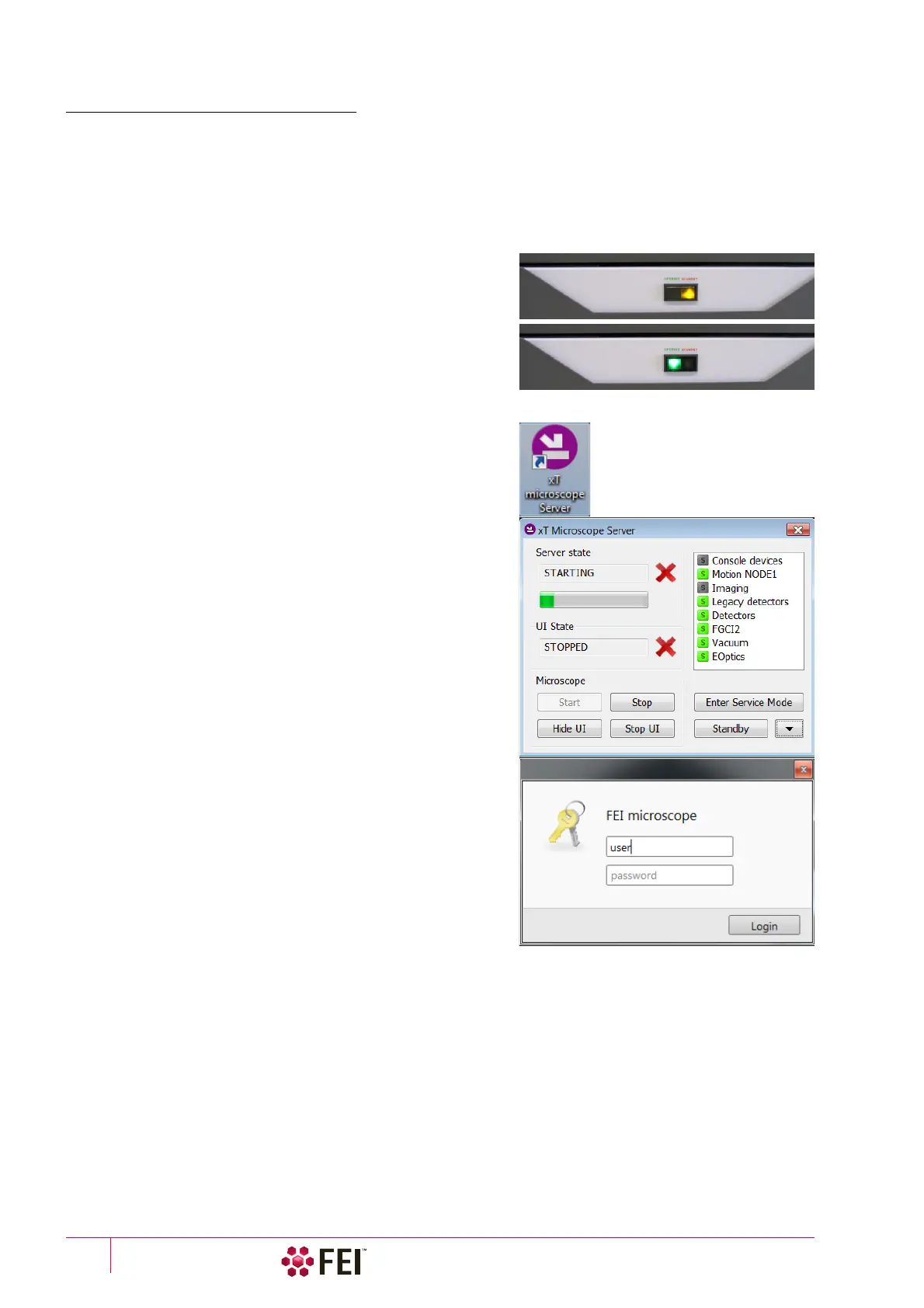
The amber color Power button on the Microscope console panel
starts to shine.
To bring the system to the Full operation state follow the
procedure:
1. Push the amber Power button on the Microscope console panel
– it changes to the green one
(a)
.
2. Switch on the Microscope PC. The operating system
(b)
Windows 7™ loads and shows the appropriate icons on the
monitor desktop.
3. Double-click on the xT microscope Server icon to start the
software (all seeming LED’s should be green – Initialized).
4. Click on the Start button to start the server. Wait until all
elements are fully functional (green – Initialized).
5. Click on the Start UI button to start the Microscope Control
software. The main window appears behind the UI Log On
dialog.
Note
This step can take place automatically, if Advanced / Autorun UI
check box is ticked.
6. Enter your Username and a Password
(b)
.
7. Start the electron column IGP pumps with the use of
the 5 – Emitter Startup alignment, Step 1 of 2. This procedure
takes a few minutes and the final IGP Upper pressure should be
< 5.10
-7
Pa to start the emitter.
8. Switch on the Emitter with the use of the 5 – Emitter Startup
alignment, Step 2 of 2. This procedure can take about 2 or 40
minutes (short or long procedure) depending on emitter
conditions.
If this is not possible, call a FEI authorized service engineer!
9. Start the ion column IGP pump with
the 100 – ION: Source Control alignment.



 To Next Page