Software Control: Software Interface Elements
C O N F I D E N T I A L – FEI Limited Rights Data3-2
Using the Mouse
The click on / right-click on / wheel-click on represents click on with the left / right / wheel mouse button on the
item throughout this manual. The click on & drag / right-click on & drag / wheel-click on & drag means holding the
mouse button during the action.
Click on & drag the cursor down the menu to a desired item and then release the mouse button.
Using the Keyboard
Press Alt + the underlined letter (for example,
Alt + F
for the File menu), and then select from the choices by clicking
on it or by hitting the
Enter
button after its location with the up / down (left / right for submenus) arrow keys.
Some often-used commands can be quickly activated with the use of shortcut keys (a combination of
simultaneously pressed keys) at any time. This possibility is given by a particular button combination on the right
side of the pull-down menu adjacent to the appropriate command (see Help menu / Keyboard Shortcuts item).
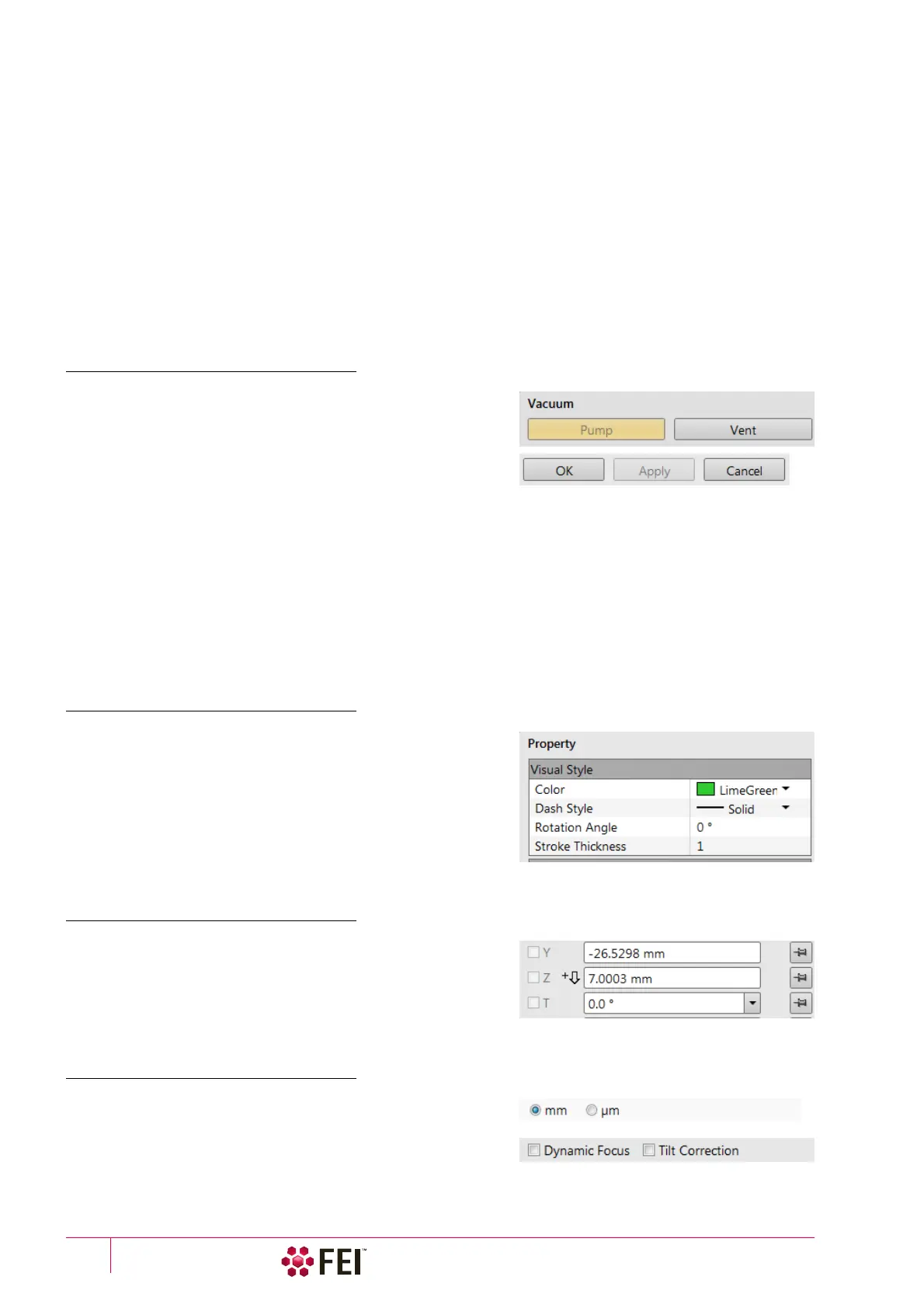
Command Buttons
carry out or cancel functions. They activate when clicked and
some are highlighted (color background) to show the
corresponding function activity.
Command buttons have labels that describe the actions
performed by clicking on them. The most common ones, which
are typically used in dialogs are:
•
OK
button
–
applies all changes made in the dialog and closes it.
• Finish button – saves new settings, ends the procedure
and closes the dialog
.
• Save button – saves new settings at that point without closing the dialog.
• Apply button – saves and applies new settings at that point without closing the dialog.
•
Cancel
button
–
discards all changes (made from the last save) and closes the dialog. It has
the same effect as closing
the dialog with the cross (Alt + F4).
• Next button – moves a user to the following dialog after necessary settings have been done.
• Previous button – moves a user to the previous dialog when settings need to be changed.
Property Editor
Here is the list of related parameters and their values. A user
should click on in the Value side of the relevant property Name
and then select its value from the drop down list or enter it using
a keyboard.
Edit Boxes
One can input text information (such as passwords, labels or
precise numbers) using the keyboard within an corresponding
edit box. Some edit boxes, which are not part of a dialog, require
to confirm the input by pressing the Enter key. If you press the Esc
key before leaving the edit box, its previous value is restored.
Radio Buttons / Check Boxes
Within a group of related round Radio buttons, only one selection
can be active at any time by clicking on the individual box.
A single one or a group of square Check boxes can be ticked /
cleared by clicking on the individual square box.



 To Next Page