C O N F I D E N T I A L – FEI Limited Rights Data 3-1
3
Software Control
This chapter describes the functionality of each part of the user software interface within the Windows 7™
operating system:
• xT microscope Server
• Microscope Control (UI – User Interface)
• FEI Account Manager
Software Interface Elements
Icons
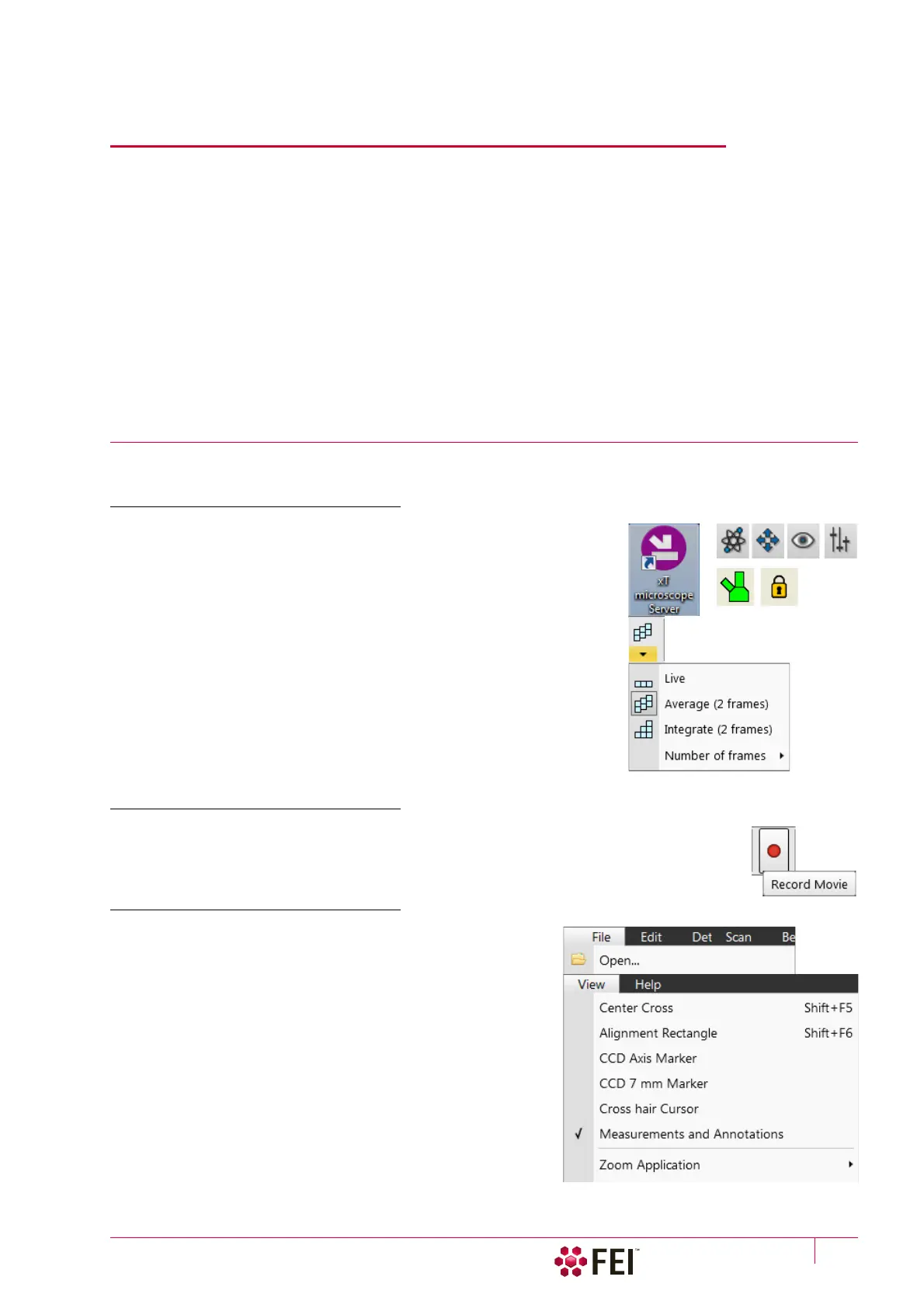
Icons are small symbols indicating a specific software application. Double-
click on the icon placed on the desktop or within a folder to activate the
program.
There are also functional icons in the toolbar for selecting some software
functions quickly. Clicking on them causes it to be highlighted and
activated, clicking on them again or clicking on another one (depending on
a particular case) causes it to become normal and deactivated.
Some functional icons have additional down arrow. Clicking on the arrow
shows a pull-down menu with choices, while clicking on the icon performs a
particular function (cyclic changeover of choices, setting the default
parameters etc.).
There are also some informational icons in the status bar, for instance, that
indicate some particular system statuses.
Tool-Tips
This functionality activates when the cursor is left over an item on the user interface for more
than two seconds. A short explanation of the item appears until the cursor is moved away from it.
Pull-down Menus
The microscope uses menu-oriented software; you perform
functions by choosing items from the Menu bar. The Menu bar
selections contain pull-down menus that show grouped listings
of available commands or settings. Some menu items are shown
in grey and cannot be selected because of the system immediate
condition.
Pull-down menu items followed by the ellipsis (…) indicate that
this is a command and a dialog box will show. A right arrow on
the right side indicates that an additional submenu of choices will
show. If a selection is a parameter value, the new value is updated
immediately and a check mark appears in the pull-down menu.
Context Menus
Right-click on some items to call out the context menu with
another corresponding choices.



 To Next Page