Software Control: Microscope Control Software
C O N F I D E N T I A L – FEI Limited Rights Data 3-17
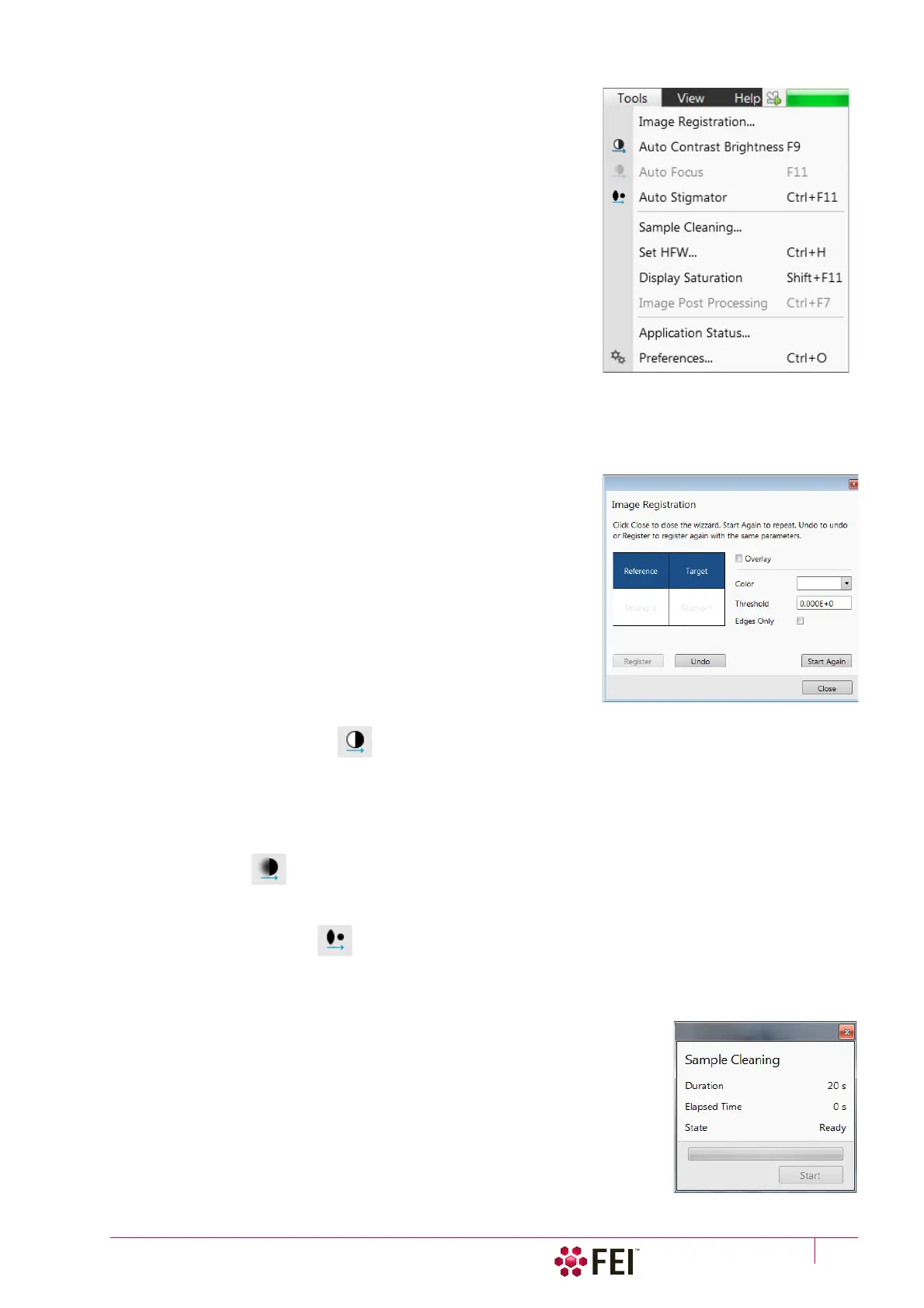
Tools Me n u
opens the Tools menu functions:
Image Registration
This functionality is used to interconnect images of the same area of
interest acquired from different sources or at different conditions (for
instance images acquired from optical and SEM microscopes, images
acquired at various depth of focus etc.).
Click the To ol s menu / Image Registration item and follow the prompts at
the top of the window:
1. Select the display with the Reference image.
2. Select the display with the Ta rg et image (the one that will be
transformed).
3. Select 1, 2 or 3 corresponding pairs of points in both the reference
and target images.
Note
When selecting 1 point, image is shifted only, 2 points shifts and rotates it
and by selecting 3 points it is skewed furthermore.
4. Click the Register button to apply the transformation.
Click the Close button to close the Image Registration window.
Click the Start Again button to repeat the procedure in the same way
with the changed (or another) target and reference images placed in
the same or different displays. Clicking the Undo button restores the
image to the situation before the last transformation.
Clicking the Overlay check box shows a copy of a registered target
image (in selected Color) over the reference image which reveals a
quality of the registration and enables to compare information from
both images. The Threshold value (0 to 255) determines which gray
levels of the target image are shown in the overlay and the Edges Only
check box ensures to display only the edge outlines.
After registration the micron bar and magnification of the target image
take on the same values of the reference image. Any operation that is
applicable to an acquired SEM image can be applied to a transformed
image, including saving a file.
Auto Contrast Brightness (F9)
activates the automatic contrast and brightness routine. The system attempts to set the Contrast and Brightness of
the selected detector in the selected display to suit the actual sample and conditions so that the majority of grey
levels is shown. This functionality is available for both beams and for paused imaging also.
Note
Pressing the Shift + F9 hot key starts the Auto Contrast Brightness functionality in all live displays.
Auto Focus (F11)
activates the automatic focus routine for either beam. The system attempts to correct focus at any working
distance.
Auto Stigmator (Ctrl + F11)
activates the automatic procedure to correct an astigmatism.
Note
Auto-functions are only enabled during live imaging.
Sample Cleaning
This feature starts the sample cleaning procedure according to the Plasma Cleaning
alignment (see Chapter 4). The procedure removes thin contamination layers
which could typically be formed by hydrocarbons residues remaining on vacuum
parts after conventional cleaning or could be transferred into the microscope
chamber with a sample.



 To Next Page