Software Control: Microscope Control Software
C O N F I D E N T I A L – FEI Limited Rights Data3-20
Large Image Window (Ctrl + F5)
This function activates / deactivates the full screen imaging on the secondary monitor.
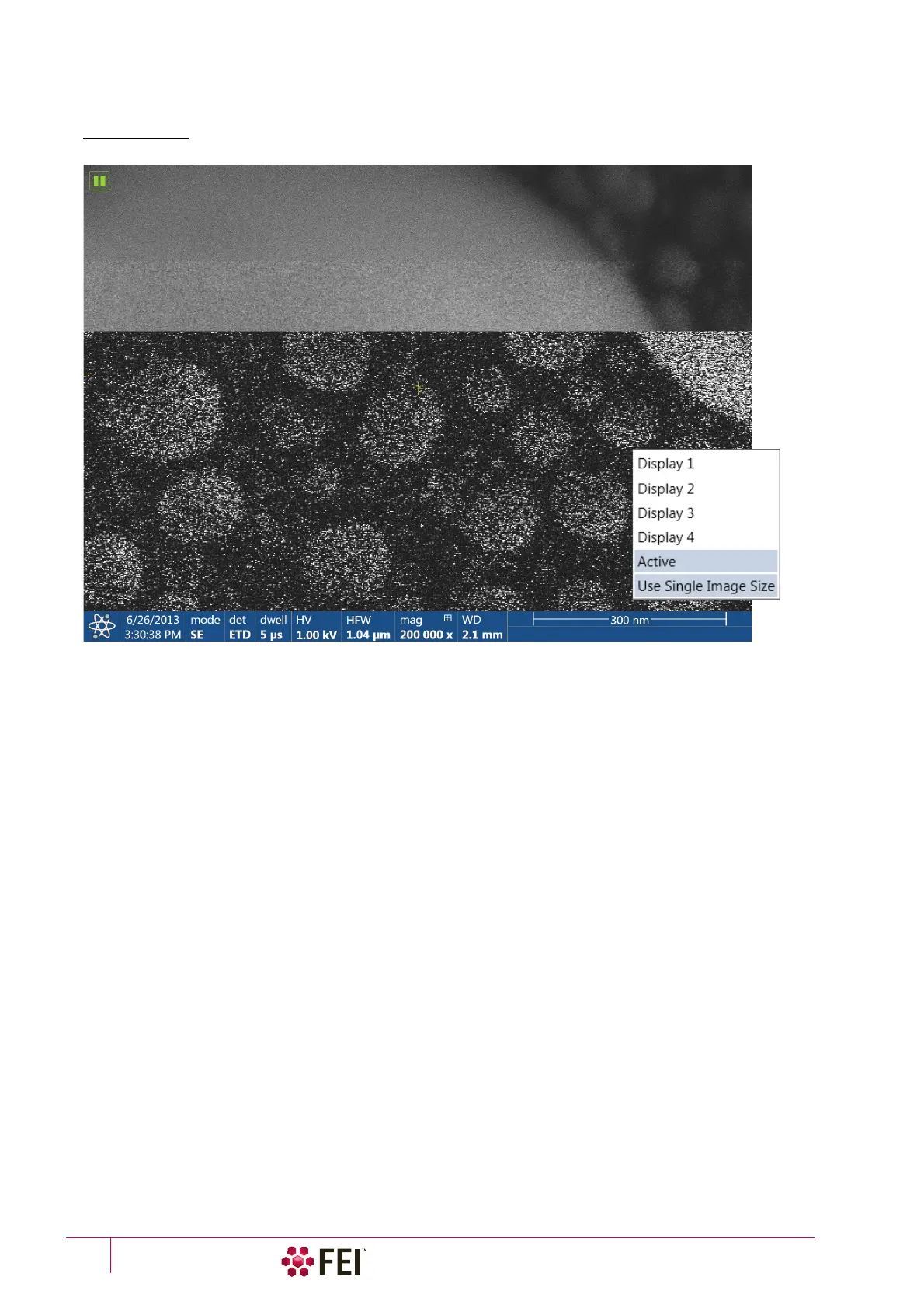
FIGURE 3-9 Large Image Window
Large Image Window Configuration
Here one can select, whether to show the
Active
display, or any selected one. Activating the
Use Single Image Size
option sets the imaging window size corresponding to Single Image mode size. These options are also available in the
bottom right corner of the large image window.
Remote Mode
When ticked this feature enables a correct UI imaging at the remote site. It is also used for a remote servicing. Use
of this function decelerates slightly UI performance.
Full Screen
Selecting this option sets the application to be shown full screen, de-selecting it shows the application as a window
within the screen.
Single / Quad Image Mode (F5)
toggles the imaging area between two possibilities:
• Single Image mode shows one display over the whole UI imaging area – useful for observing details.
• Quad Image mode is useful for comparing imaging of the same sample area taken with different beams,
detectors or scan conditions.
In the Single Image mode, the selected display fills up the screen.



 To Next Page