Software Control: Microscope Control Software
C O N F I D E N T I A L – FEI Limited Rights Data3-26
Scanning presets
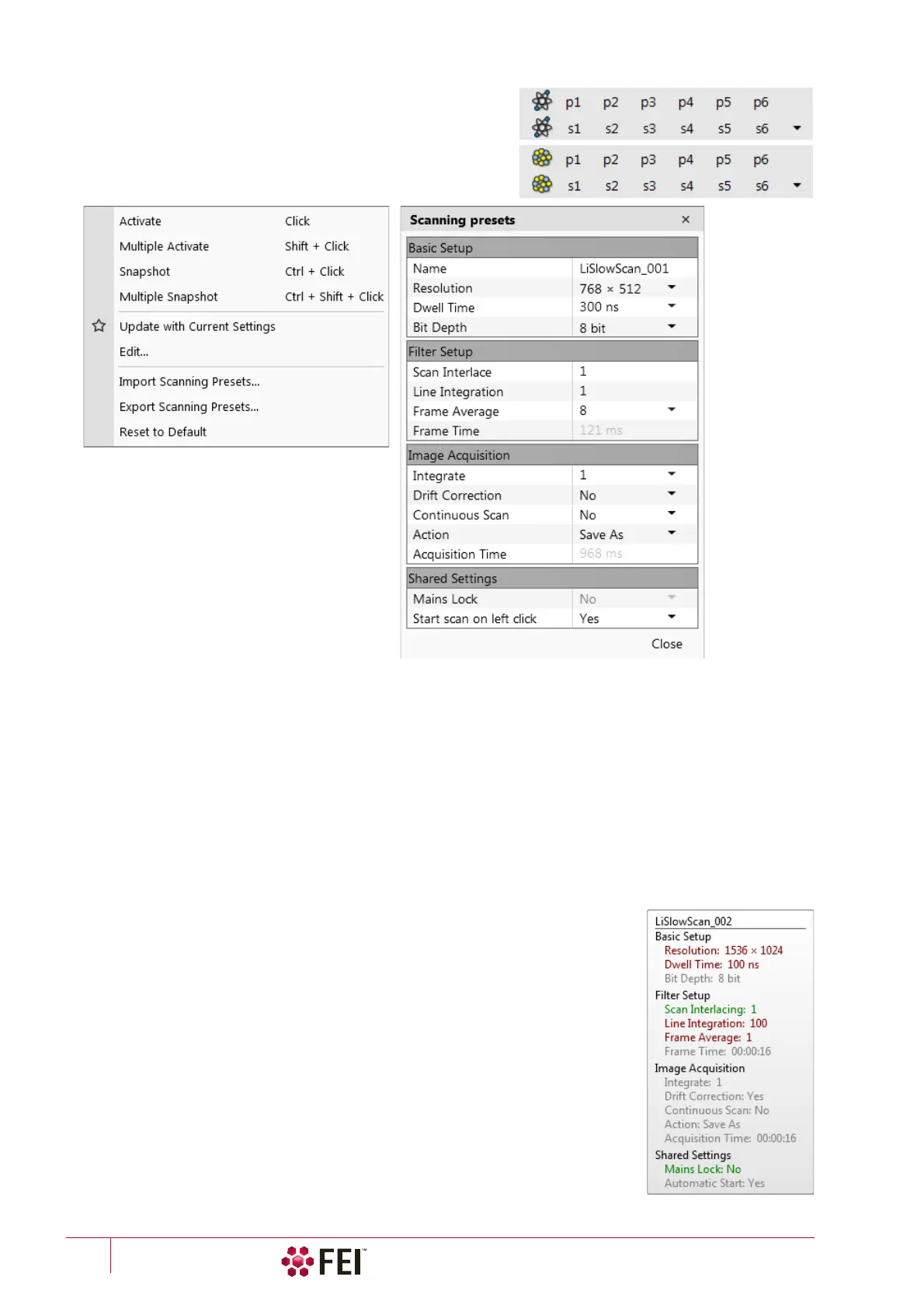
By default there are 6 factory toolbar Scanning presets (labelled
s#) for each (electron / ion) beam. Clicking on any one starts
image acquiring with corresponding parameters.
Right-clicking on any Scanning preset button calls up the context
menu:
• Clicking on the Activate item highlights the button (orange background) and starts image acquiring or just
activates the preset according to the Scanning presets property editor / Shared Settings section / Start scan on left
click item setting (Yes / No). The Multiple Activate item has the same functionality in all compatible displays
(same beam).
To start image acquiring is possible also using the Scan menu / Active Preset Snapshot (Ctrl + F2) item.
• Clicking on the Snapshot / Multiple Snapshot item starts snapshot acquiring from selected / all compatible
displays.
• Clicking on the Update with Current Settings item updates selected Scanning preset with actual scanning
settings.
• Clicking on the Edit item opens selected Scanning preset property editor. It is also possible to use the toolbar
dpwn (expand) / up (hide) arrow with the same effect.
• It is possible to Import / Export Scanning Presets from / to a file (.scp).
• Clicking on the Reset to Default item brings all settings to the factory presets.
A tooltip is shown when leaving mouse cursor over any preset button giving
parameters overview. Parameters color indicates:
• Green: actual microscope setting matches the column preset
• Brown: actual microscope setting differs from the column preset
• Grey: Value is not relevant when respective component is switched off



 To Next Page