Graphical Caregiver Interface (GCI)® Controls
Centrella® Smart+ Bed Instructions for Use (193587 REV 10) 79
– New Room—press this control to associate a different room to the bed. The Available
rooms screen will show. See “Associate a Room to the Bed” on page 76. After you make the
room selection, the zeroing process will continue.
– Continue—press this control if the bed is not to be associated to a room and the bed is not
in a patient room. The zeroing process will continue.
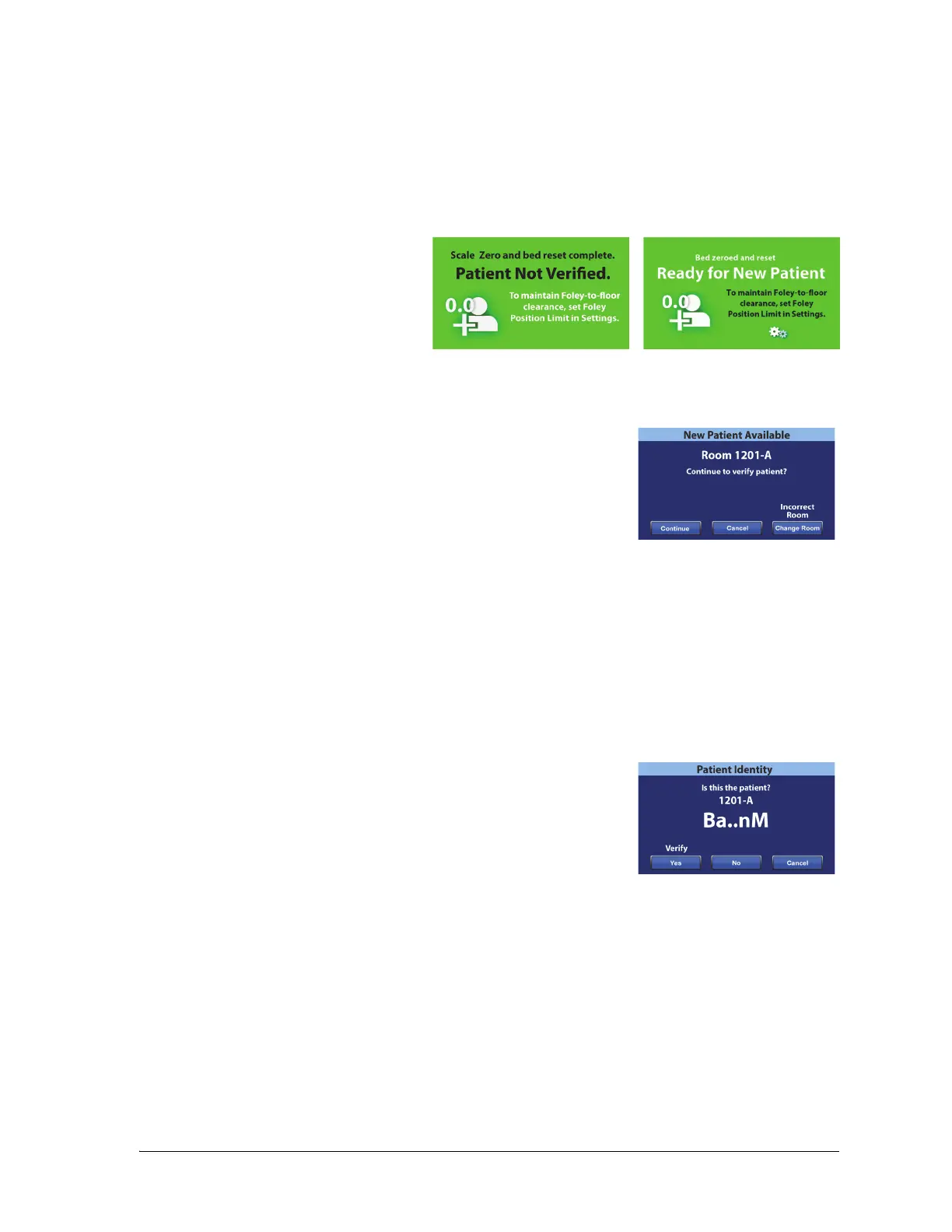
At the end of the zeroing process, you will see one of these screens as applicable:
New Patient Assignment and Bedside Association
When a new patient is assigned to the bed through the ADT system, this
screen will show and stay on the screen until the question is answered.
Also, a repeating tone will sound. You have these options:
• Continue—press this control if the room number shown on the
screen is correct and you want to verify the patient. See “Verify
the Patient Identity” on page 77.
• Cancel—press this control if you do not want to verify the patient. The Home screen will show.
• Change Room—press this control to associate a different room to the bed. The bed will retrieve
room data, and then the Available Rooms screen will show. See “Associate a Room to the Bed”
on page 76.
Weighing and Bedside Association
When Bedside Association is On and you press the Weigh control, the screen that shows may differ
depending on whether the patient identity has been verified:
• Patient Identity Verified—you will be asked to re-verify the
patient identity so that the weight data can be sent to the
electronic medical records (EMR). You have these options:
– Yes—press this control if the patient identity shown is correct. The weighing process will
continue. At the end of the weighing process, a confirmation screen will show “Current
weight sent to EMR.”
– No—press this control if the patient identity shown is not correct. A Patient ID Issue screen
will show. From that screen you can choose to save the weight to the bed (the weighing
process will continue) or cancel the weighing (the Home screen will show).
– Cancel—press this control if you do not want to verify the patient identity. The Weigh/Zero
screen will show; a weight will not be taken.



 To Next Page