Graphical Caregiver Interface (GCI)® Controls
80 Centrella® Smart+ Bed Instructions for Use (193587 REV 10)
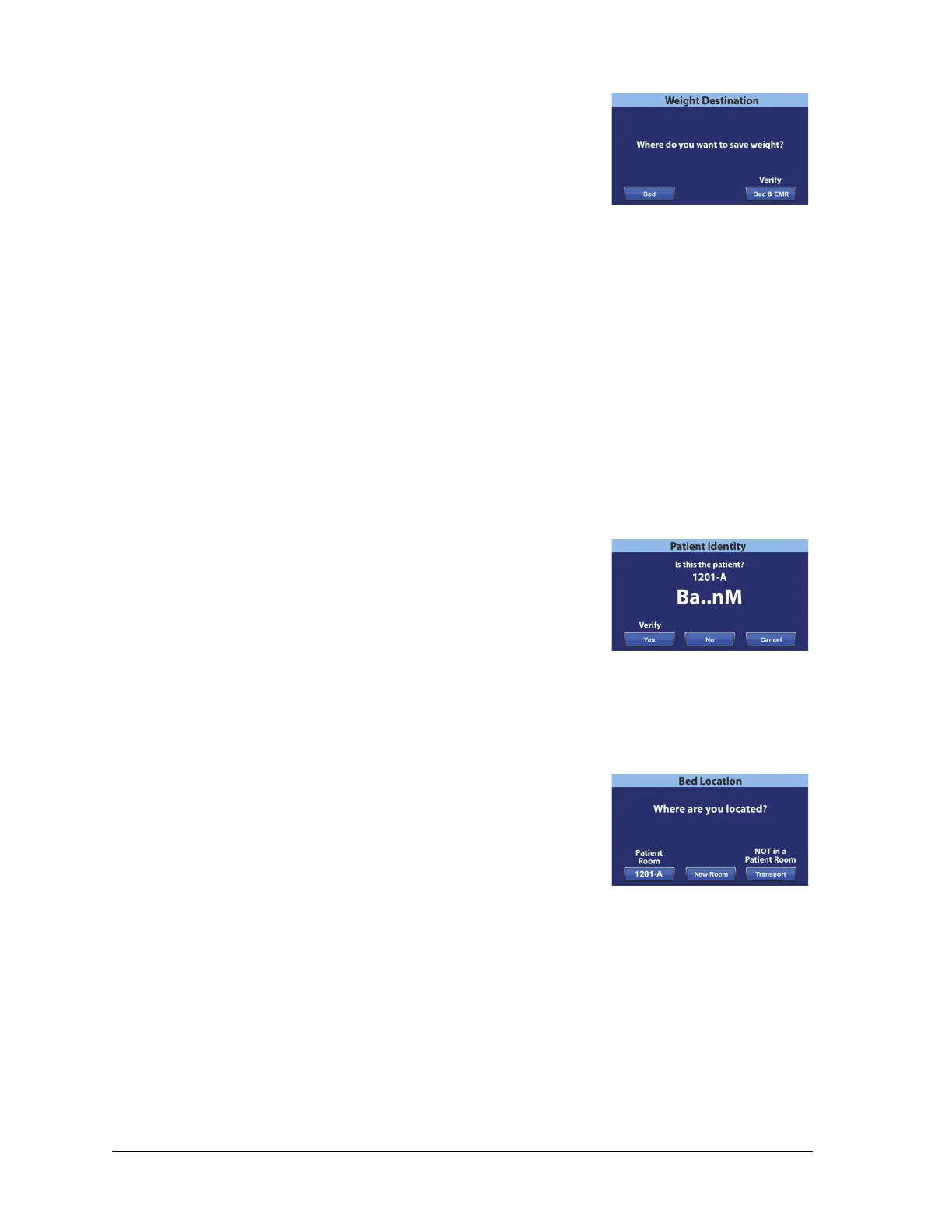
• Patient Identity not Verified—you will be asked where to
save the weight. You have these options:
– Bed—press this control if you want the weight saved to the
bed only. The weighing process will continue. At the end of
the weighing process, a confirmation screen will show
“Current weight saved to bed.”
– Bed & EMR—press this control to save the weight to the bed and EMR. You will be asked to
verify the bed association and, if applicable, patient identity.
• If a room is associated to the bed, you will be asked to verify the patient identity. See
“Verify the Patient Identity” on page 77.
• If a room is not associated to the bed, a location selection screen will show. See
“Associate a Room to the Bed” on page 76.
When the bed location and patient identity have been verified, the weighing process will continue
unless the weighing is canceled. At the end of the weighing process, if the patient identity has
been verified, a confirmation screen will show “Current weight sent to EMR.”
HR/RR Monitoring and Bedside Association
When you turn on the HR/RR Monitoring while Bedside Association is On, you will be asked to verify the
bed location and, if applicable, patient identity.
• If you are verifying the bed location and patient identity, the
Patient Identity screen will show. You have these options:
– Yes—press this control if the patient identity shown is
correct. The Room Associated and Patient Verified icons
and HR/RR will show on the Home screen.
– No—press this control if the patient identity shown on the screen is not correct. You will be
directed to contact the unit coordinator / charge nurse. Press Okay to go to the Home
screen. The Room Associated and No Patient icons and HR/RR will show.
– Cancel—press this control if you do not want to verify the patient identity. HR/RR will
remain Off.
• If you are verifying the bed location only, the Bed Location
screen will show. You have these options:
– Patient Room (room number)—press this control if the
room number is correct. The Room Associated icon and
HR/RR will show on the Home screen.
– New Room—press this control to associate a different room to the bed. The Available
rooms screen will show. See “Associate a Room to the Bed” on page 5. After you make the
room selection, the Room Associated icon and HR/RR will show on the Home screen.
– Cancel—press this control if you do not want to verify the bed location. HR/RR will remain
Off.
If a room is not in the bed’s memory, a room location selection screen will show. See “Associate a Room
to the Bed” on page 76.



 To Next Page