Section 4 Scan Mode - Monochrome 4-12
2.4.3 Density
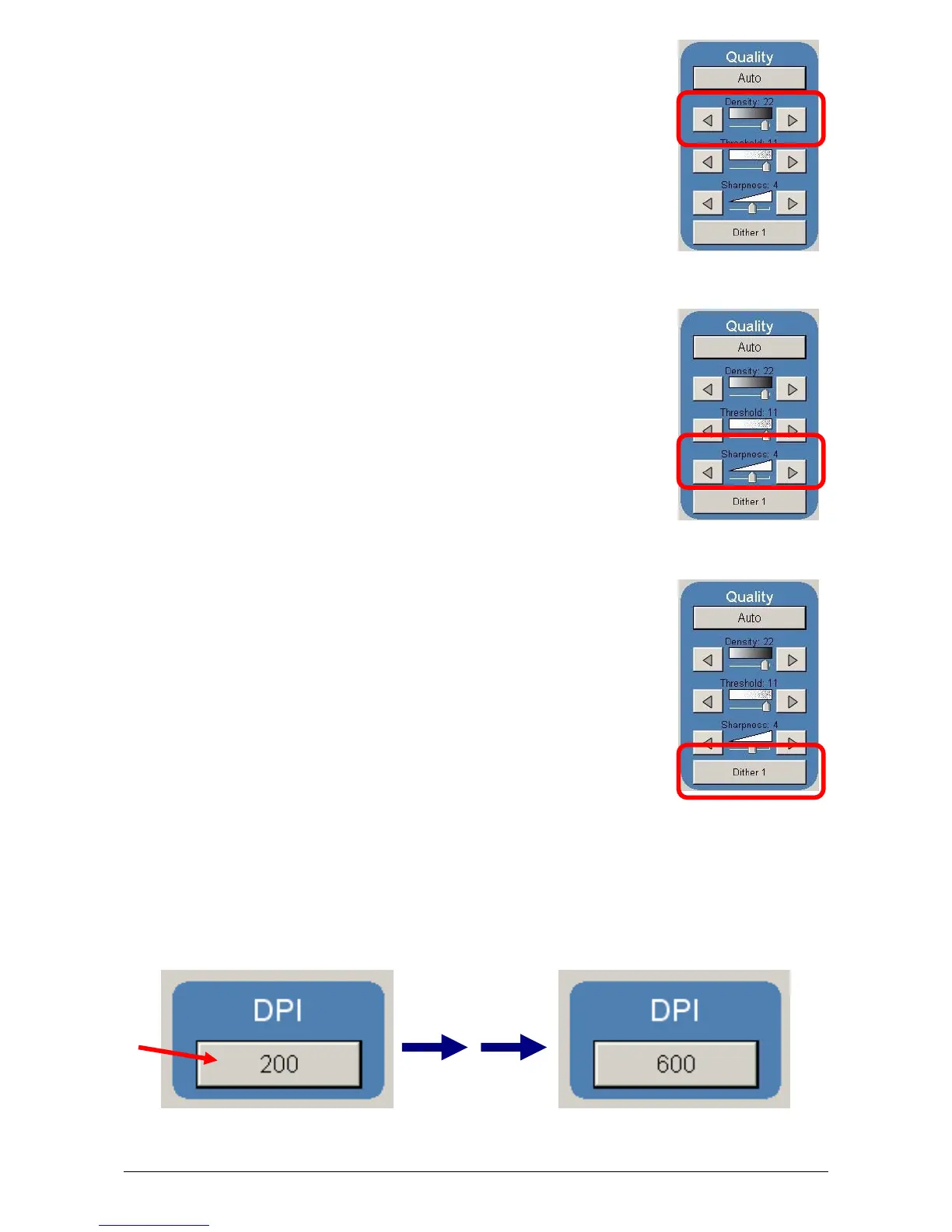
To override the “Automatic” settings, “Density” can be adjusted.
Deselect “Auto” to enable “Density”.
Pressing the arrows manually adjusts the background density. This
will suppress or enhance the background from the original.
2.4.4 Sharpness
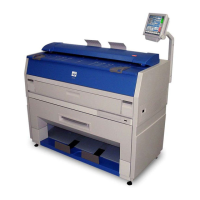
To override the “Automatic” settings, “Sharpness” can be adjusted.
Deselect “Auto” to enable “Sharpness”.
Pressing the arrows manually adjusts the line sharpness to remove
rough lines or when photos are scanned to allow for smoother
graduations.
2.4.5 Dither
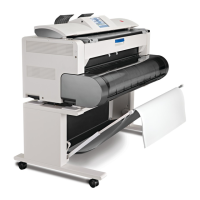
To override the “Automatic” settings, “Dither” can be adjusted.
Deselect “Auto” to enable “Dither”.
By pressing the dither button,
a) None
b) Fine
c) Medium or
d) Course
This will change how the dots are arranged to create the final image
of the scan. For fine lines a “Course” dither pattern may be desired.
For Photos “None” may be desired.
2.5 DPI
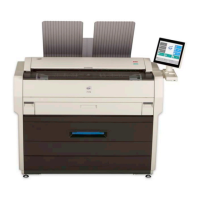
Scroll through the DPI button to select the required scan resolution.
Choices are 200, 300, 400 or 600 DPI.
300 400


 To Next Page