Section 10 KIP Request 10-22
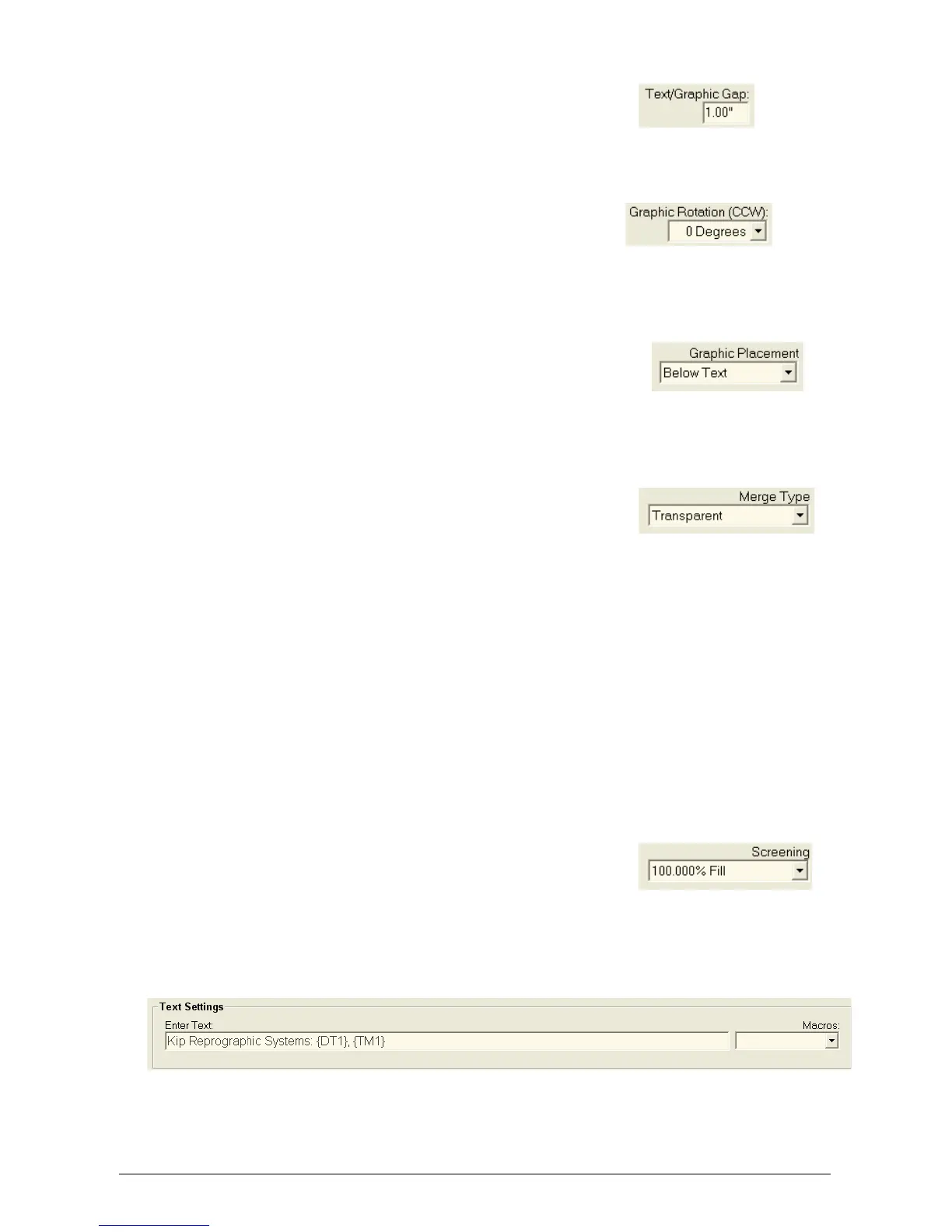
2.5.4.8 Text / Graphic Gap – Text Field
This applies a separation of up to 5” between
the Text and Graphic stamps.
2.5.4.9 Graphic Rotation – Pull down
Allows the user to rotate (counter clockwise)
the graphic portion of their stamp in 45°
increments. User may also click on the “Logo”
in the Stamp Placement area to cycle through
the Graphic Rotation options.
2.5.4.10 Graphic Placement – Pull down
Determines the placement of the graphic in
relation to the applied text. This is ignored if
text is not applied.
2.5.4.11 Merge Type – Pull down
A. Opaque
This option displays the stamp on top of
the image. The background of the stamp
is white and will obscure some image.
B. Transparent
This option overlays the stamp on top of
the image. The background of the stamp
is transparent.
C. Invert
This option displays the stamp on top of
the image. Colors are inverted where the
data intersects
2.5.4.12 Screening – Pull down
This allows the user to define the screen level
(shading) of the stamp using pre-set screening
percentages.
2.5.4.13 Text Settings Area
Enter the text of the stamp. Add a Macro within the text if desired.
2.5.4.14 Macro – Pull down Menu
Choose a macro from the list to apply information at print time, such as
Requester name, time of day, etc.


 To Next Page