Section 5 Scan Mode - Color 5-14
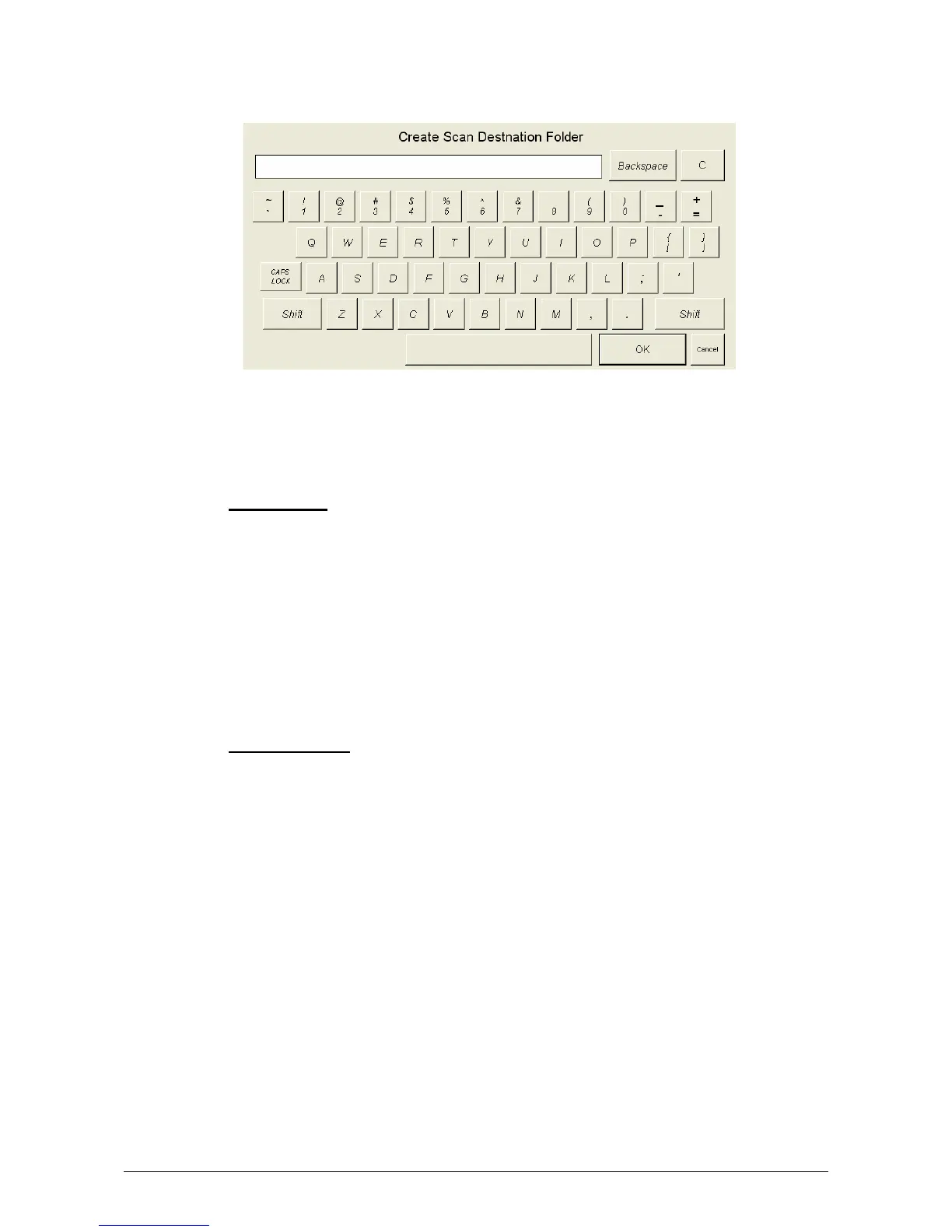
c) Select Mailbox Name. A screen keyboard will be displayed.
Enter the new Mailbox name.
d) Enter the new location using standard protocols of networking for scans to the:
IPS Mailbox
Set a name for the location
Examples:
Dsmith
B_Project
Team_XYZ
Michele
Access to these folders and the scanned images is preformed from the KIP
Request application. Please see the User Guide of “KIP Request” for the
retrieval function.
FTP Locations
Please contact your network administrator for details on how to configure
and load FTP locations into the KIP printer Scan Mode. ( Administrator /
Service Functions of the KIP printer ) Please see your network administrator
for access to your FTP and the retrieval of the documents from the FTP.
2.7.4 SMB Setup
2.7.4.1 Share Setup – Workstation/Server
When setting up a share at a workstation or server, it is necessary to have
some information ahead of time.
• User must have rights to share a folder
• User must know where the access rights are held
o Rights are local to the PC or Domain (Active Directory)
• File and Print Sharing must be enabled within the Windows XP firewall
settings
• User must be able to read, write and modify the destination SMB
folder
• User must know login username and password


 To Next Page